GitHub Integration
qtrace can connect to GitHub so that repositories can be scanned from the qtrace portal. Scans run on your own GitHub Actions runners, and only the cryptographic findings are sent to quant0.
Prerequisites
Before connecting GitHub:
- You must have access to the GitHub account or organization containing the repository you want to scan.
- Your qtrace organization must have accepted the qtrace data-processing consent.
- You must be able to install or authorize the qtrace GitHub App for the repositories you want to connect.
1. Accept qtrace data-processing consent
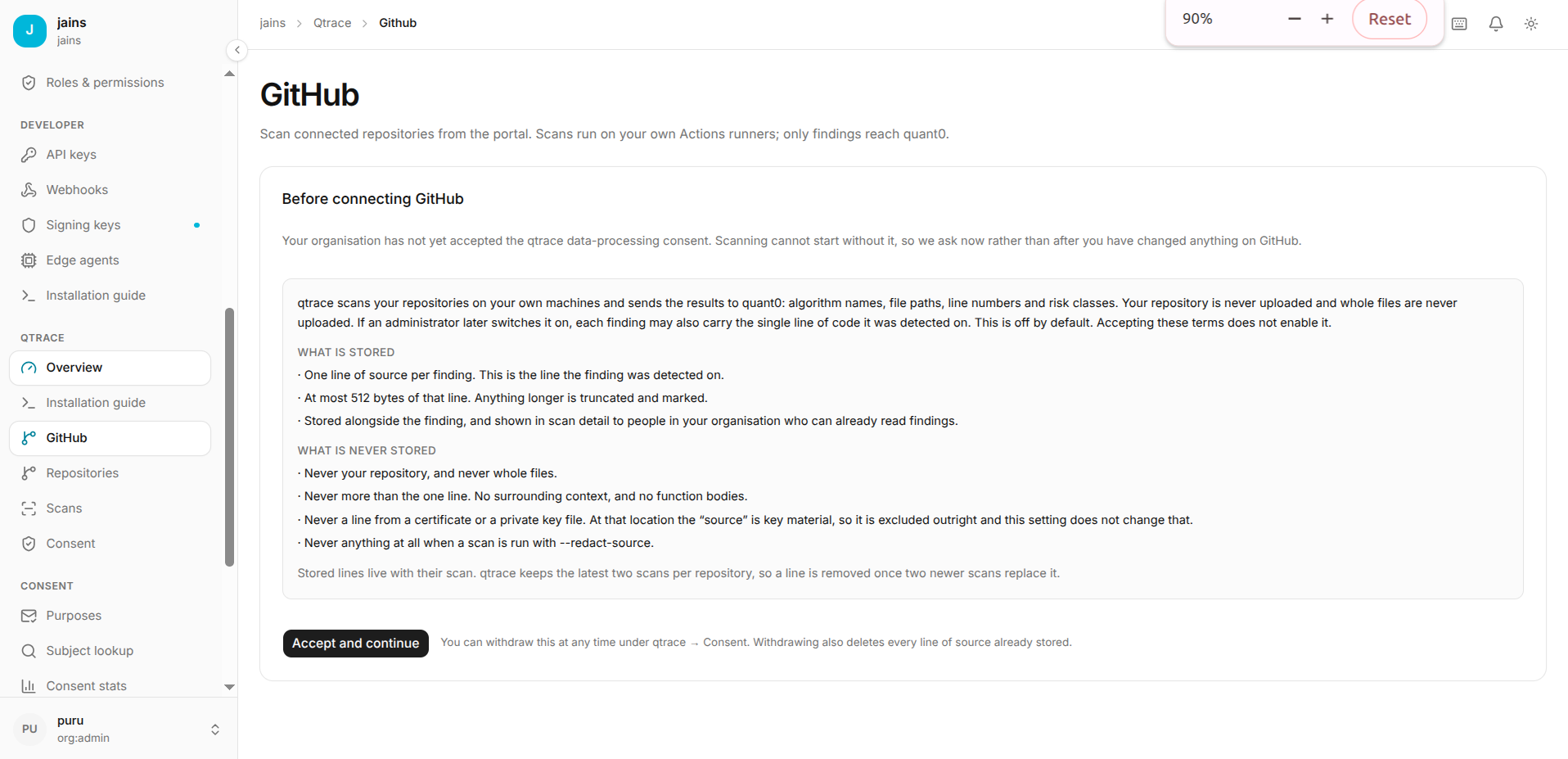
When GitHub has not been connected yet, qtrace first displays the Before connecting GitHub consent screen.
Review the information about what qtrace stores and what it does not store, then select Accept and continue.
What the consent screen explains
According to the consent screen:
- qtrace scans repositories on your own machines and sends cryptographic finding information to quant0.
- A finding can include the algorithm name, file path, line number, and risk class.
- Source-code storage is disabled by default.
- If source storage is enabled later by an administrator, a finding may include the single source line where it was detected.
- At most 512 bytes of the detected line are stored; longer lines are truncated and marked.
- Whole repositories and whole files are not stored.
- Surrounding source context and function bodies are not stored.
- Lines from certificate or private-key files are excluded.
- A scan run with
--redact-sourcedoes not store source text. - Stored source lines are retained with the scan, and the screen states that qtrace keeps the latest two scans per repository.
2. Start the GitHub connection
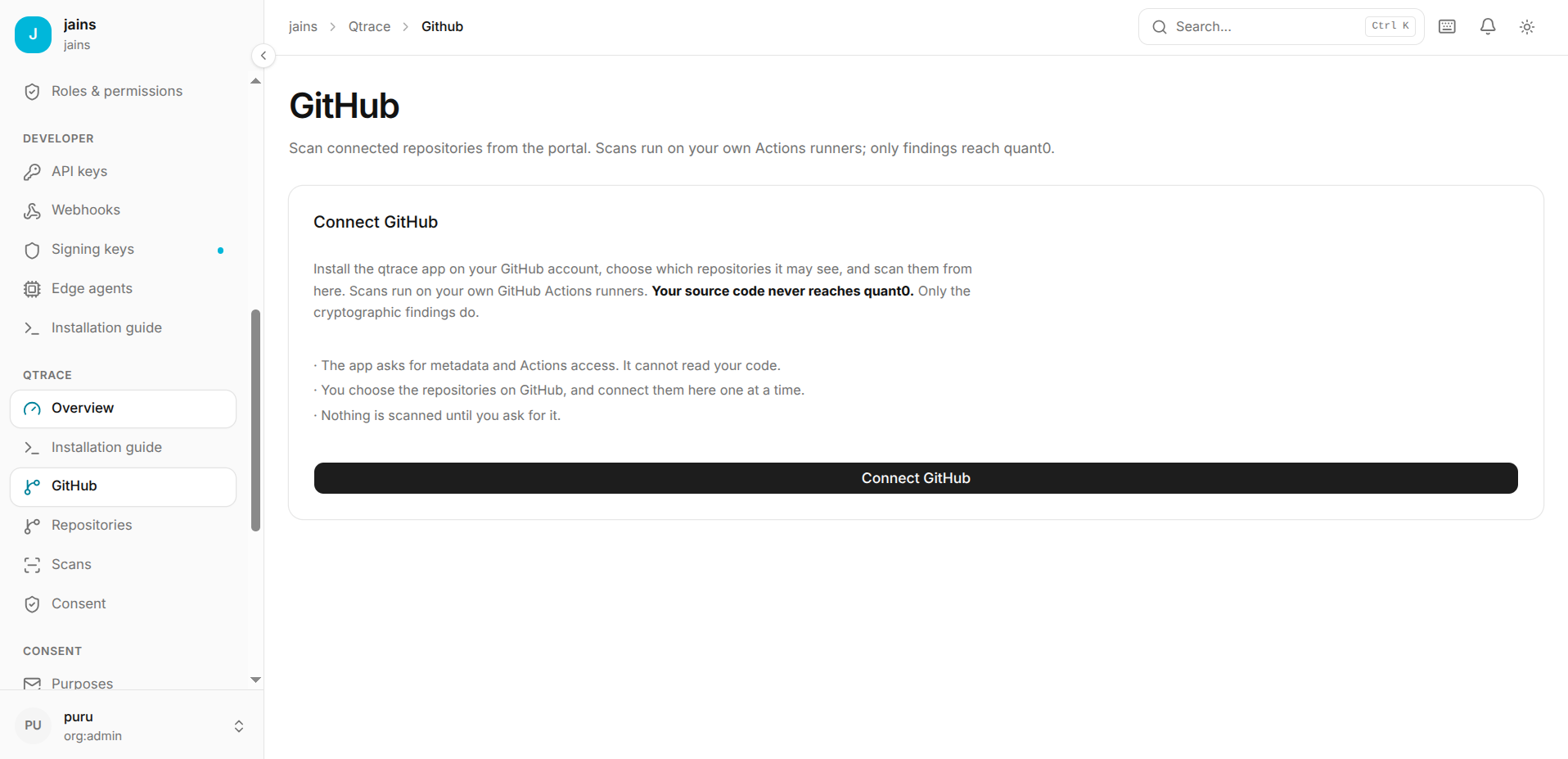
After accepting the consent, qtrace displays the Connect GitHub page.
Select Connect GitHub to start the GitHub App installation flow.
The connection screen explains that:
- The GitHub App requests metadata and Actions access.
- The App cannot read your source code according to the displayed permissions description.
- You choose which repositories the App can access.
- Repositories are connected from the qtrace portal.
- Nothing is scanned until you explicitly request a scan.
3. Install the qtrace GitHub App
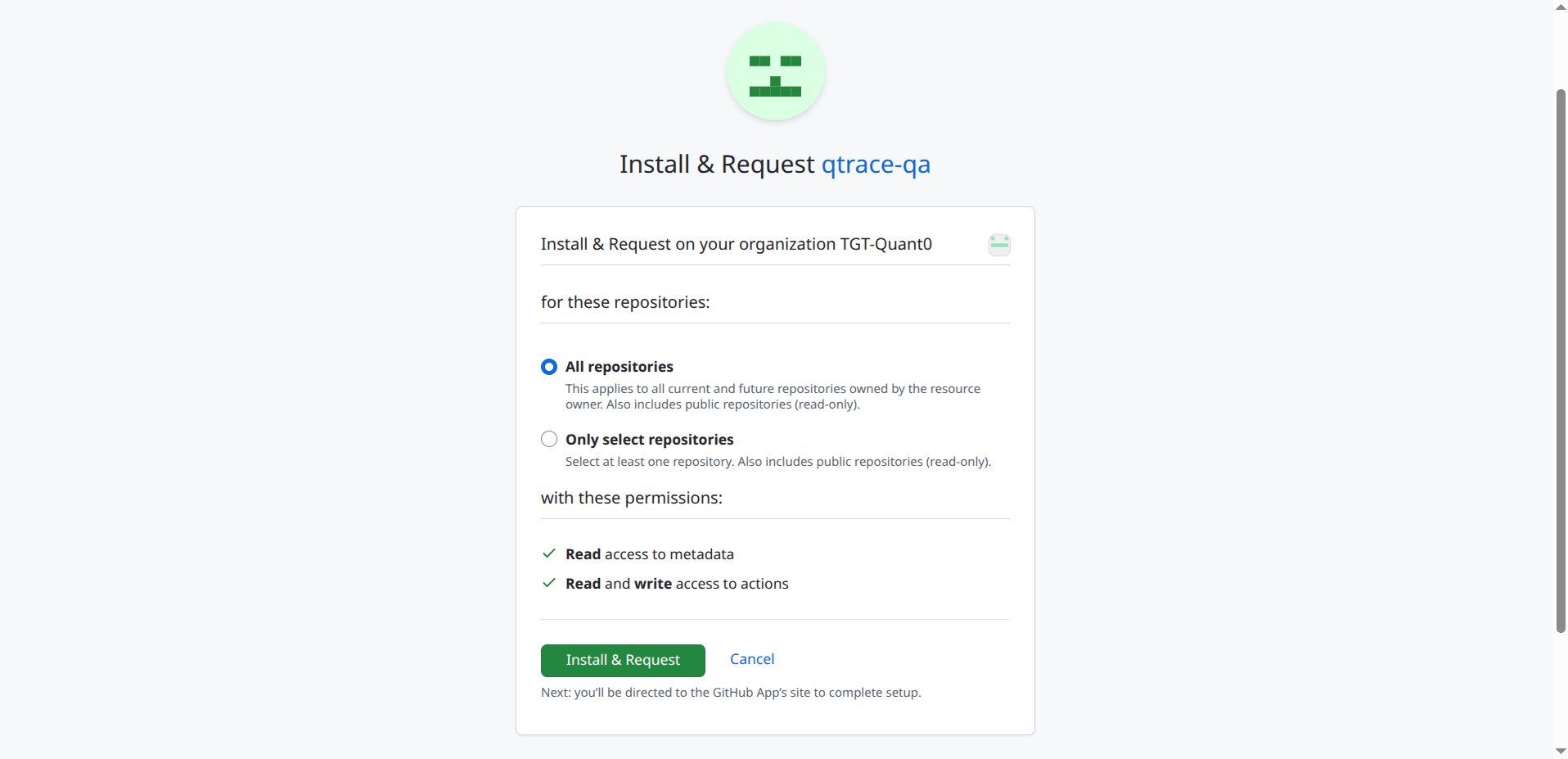
You are redirected to GitHub to install the qtrace GitHub App. In the installation flow, GitHub asks where the App should be installed and which repositories it can access.
4. Select repositories
GitHub provides two repository-access options:
- All repositories - grants the App access to all current and future repositories owned by the selected resource.
- Only select repositories - limits the App to repositories that you explicitly select.
For a controlled integration, select Only select repositories and choose the repository or repositories that qtrace should be able to scan.
Required permissions
The installation screen shown in the screenshots lists:
- Read access to metadata
- Read and write access to actions
Review the permissions and repository selection, then select Install to complete the GitHub App installation.
5. Return to qtrace and refresh repositories
After installing the GitHub App, return to the GitHub page in qtrace.
The repository list may initially show no repositories. The page instructs you to add repositories to the GitHub App installation and then select Refresh.
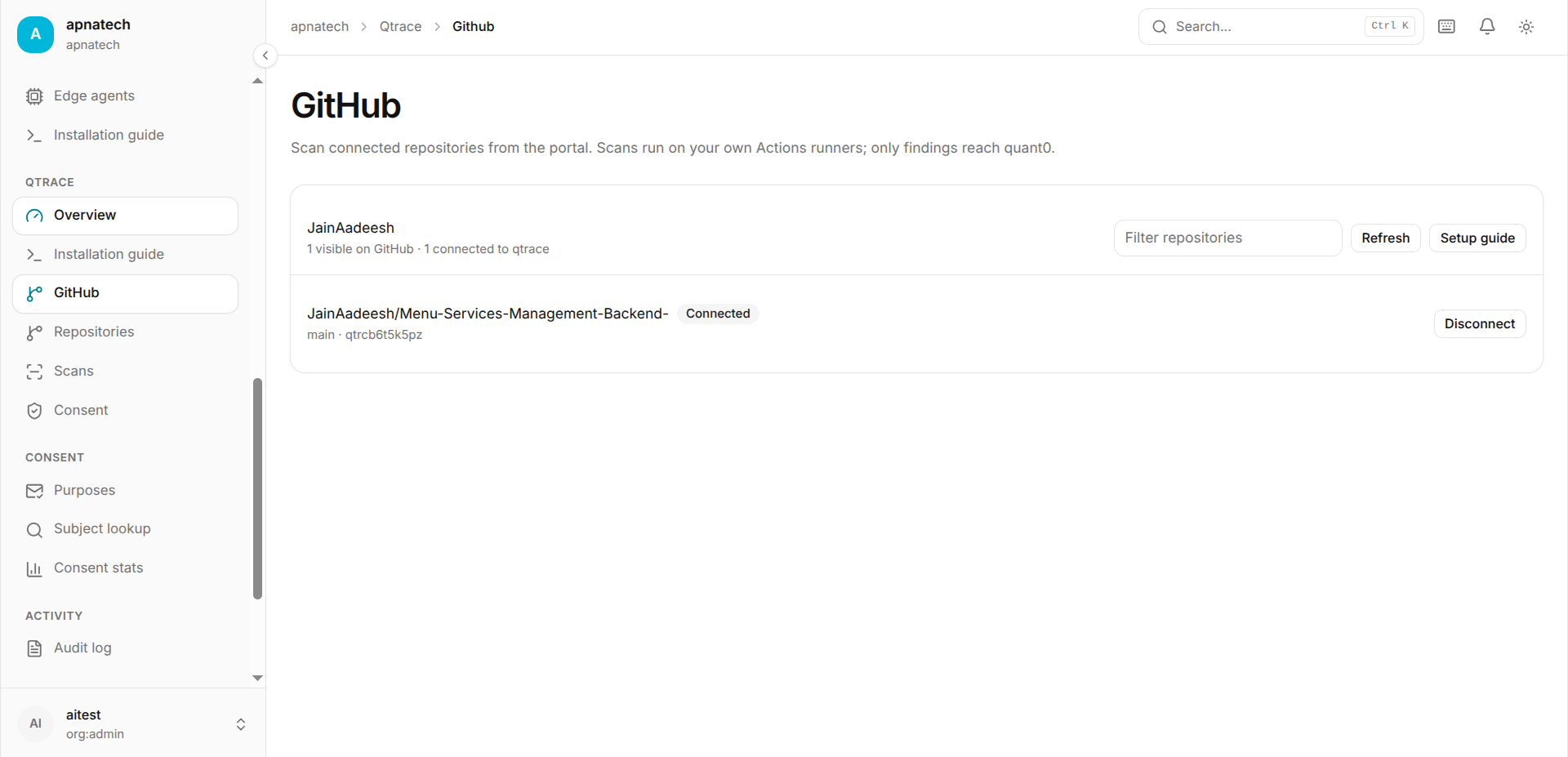
Select Refresh after the GitHub App installation has completed.
If the repository is still not visible:
- Confirm that the repository was included in the GitHub App installation.
- Confirm that you installed the App on the correct GitHub account or organization.
- Return to the qtrace GitHub page and select Refresh again.
- If necessary, open the GitHub App installation settings and verify the repository selection.
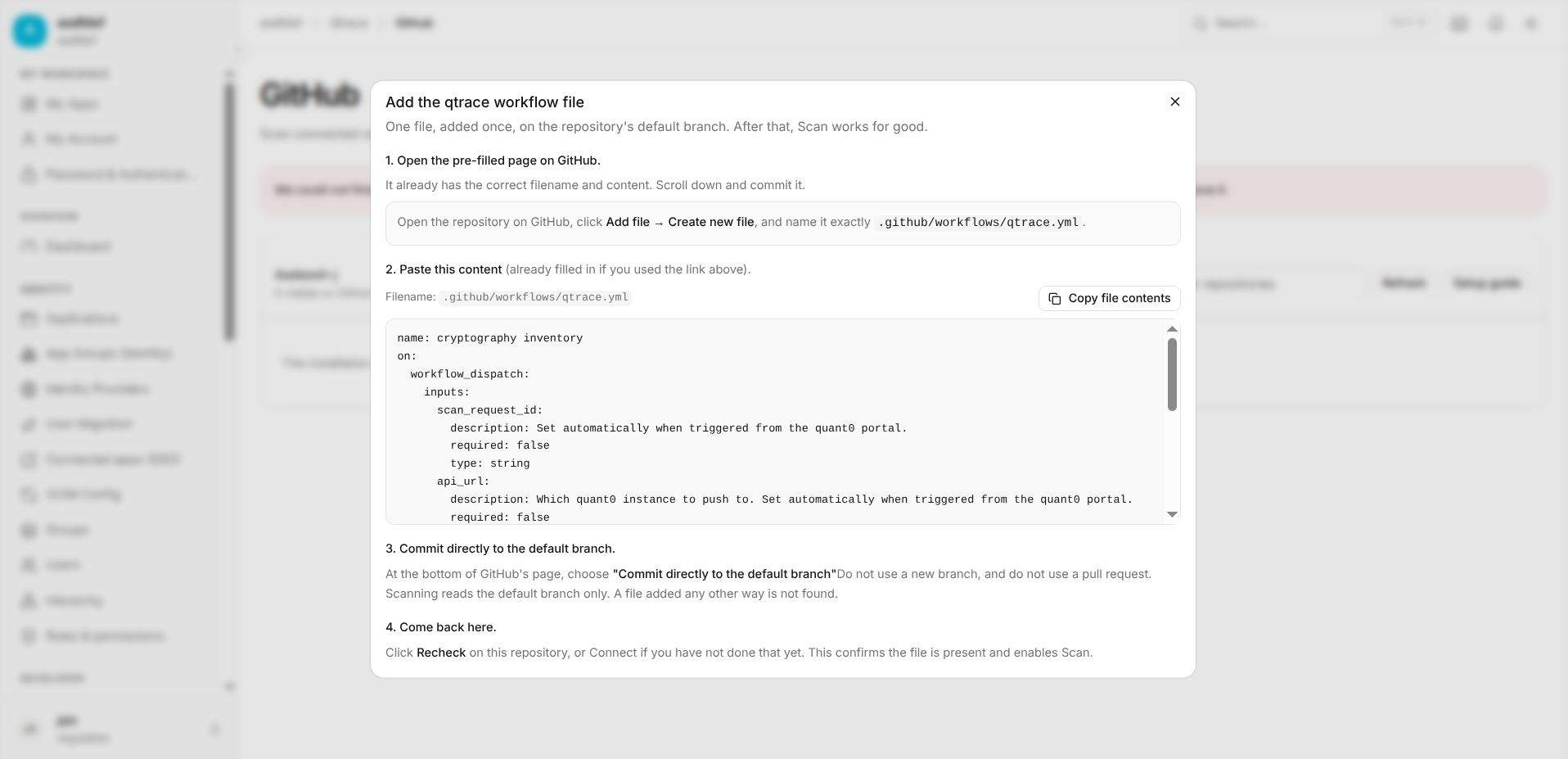
6. Add the qtrace workflow file
Before scanning, qtrace requires a workflow file to be added to the repository's default branch.
When the repository is selected, qtrace can display an Add the qtrace workflow file dialog with the exact filename and workflow content.
6.1 Create the workflow file on GitHub
From the dialog:
- Select Open the repository on GitHub.
- In GitHub, select Add file → Create new file.
- Create the file with this exact path:
.github/workflows/qtrace.yml
- Paste the workflow content provided by qtrace. You can use Copy file contents in the qtrace dialog to copy the pre-filled workflow.
- Scroll to the bottom of the GitHub file editor.
- Select Commit directly to the default branch.
- Commit the file.
The workflow file must be committed directly to the repository's default branch. Do not create it only on a new branch or through a pull request, because qtrace scans the default branch.
6.2 What the workflow does
The workflow is named cryptography inventory and is triggered through GitHub Actions using workflow_dispatch.
The workflow accepts values such as:
scan_request_id- set automatically when a scan is triggered from the qtrace portal.api_url- identifies the quant0 instance to which the scan results are pushed.
The exact workflow content should always be copied from the qtrace portal rather than manually recreated, so that the repository uses the version expected by the connected qtrace instance.
7. Start a scan
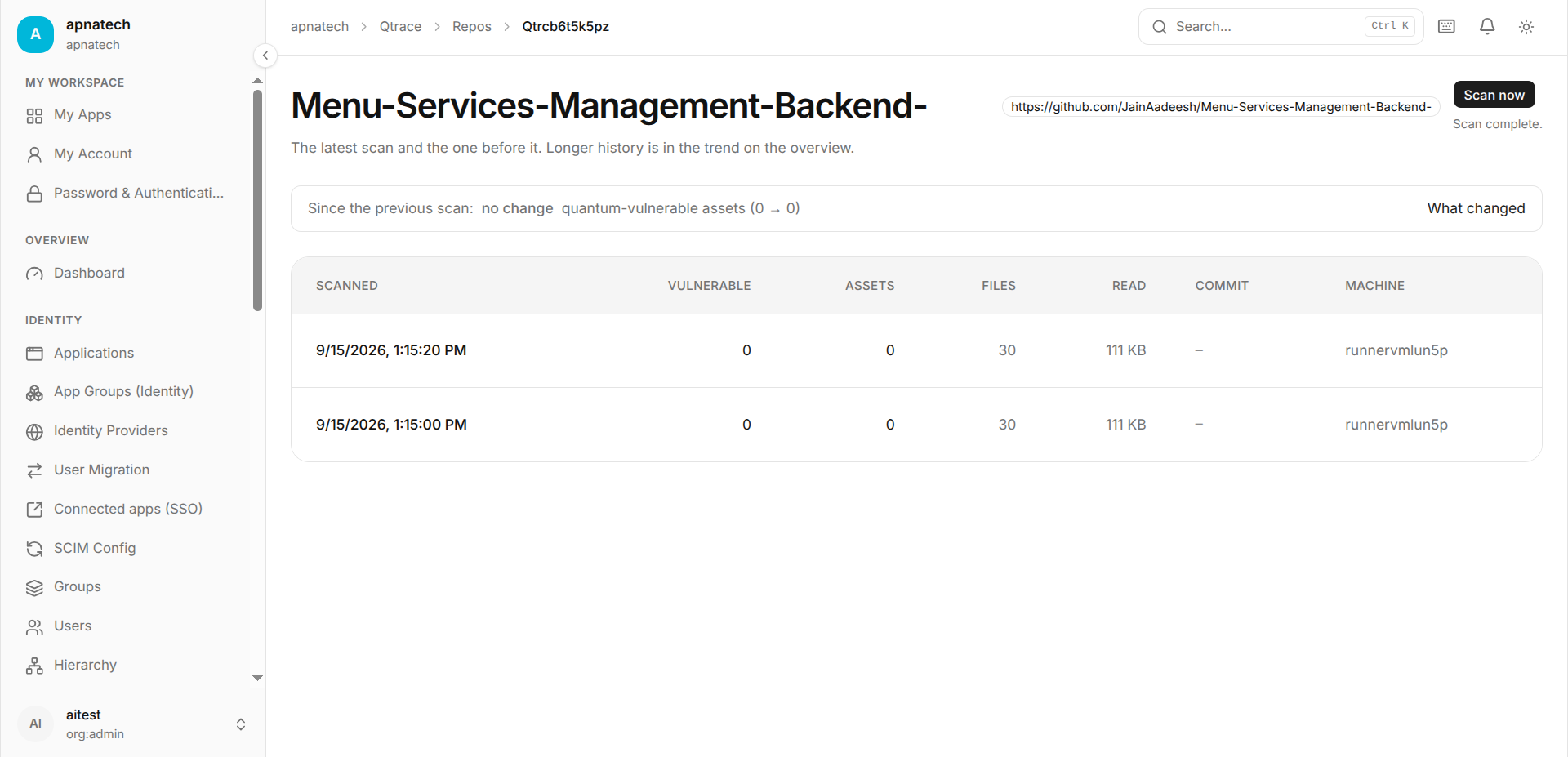
After a repository is connected, start the scan from the qtrace portal.
The GitHub integration is designed so that:
- The repository remains in GitHub.
- The scan runs through GitHub Actions.
- qtrace analyzes the repository for cryptographic assets.
- Cryptographic findings are returned to the qtrace/quant0 portal.
- The repository itself is not uploaded to quant0.
Troubleshooting
Repository is not visible in qtrace
Check that:
- The qtrace GitHub App is installed on the correct GitHub account or organization.
- The target repository is included in the App's repository selection.
- You selected Only select repositories and explicitly added the target repository.
- You returned to qtrace after completing the installation.
- You clicked Refresh on the qtrace GitHub page.
The GitHub App installation page does not show my repository
Open the GitHub App installation configuration and verify the repository access selection. If Only select repositories is enabled, the repository must be explicitly selected.
I want to limit qtrace access
Use Only select repositories during GitHub App installation and select only the repositories that need to be scanned.
Next steps
After the repository becomes visible and is connected:
- Open the connected repository in qtrace.
- Start a scan.
- Open the scan results.
- Review detected cryptographic algorithms, locations, and quantum-risk classifications.
- Remediate the findings and run another scan to verify the changes.