Dashboard
Purpose: Quick operational view for administrators that aggregates the organization’s most important indicators in one place.
How admins should use the Dashboard
- Morning check: review KPIs for anomalies (e.g., sudden spike in failed logins or failed provisioning jobs).
- Incident triage: use activity feed to identify first-order clues and then open the Audit Log for deeper traces.
- Billing monitoring: track seat utilization and plan limit alerts to avoid blocked workflows via Billing & Plan.
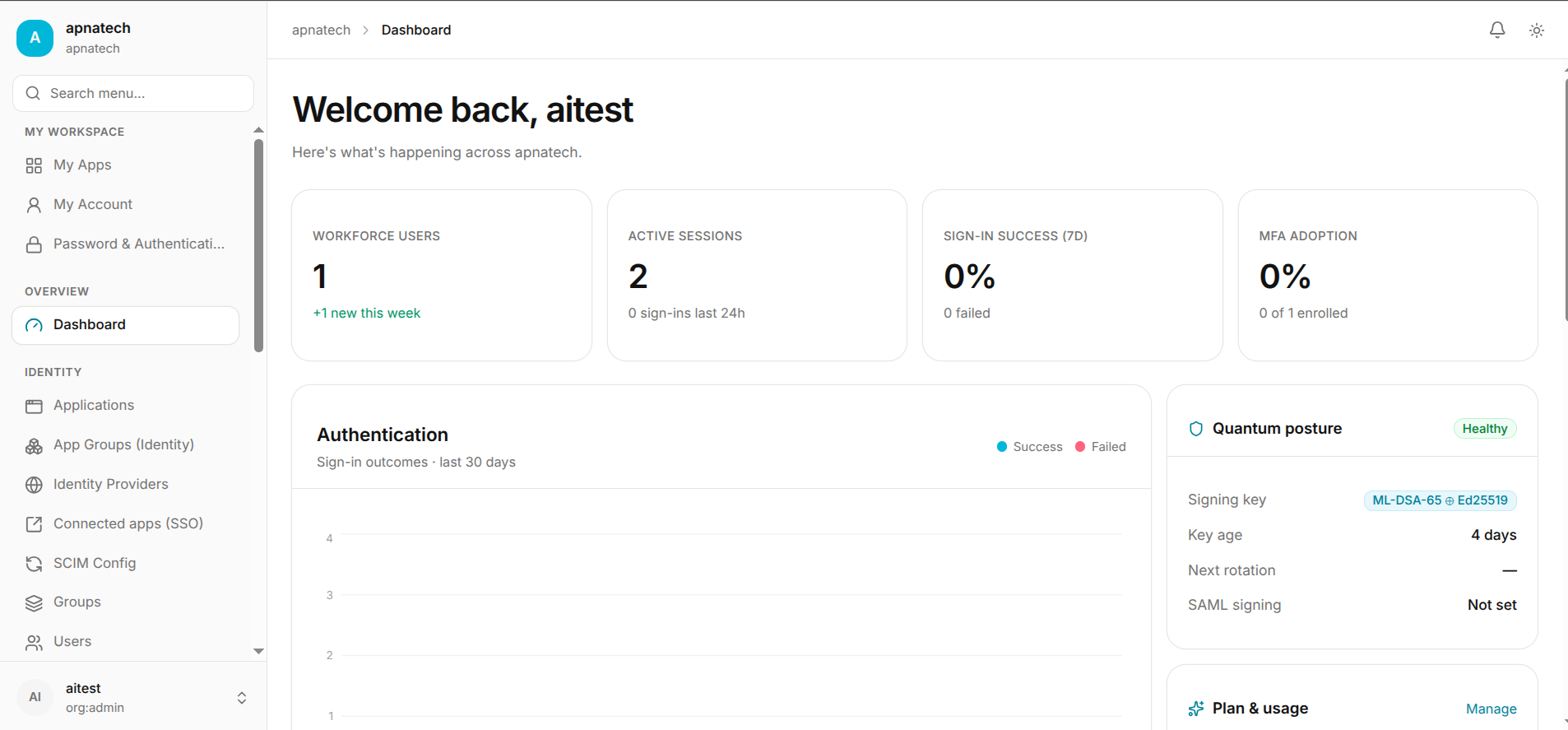
Triage a Spike in Failed Logins
- Step 1: Identify the spike and click to view related events.
- Step 2: Check whether failures are correlated to SSO (Identity Providers outage) or local auth issues (e.g., password changes).
- Step 3: If SSO-related, coordinate with the IdP owner and rollback any recent config changes; use a fallback admin account if required.
Respond to Plan Limit Warning
- Step 1: Click the plan tile to see which resource (seats, API keys) is the constraint.
- Step 2: Decide: free resources, purchase add-on, or upgrade plan in Billing & Plan.
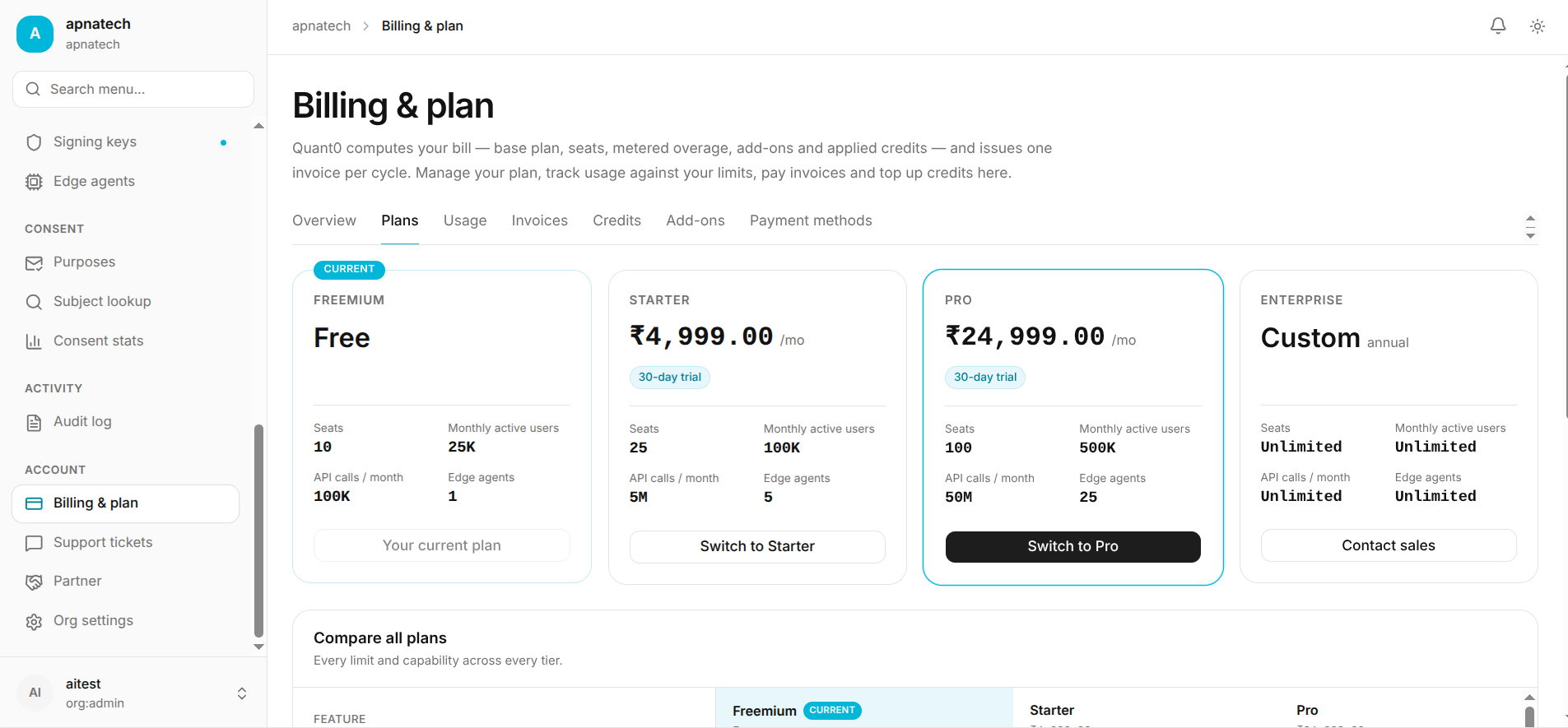
- Step 3: Make change and confirm blocked operations resume.
Best Practices
- Configure alert routing to appropriate teams (security, platform, finance) for automated handling of distinct classes of alerts.
- Use the quick action links to speed through routine administration tasks.
Troubleshooting & Checks
- No data loaded: verify your admin role permissions (see Roles & Permissions); refresh or check network console for failed requests.
- Activity feed missing events: verify the portal’s event capture and retention policies and whether the feed filters are restricting view.
Admin Checklist
- Verify admin contacts and alternate recovery administrators exist.
- Ensure billing contact is current and payment methods are valid in Organization Settings.