My Account
Purpose: Self-service profile and security management for end users.
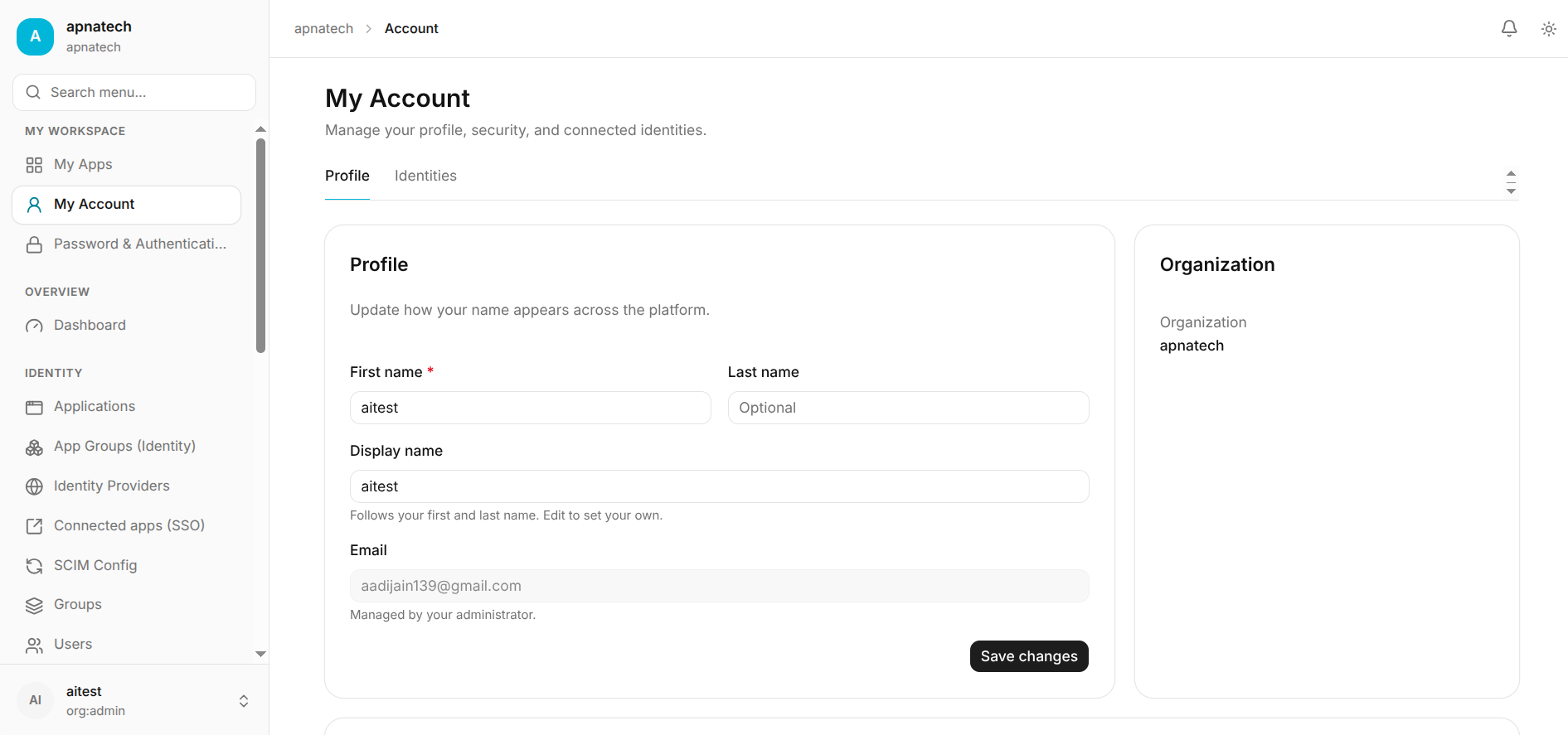
Update Profile
- Steps:
- Navigate to My Account → Profile.
- Update display name, or other optional fields.
- Save changes. Some fields may be subject to admin validation in managed environments.
Add / Confirm Email Address
- Steps:
- Go to Emails → Add Email.
- Enter the address and click Save. The system sends a verification link.
- Click verification link in email to confirm. Resend option available.
Security & Policy Recommendations
- Require at least one MFA method for users with elevated privileges.
- Encourage/require storing recovery codes securely (password manager).
- Recommend a secondary MFA method to avoid lockout.
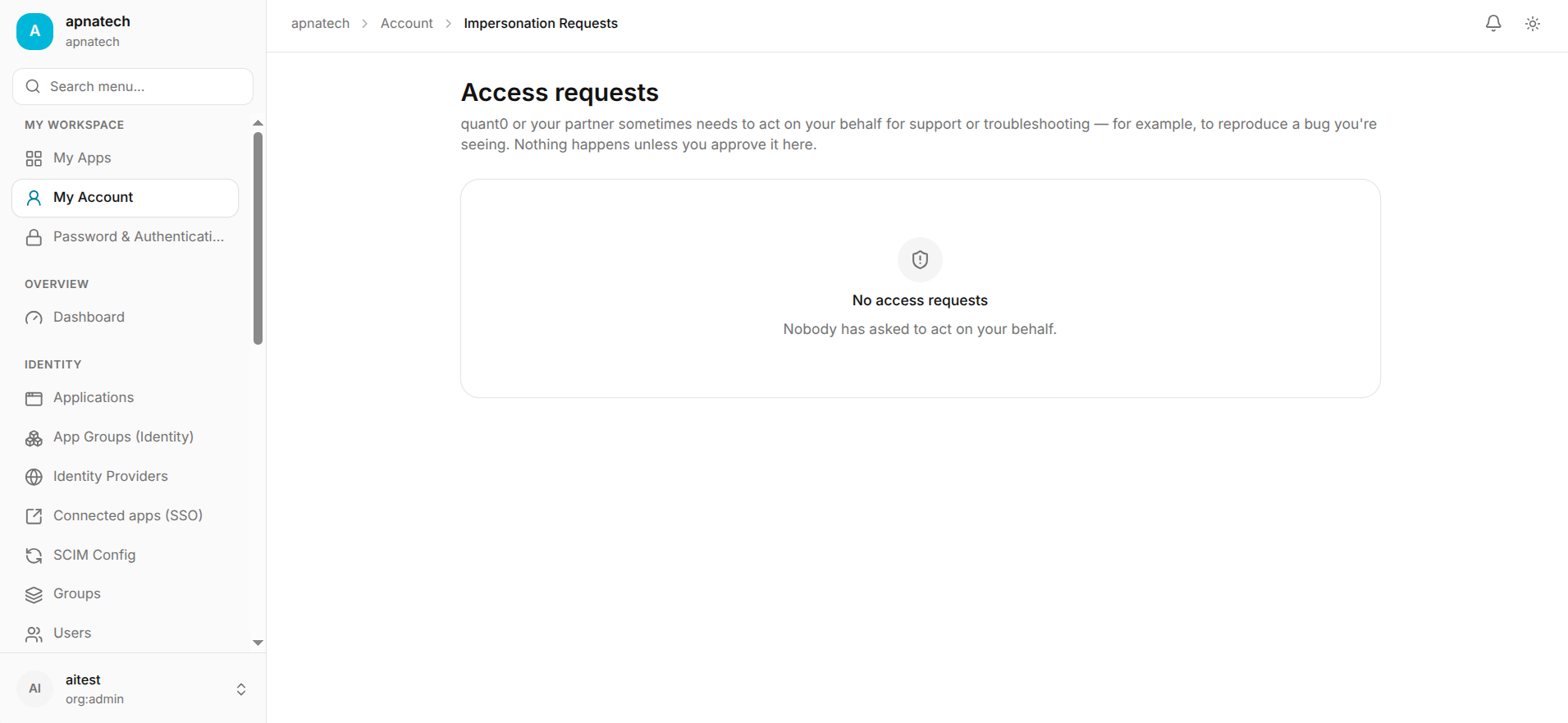
Impersonation Requests
The Account Page includes an Impersonation Requests section for managing account impersonation requests.
From this section, users can review and manage impersonation requests associated with their account.
Troubleshooting Checks
- Can’t register passkey:
- Verify browser and OS version support WebAuthn.
- Confirm enterprise policy or browser settings do not block platform authenticators.
- Recovery codes lost:
- Use a support flow to verify identity and re-enroll MFA; admins may need to reset MFA via Users.
Admin Controls (what admins should be able to manage)
- Whether users may register multiple MFA methods and whether they can self-serve recovery operations.
- Session lifetimes and forced reauth requirements for sensitive operations.
Short FAQ
- Q: How do I recover if I lose my MFA device?
- A: Use the recovery codes stored during enrollment. If not available, contact your administrator for a verified recovery process.