Authenticator App (TOTP)
Quant0 supports Authenticator App (TOTP) authentication as an additional security method for your account.
TOTP generates a temporary verification code in an authenticator application. The code changes automatically at regular intervals and can be used to verify your identity during authentication.
What is TOTP?
TOTP (Time-based One-Time Password) is an authentication method that generates a temporary numeric verification code based on a shared secret and the current time.
The verification code:
- Is generated by your authenticator application.
- Changes automatically after a short time.
- Can only be used for a limited period.
- Provides an additional layer of account security.
Configure Authenticator App
To configure an authenticator app:
My Workspace → Password & Authentication → Authenticator App (TOTP)
- Open My Workspace from the left navigation menu.
- Select Password & Authentication.
- Locate the Authenticator App (TOTP) section.
- Select the option to configure or enable the authenticator app.
- Open your preferred authenticator application.
- Scan the QR code displayed by Quant0.
- If QR scanning is not available, use the provided setup key to configure the account manually.
- Enter the verification code generated by your authenticator app.
- Submit the verification code to complete the setup.
- Once verification succeeds, TOTP authentication is enabled for your account.
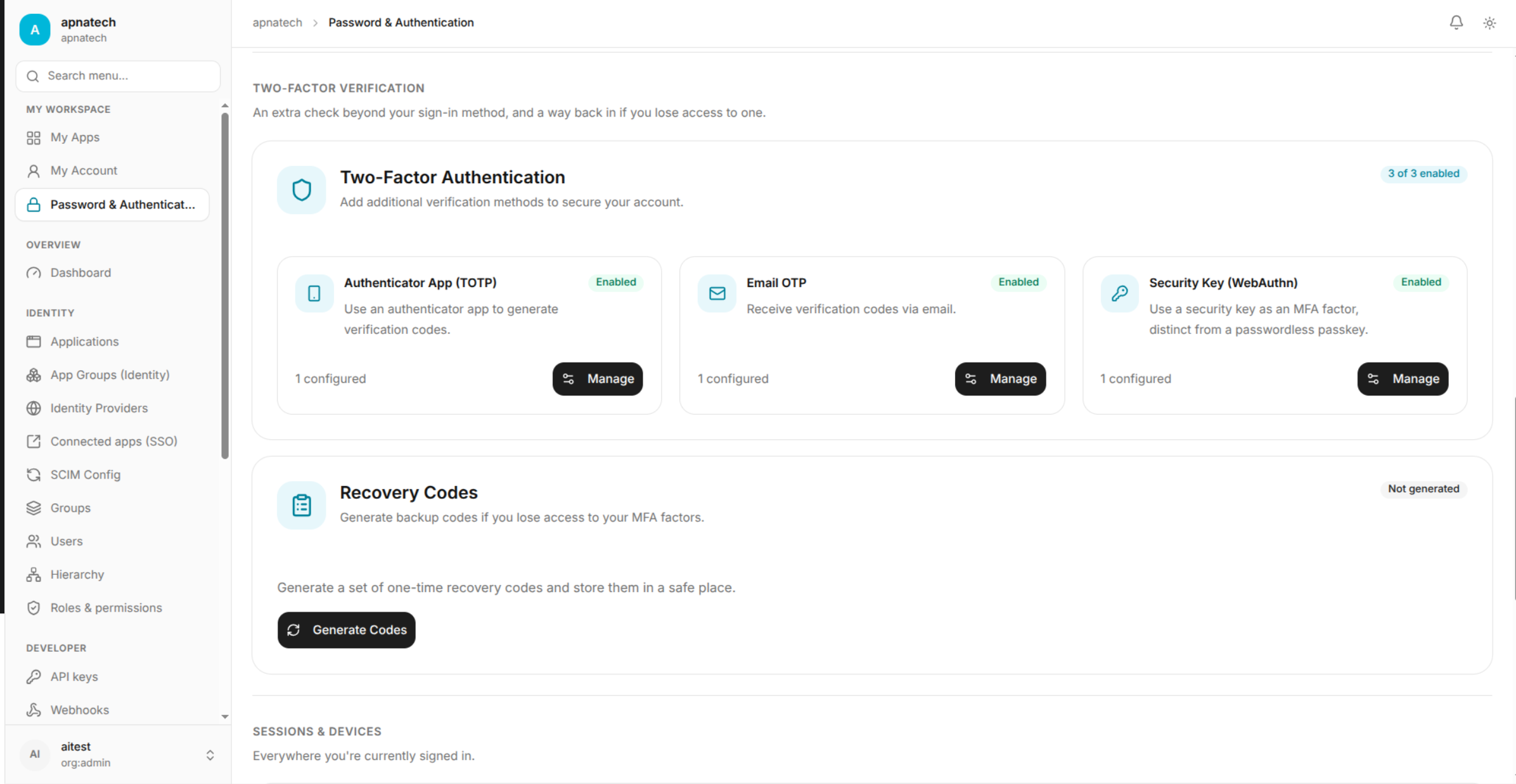
Authenticator App Setup
After starting the setup process, Quant0 provides the information required to connect your authenticator application.
QR Code
Use your authenticator application's Scan QR Code feature to scan the QR code displayed by Quant0.
Setup Key
If you cannot scan the QR code, use the provided setup key to manually add the Quant0 account to your authenticator application.
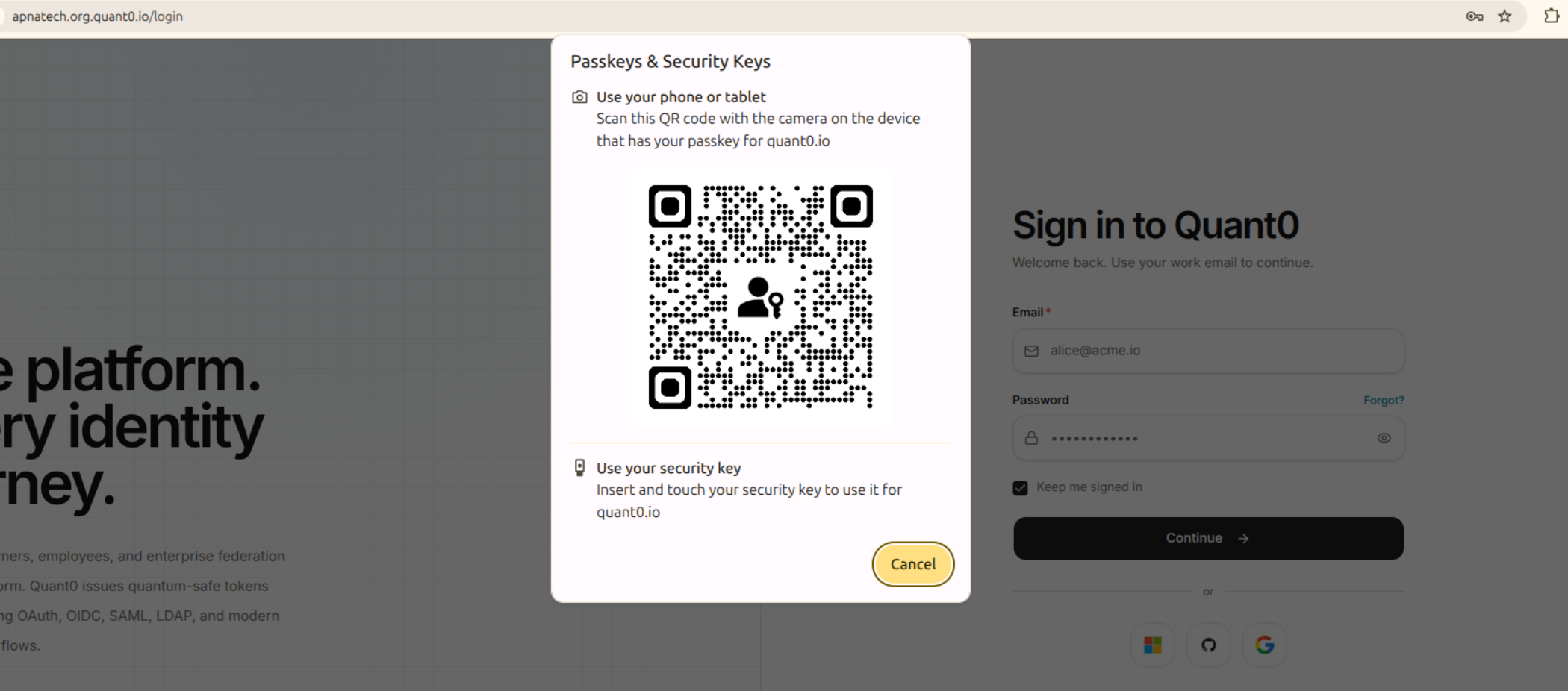
Security Note: Treat the setup key as sensitive information. Do not share it with anyone.
Verify Authenticator App
After adding the account to your authenticator application:
- Open the authenticator application.
- Locate your Quant0 account.
- Copy the current TOTP verification code.
- Enter the code in Quant0.
- Submit the code.
- Quant0 verifies the code.
- If the code is valid, the authenticator app is successfully configured.
Using TOTP During Sign In
Once TOTP is enabled, you may be required to provide a verification code during authentication.
- Sign in to Quant0 using your registered credentials.
- When prompted for the authentication code, open your authenticator application.
- Find your Quant0 account.
- Enter the current six-digit verification code.
- Submit the code.
- Quant0 validates the code and completes authentication.
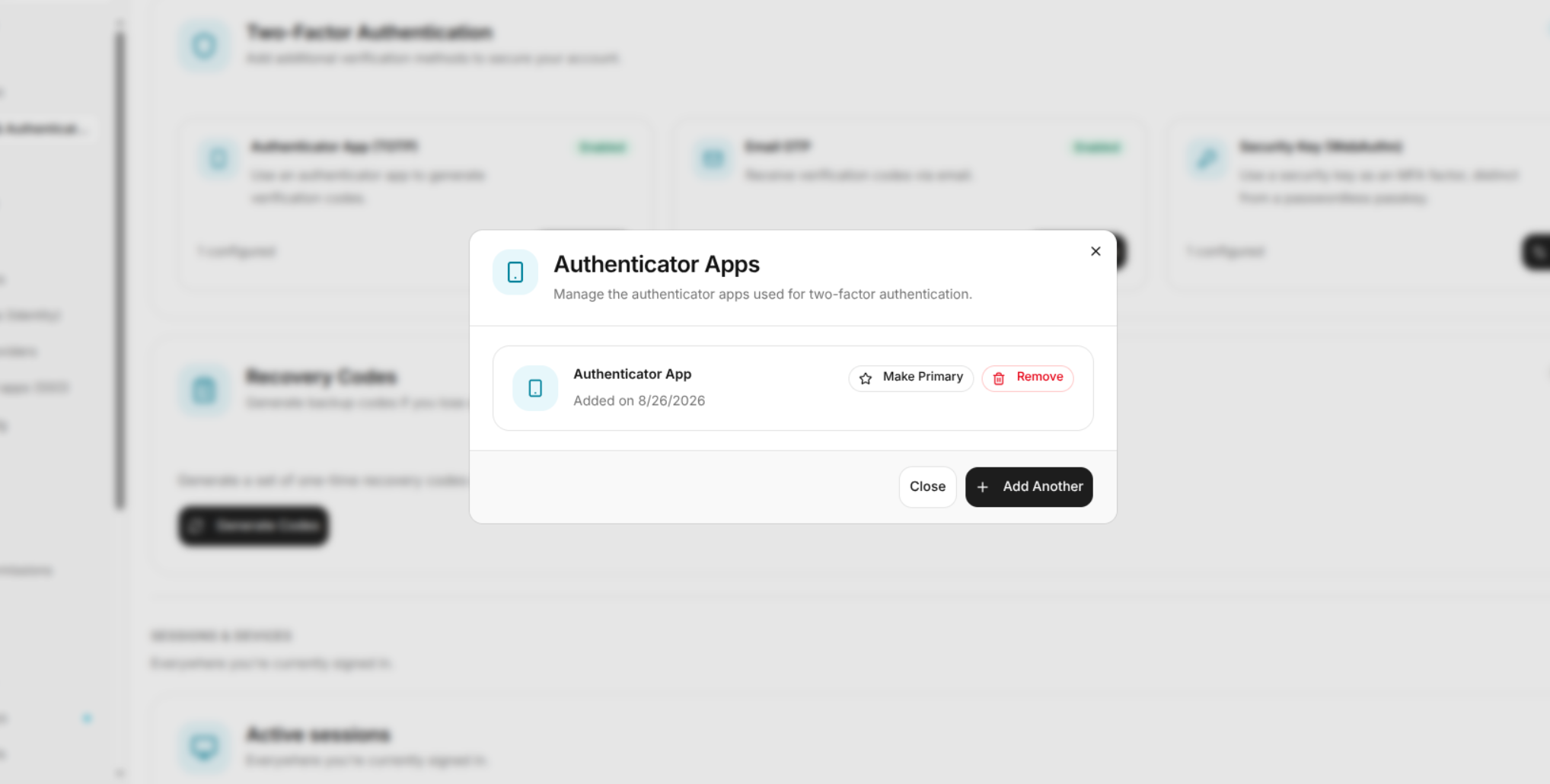
TOTP Verification Code
The authenticator application generates a temporary verification code.
Enter the current code displayed by the authenticator application.
If the code expires before you submit it:
- Wait for the authenticator application to generate a new code.
- Enter the new code.
- Submit the verification again.
Common TOTP Issues
| Issue | Cause | Solution |
|---|---|---|
| Invalid Code | The entered verification code is incorrect or expired. | Enter the current code displayed in your authenticator application. |
| Code Expired | The previous TOTP code is no longer valid. | Wait for a new code and enter it. |
| QR Code Cannot Be Scanned | The authenticator application cannot scan the displayed QR code. | Use the manual setup key instead. |
| Authenticator App Not Configured | The Quant0 account has not been added to the authenticator application. | Configure the authenticator app using the QR code or setup key. |
| Authenticator App Lost | The device containing the authenticator application is unavailable. | Follow the available account recovery process or contact your administrator if recovery is required. |
Security Recommendations
Keep your authenticator application and its configuration information secure.
- Do not share your TOTP verification codes.
- Do not share the TOTP setup key.
- Do not provide authentication codes to anyone requesting them.
- Use an authenticator application on a device you control.
- If you lose access to your authenticator application, use the available account recovery options.
Related Documentation
- Sign In to Quant0 - Learn how to sign in to your Quant0 account.
- Password & Authentication - Manage account authentication settings.
- Passkeys - Configure passwordless passkey authentication.
- Change Password - Change your account password.
- Forgot Password - Recover access when you cannot remember your password.