Security Key (WebAuthn)
Quant0 supports hardware security key authentication using the WebAuthn standard. A compatible security key can be registered with your Quant0 account and used as an authentication method without relying solely on a password.
What Is a Security Key?
A security key is a physical authentication device that securely stores cryptographic credentials used to verify your identity.
With WebAuthn, the security key communicates with your browser during authentication and proves that the registered credential is available.
Configure a Security Key
To register a security key with your Quant0 account:
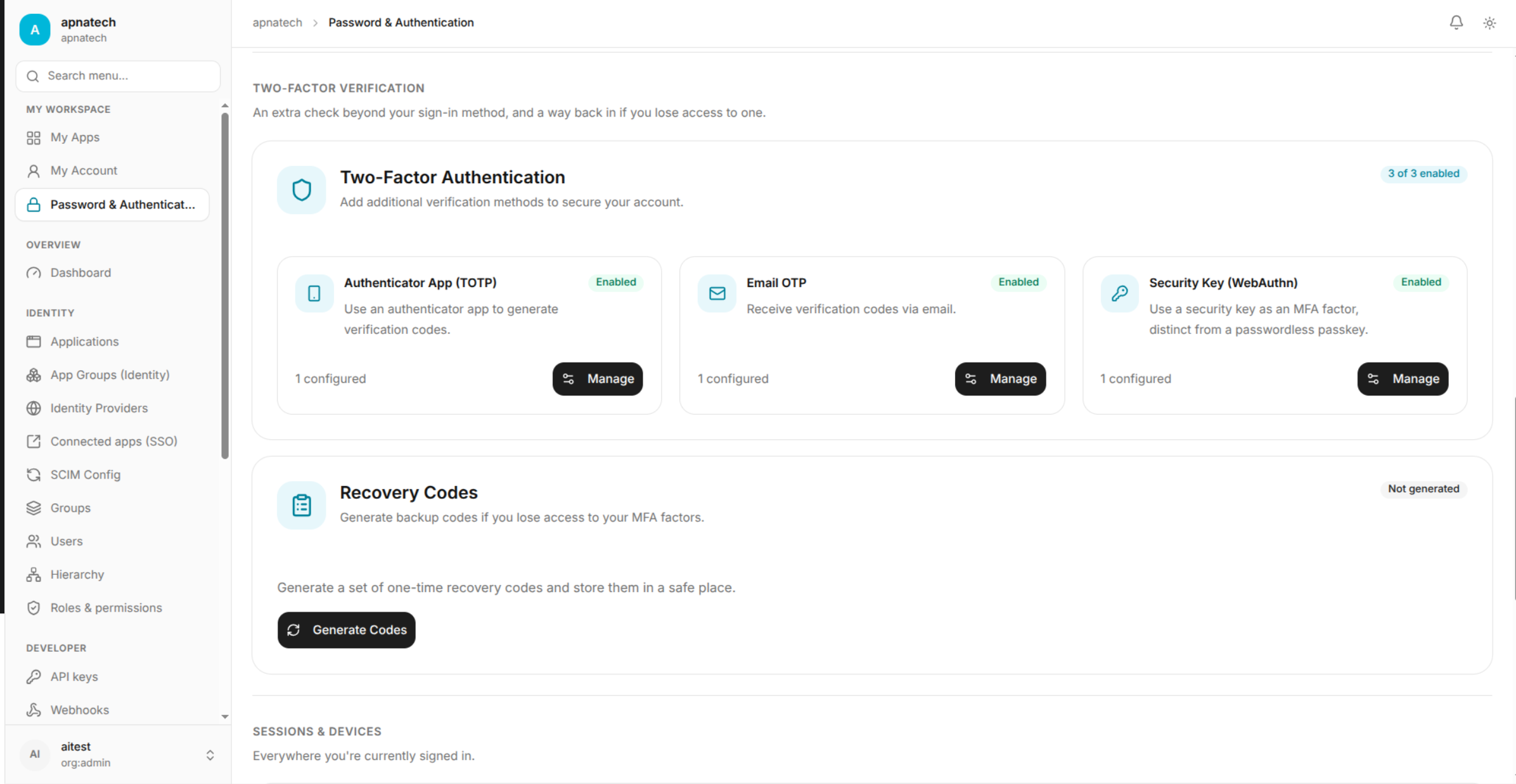
My Account → Password & Authentication → Passkeys → Create Passkey
- Open My Account from the left navigation menu.
- Select Password & Authentication.
- Locate the Passkeys section.
- Click Create Passkey.
- Connect your compatible security key to your device.
- Follow the authentication prompt displayed by your browser.
- Complete the security key verification when prompted.
- After successful verification, the security key is registered with your Quant0 account.
Sign In Using a Security Key
Once your security key has been registered:
- Open the Quant0 Sign In page.
- Select Sign in with passkey.
- Select USB security key from the available authentication options.
- Connect your registered security key.
- Follow the browser's WebAuthn authentication prompt.
- Complete the security key verification.
- Quant0 verifies the credential.
- After successful verification, you are signed in to your account.
Security Key Requirements
The security key must support the authentication capabilities required by WebAuthn/FIDO2.
The key must also be available and connected when performing authentication.
Note: The exact browser prompt and verification process may vary depending on the security key, browser, and operating system.
Managing the Security Key
Registered security keys are managed through the Passkeys section:
My Account → Password & Authentication → Passkeys
From this section, users can manage their registered passkeys and authentication credentials.
If a security key is no longer available or should no longer be used, remove the associated credential from the Passkeys section when the option is available.
Common Issues
| Issue | Cause | Solution |
|---|---|---|
| Security Key Not Detected | The security key is not connected or recognized by the browser. | Reconnect the security key and try again. |
| Authentication Failed | The security key could not verify the registered credential. | Make sure you are using the security key registered with your Quant0 account and retry. |
| WebAuthn Prompt Not Appearing | The browser may not be able to start the WebAuthn flow. | Refresh the page and start Sign in with passkey again. |
| Wrong Security Key | A different security key was connected. | Connect the security key registered with your Quant0 account. |
| Security Key Unavailable | The registered security key has been lost or is inaccessible. | Use another available authentication method or follow the account recovery process. |
Security Recommendations
Keep your security key in a safe place and do not share it with other users.
For account recovery purposes, consider maintaining another supported authentication method in case your primary security key becomes unavailable.
Related Documentation
- Passkeys - Learn about passkey authentication in Quant0.
- Sign In to Quant0 - Learn how to authenticate with Quant0.
- Password & Authentication - Manage authentication settings.
- Authenticator App (TOTP) - Configure time-based one-time password authentication.
- Email OTP - Authenticate using a one-time password sent to your email.