- Purpose: Document the password-based authentication options and flows available on portals that enable local passwords (not SSO-only).
Admin-configurable parameters
- Minimum length and character sets.
- Disallow reuse by tracking password history.
- Maximum password age (force change).
- Minimum time between changes to mitigate abuse.
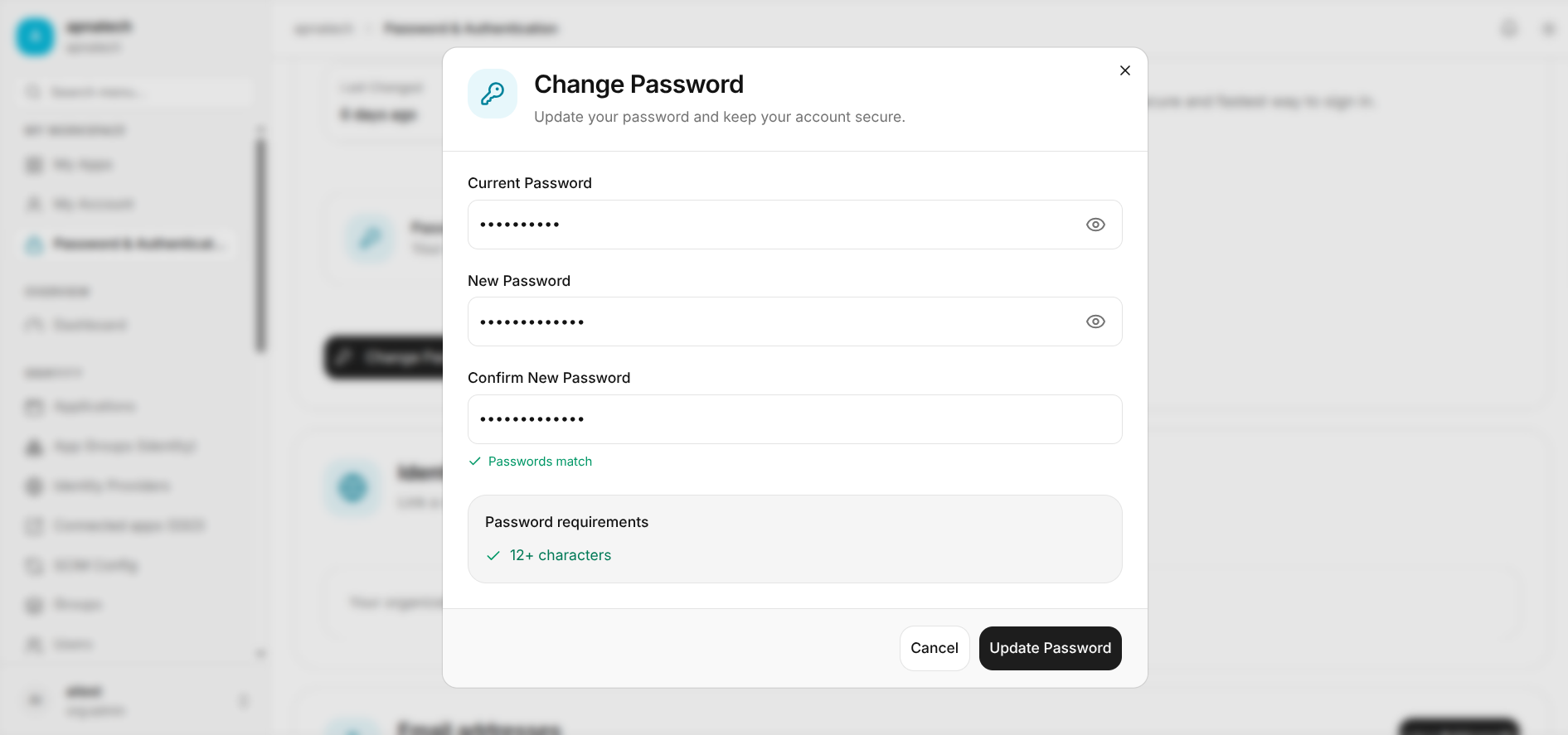
User: Change Password
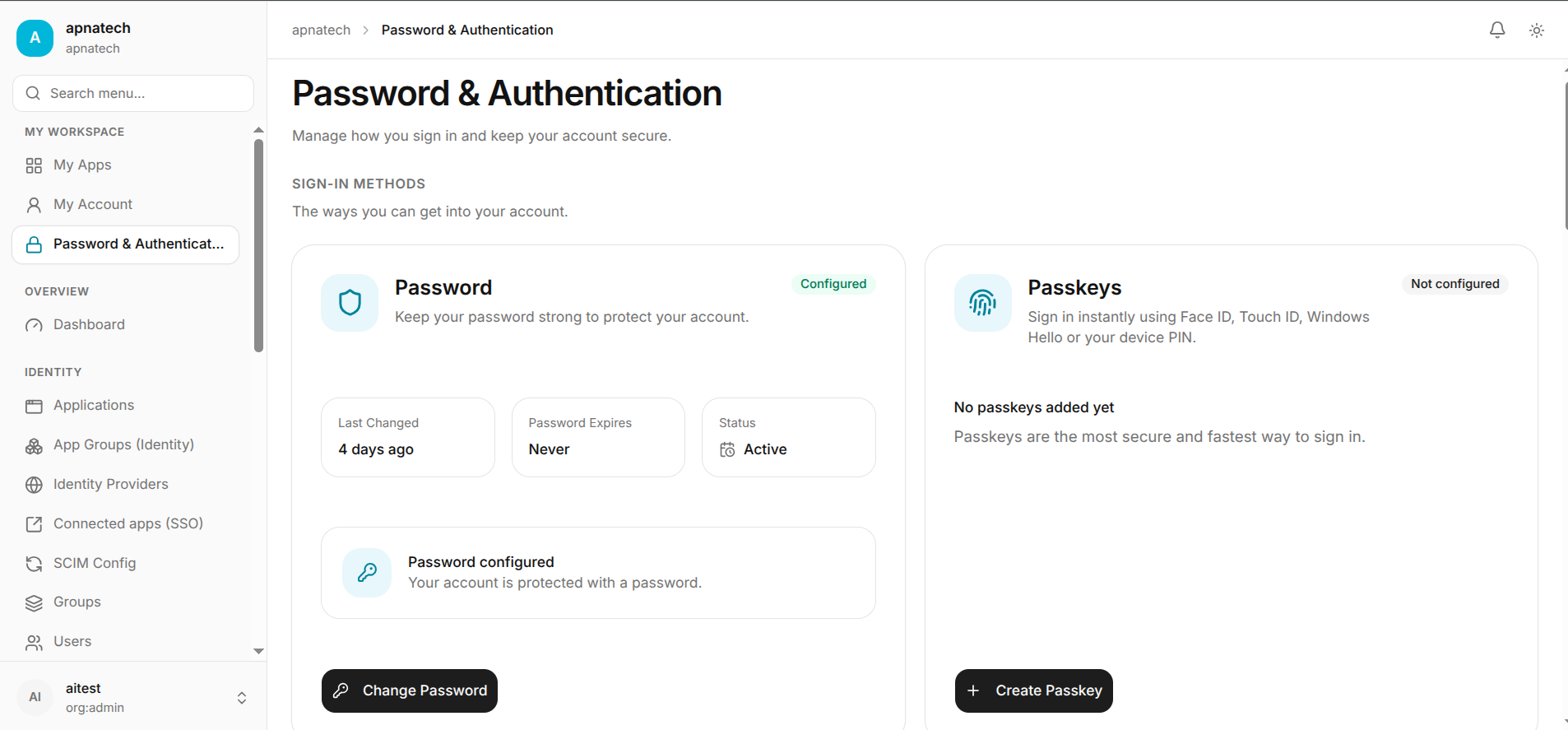
- Step 1: My Account → Security → Password.
- Step 2: Enter current password and new password meeting policy.
- Step 3: Confirm and save. The system may ask for MFA confirmation as a safety measure.
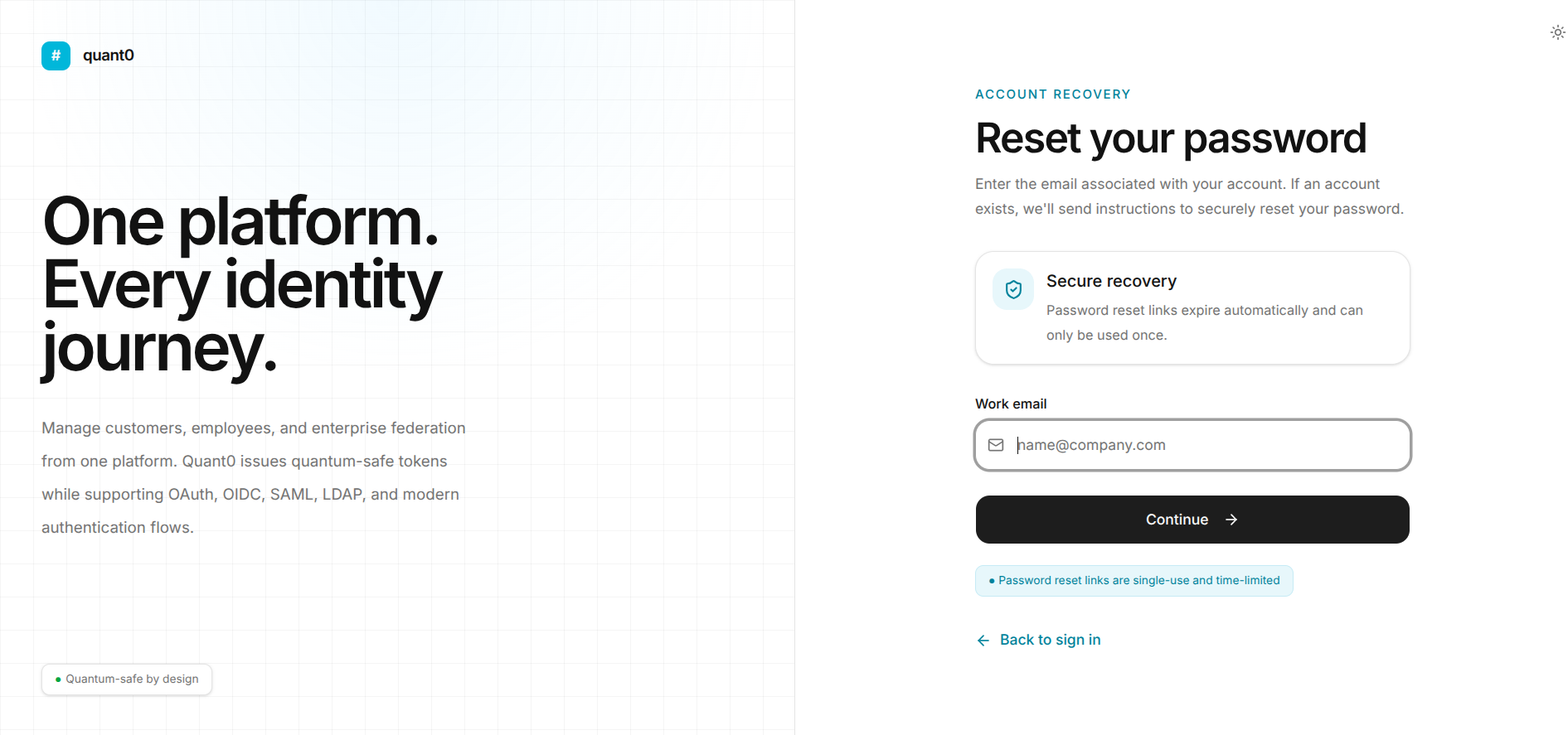
User: Reset via “Forgot Password”
- Step 1: Click “Forgot password” on sign-in screen.
- Step 2: Enter registered email and submit.
- Step 3: Receive email; click the link within TTL to set a new password.
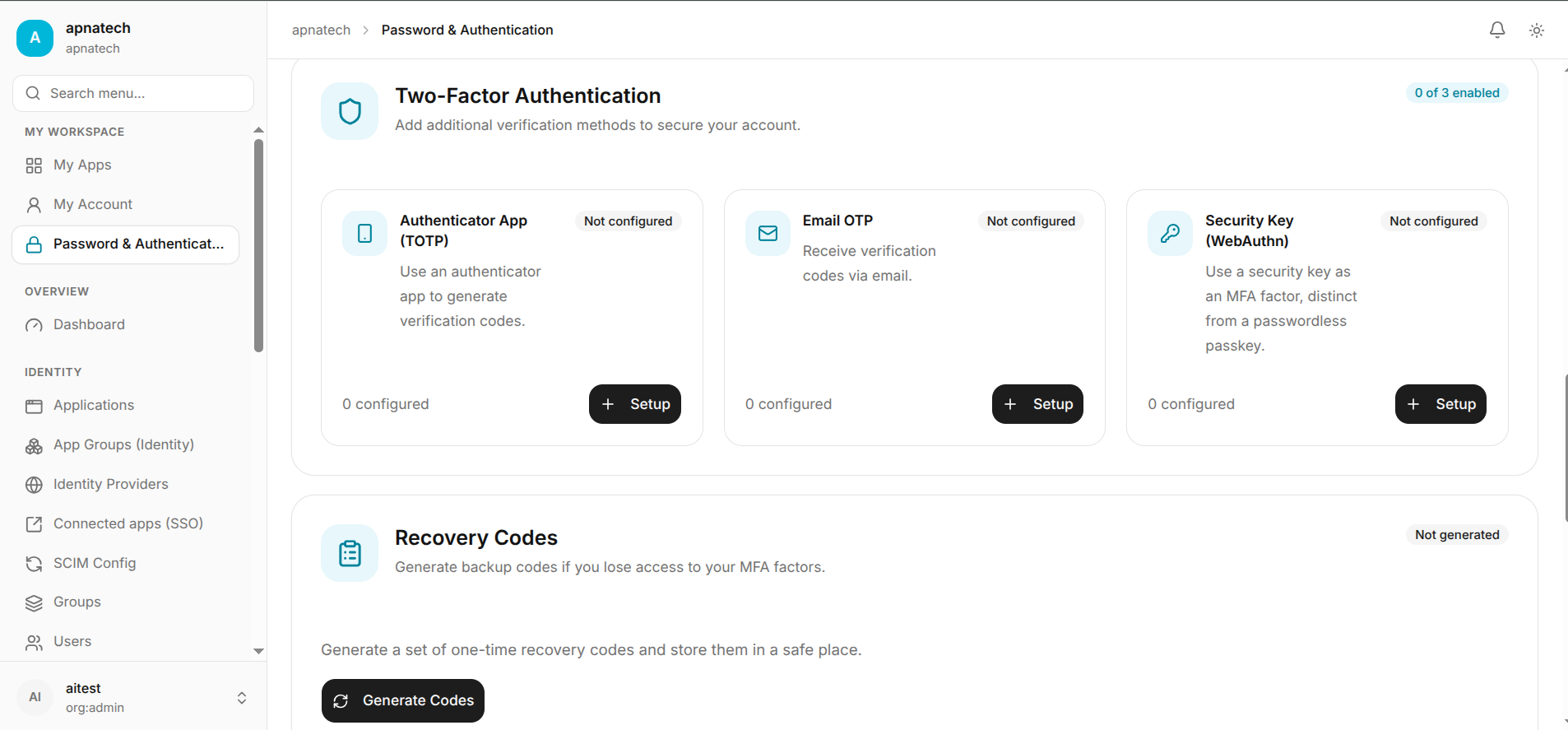
- Step 4: Complete any additional verification (e.g., TOTP) if enforced.
Security Best Practices
- Use password plus MFA where SSO is not used.
- Prefer passkeys or SSO (see Connected Apps and Identity Providers for phishing-resistant authentication.
- Enforce strong password policies but balance with usability (length and passphrases over complexity only).
Operational Considerations
- Ensure reset emails are delivered - check spam/junk and SPF/DKIM on your mail domain.
- Have a verified support and verification process for users who lose access.
Checks & Troubleshooting
- Reset token expired: request a fresh reset link.
- Password change rejected: ensure the new password meets policy and is not blocked by recent history.
- Suspicious reset requests: monitor volume and rate-limit automated resets via Audit Log to review abnormal activity.
Admin FAQ
- Q: Can admins set an account to force password change?
- A: Yes - use the account settings in Users to mark password reset required on next sign-in (administrator action).