Sign In to Quant0
Welcome back. Access your workspace using your work email, supported third-party Identity Providers (OAuth/OIDC), or passwordless passkeys.
Sign In Methods & Field Validations
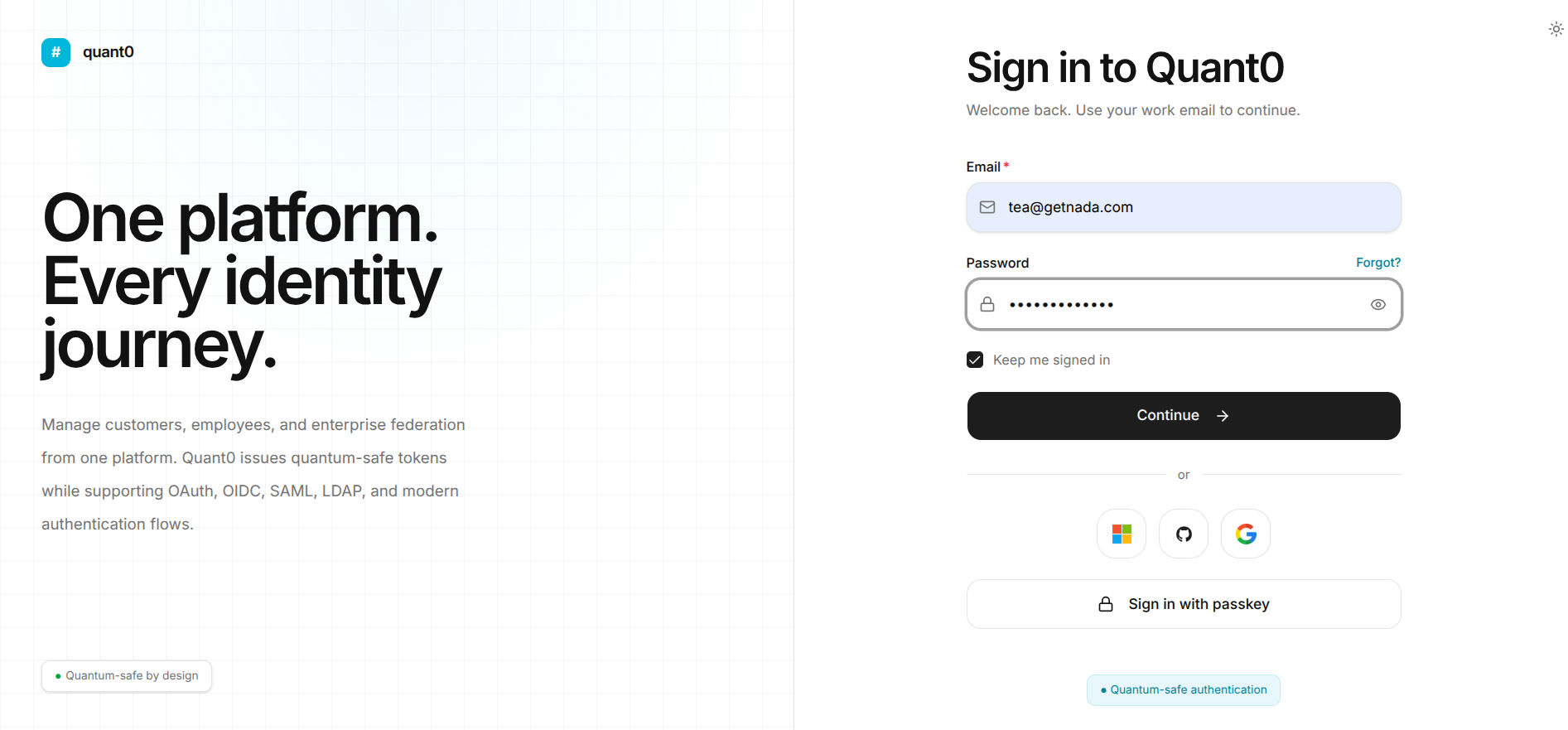
1. Standard Email & Password Authentication
Email (Required)
Description: Enter your registered email address.
Validation Rules:
- Must conform to standard email syntax, such as
user@company.com. - Must be associated with an existing active account in Quant0.
Placeholder: example@gmail.com
Password (Required)
Description: Enter your account password.
UI Features:
- Visibility Toggle: Click the eye icon to reveal or mask password characters.
- Forgot Password: Click Forgot? next to the password field to initiate the password reset process.
Keep me signed in (Optional)
Description: Select this checkbox to extend session persistence, reducing how often you need to re-authenticate on trusted devices.
2. Social & Enterprise Identity Providers (SSO)
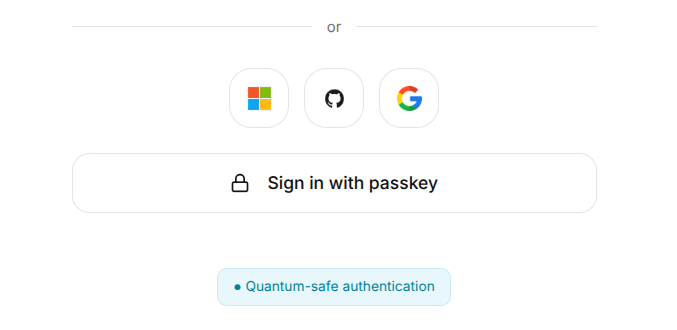
You can authenticate directly using supported third-party identity protocols such as OAuth 2.0, OIDC, and SAML.
Microsoft
Sign in using your Microsoft Azure AD / Entra ID enterprise account.
GitHub
Sign in using your developer or enterprise GitHub account.
Google
Sign in using your Google Workspace or Google Cloud identity.
3. Passwordless Passkey Authentication
Quant0 supports passwordless authentication using passkeys based on the WebAuthn / FIDO2 standard.
To sign in using a passkey:
- Click Sign in with passkey.
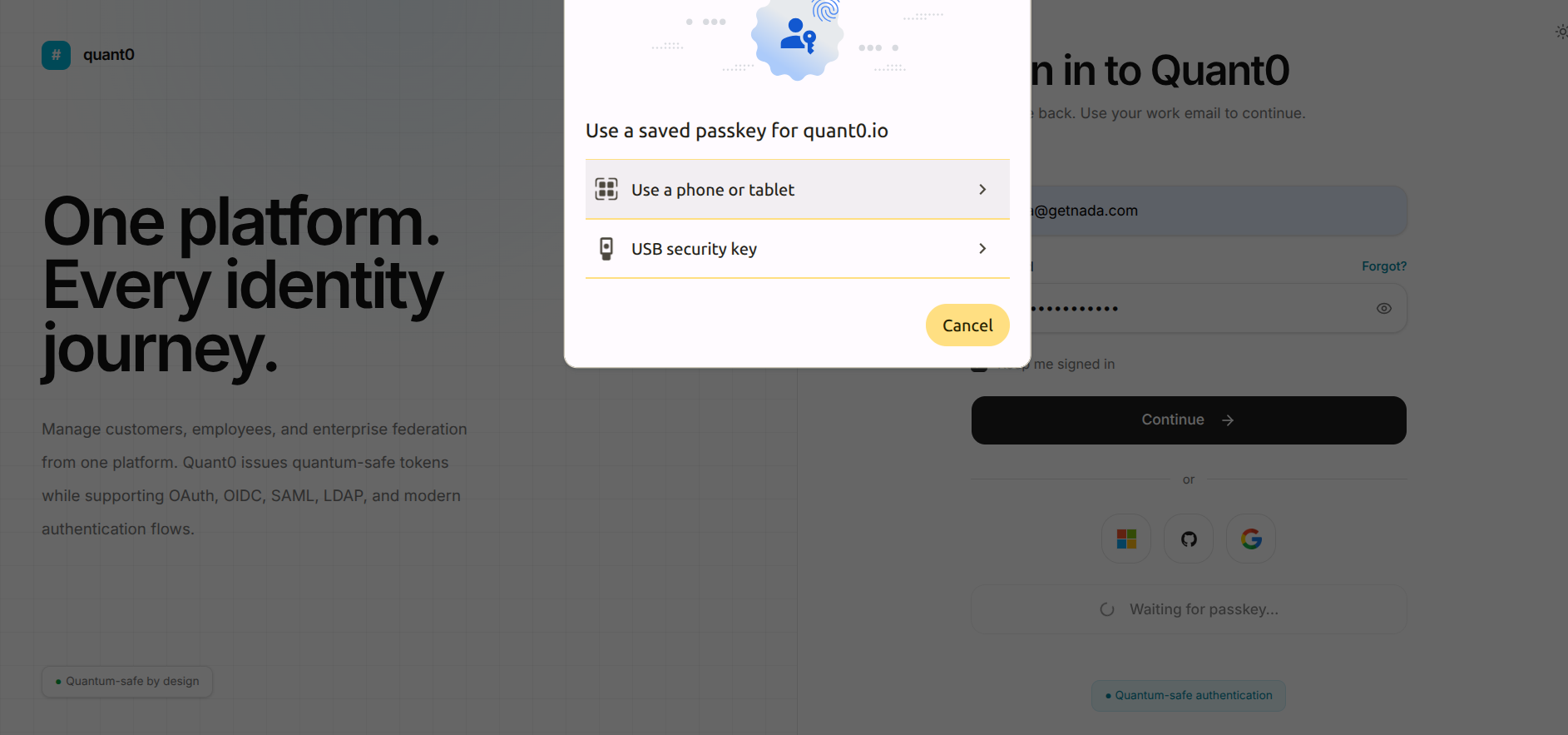
- Quant0 opens the passkey authentication prompt.
- Select one of the available authentication methods:
- Use a phone or tablet - Authenticate using a passkey stored on a mobile device.
- USB security key - Authenticate using a compatible hardware security key.
- Follow the authentication instructions displayed by your browser or device.
- After successful verification, Quant0 authenticates your account and redirects you to the Dashboard.
Common Sign In Issues
| Issue | Cause | Solution |
|---|---|---|
| Invalid Credentials | Incorrect email or password was entered. | Verify your email address and password, or use the Forgot? option to reset your password. |
| Passkey Not Prompting | WebAuthn is disabled, unavailable, or the security device is disconnected. | Check browser permissions, ensure your biometric or security device is available, and try again. |
| SSO Redirection Error | Domain identity federation may be incorrectly configured. | Contact your enterprise system administrator and verify the SAML/OIDC identity provider configuration. |
Related Authentication Documentation
- Create Your Organization - Create an organization and configure the initial administrator account.
- Google OIDC Configuration - Configure Google as an OIDC identity provider.
- Microsoft OIDC Configuration - Configure Microsoft Entra ID / Azure AD.
- Okta OIDC Configuration - Configure Okta for OIDC authentication.
- GitHub OAuth Configuration - Configure GitHub OAuth authentication.
- SAML 2.0 Configuration - Configure a SAML 2.0 identity provider.
- LDAP Configuration - Configure LDAP-based authentication.
Successful Authentication
After successful authentication through email/password, an Identity Provider, or a passkey:
- Quant0 validates the authentication response.
- A quantum-safe access token is issued.
- Your authenticated session is established.
- You are redirected to the Quant0 Dashboard.
Forgot Password
If you cannot remember your password, use the [forgot password](/docs/get-started/password-auth/password manager/reset-password) option on the sign-in form to start the password recovery process.
If you do not have an account yet, go to Create Your Organization →.