Billing & Plan
The Billing & Plan section allows organization administrators to manage subscription plans, monitor resource usage, purchase additional capacity, manage payment methods, and review billing information.
Quant0 calculates billing based on the organization's subscription plan, applicable resource usage, add-ons, and credits.
1. Billing Overview
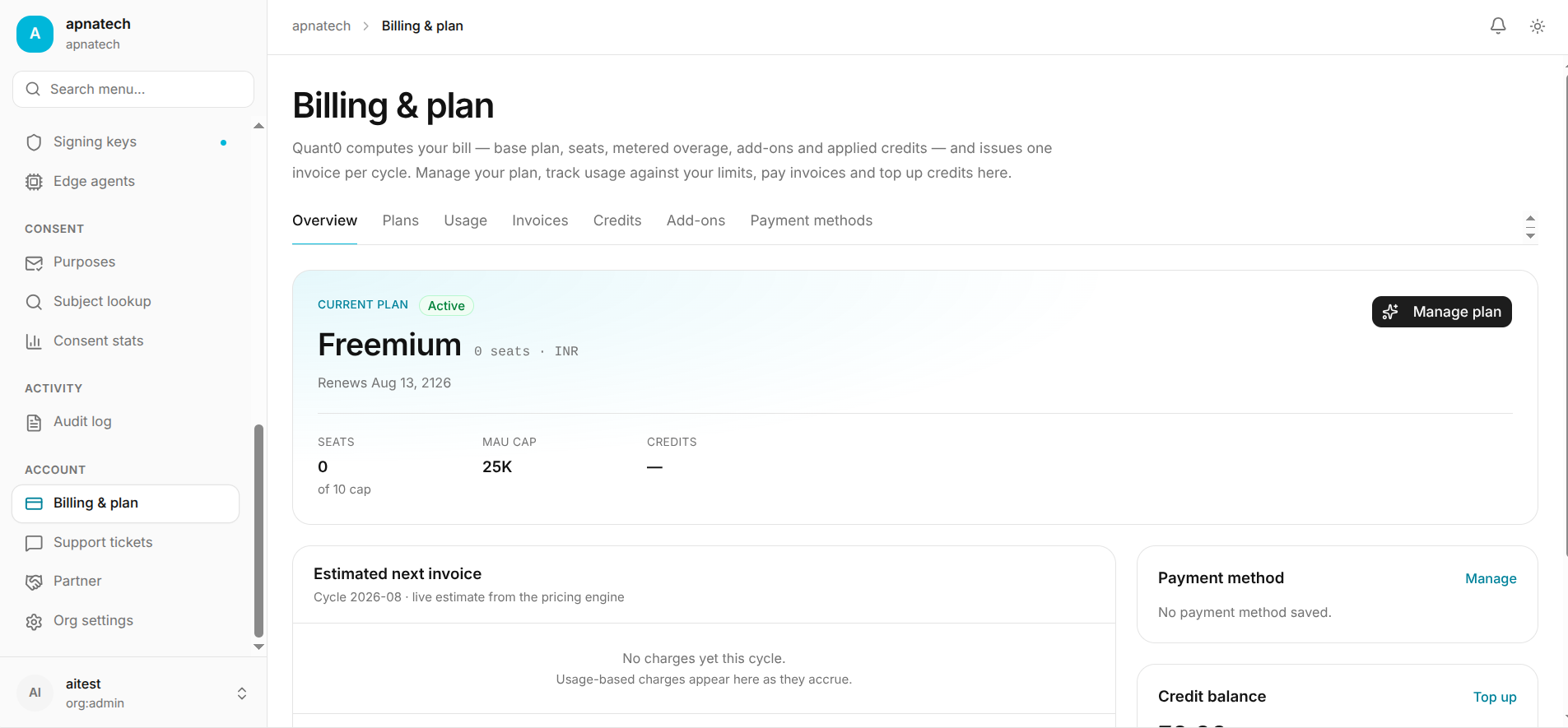
Navigate to Organization Portal → Billing & Plan to access billing management.
The Billing & Plan section contains the following tabs:
| Tab | Purpose |
|---|---|
| Overview | View the current plan, estimated next invoice, payment method, and credit balance. |
| Plans | Compare subscription plans, prices, features, and resource limits. |
| Usage | Monitor resource consumption against plan limits. |
| Invoices | View available invoices and filter them by status. |
| Credits | Purchase prepaid credits for future invoices. |
| Add-ons | View active add-ons and purchase additional resource capacity. |
| Payment Methods | Manage saved payment methods. |
2. Upgrade or Downgrade a Plan
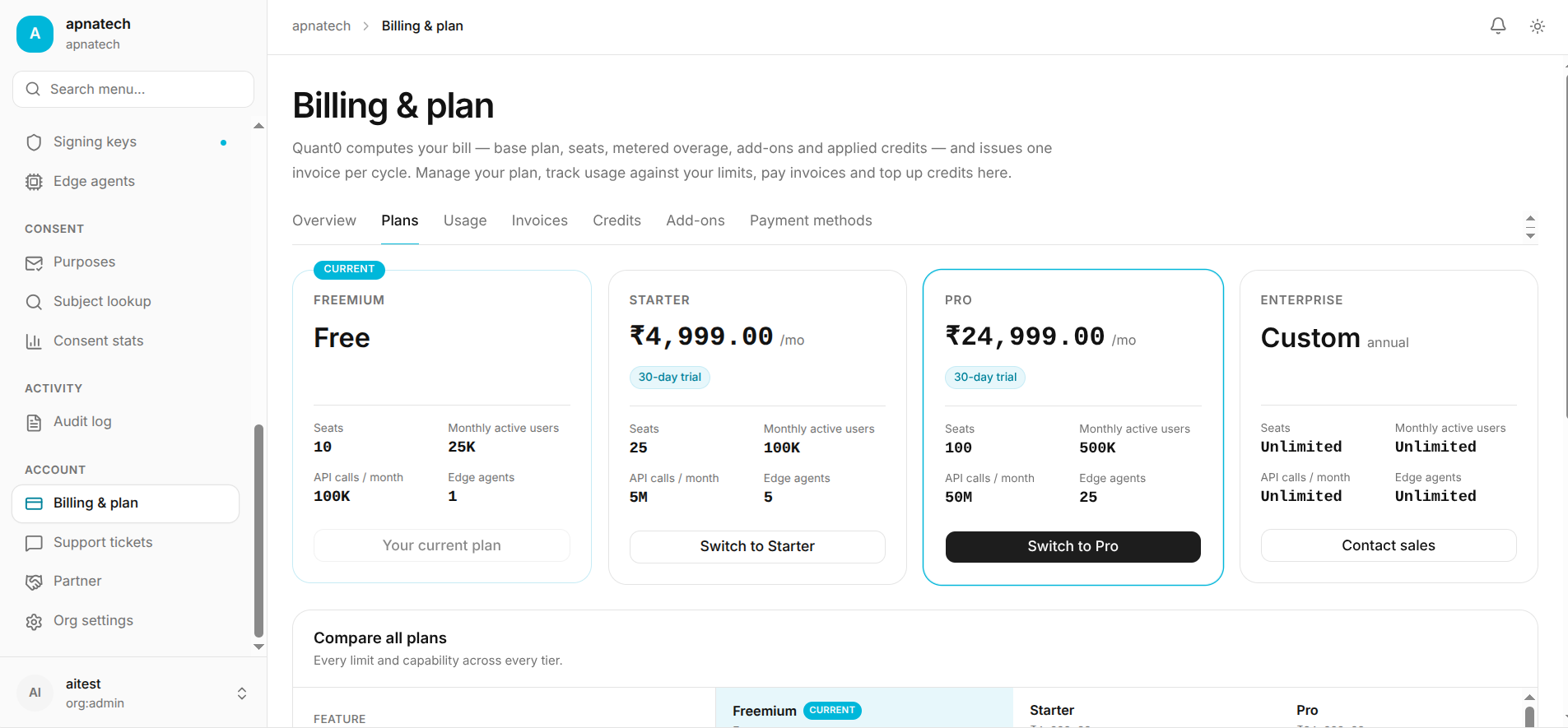
Organizations can review available plans and initiate eligible plan changes from the Plans tab.
Upgrade a Plan
To upgrade your subscription:
- Open the Organization Portal.
- Navigate to Billing & Plan.
- Select the Plans tab.
- Review the available plans and their features.
- Select the desired plan and click the corresponding upgrade action.
- Review the confirmation and payment information.
- Complete the required steps.
After the plan change is processed, verify the current plan and resource limits in the Billing & Plan section.
Note: You can not downgrade your plan.
3. Thirty-Day Trial
Some paid plans display a 30-day trial in the Plans tab.
Trial availability depends on the selected plan and the organization's eligibility.
Before starting a trial, review the plan's features, limits, and any eligibility requirements displayed by the portal.
During the Trial
During the trial period, the organization can use the applicable plan entitlements according to the configured trial rules.
The Usage tab can be used to monitor resource consumption against the displayed limits.
When the Trial Ends
After trial expiration grace period of 15 days will applies.
Do not assume that a trial automatically converts into a paid subscription.
4. Billing Notifications and Payment Reminders
Quant0 sends email reminders to help you keep track of your billing dates and avoid service interruptions.
For each active invoice, you may receive up to five email notifications during the billing cycle.
When Will You Receive Emails?
| When | What Happens? |
|---|---|
| 15 days before the billing period starts | You receive an email reminding you about the upcoming billing period. |
| When the billing period starts | You receive an email informing you that the billing period has started. |
| 15 days before the billing period ends | You receive a reminder that your billing period will end in 15 days. |
| When the billing period ends | If your invoice is unpaid, you receive an email informing you that your 15-day payment grace period has started. |
| 15 days after the billing period ends | If your invoice is still unpaid, you receive an email informing you that your organization has been suspended. |
Example: Billing Cycle
Suppose your billing period runs from 1 day of the month to 31 day .
You will receive notifications according to this schedule:
| Date | Email Notification |
|---|---|
| 16th | Your upcoming billing period starts in 15 days. |
| 1st | Your billing period has started. |
| 16th | Your billing period will end in 15 days. |
| 31st | Your billing period has ended. If payment is pending, your 15-day grace period begins. |
| 15th | If payment is still pending, your organization will be suspended. |
What Happens If You Don't Pay on Time?
1. Your billing period ends
If your invoice is unpaid when the billing period ends, Quant0 gives you an additional 15 days to complete your payment.
2. You receive a payment reminder
You will receive an email informing you that your payment is pending and your grace period has started.
3. Your organization suspended
If you do not complete the payment within the 15-day grace period, your organization will be marked as suspended.
Suspension may affect your access to the platform, depending on the application's access rules.
What If You Pay Before the Deadline?
- If you pay before a scheduled notification, the applicable notification will be skipped.
- If you pay during the grace period, your organization will not be suspended by the unpaid-invoice process.
- If your organization has already been suspended, follow the platform's payment and reactivation process to restore access.
5. Usage and Resource Limits
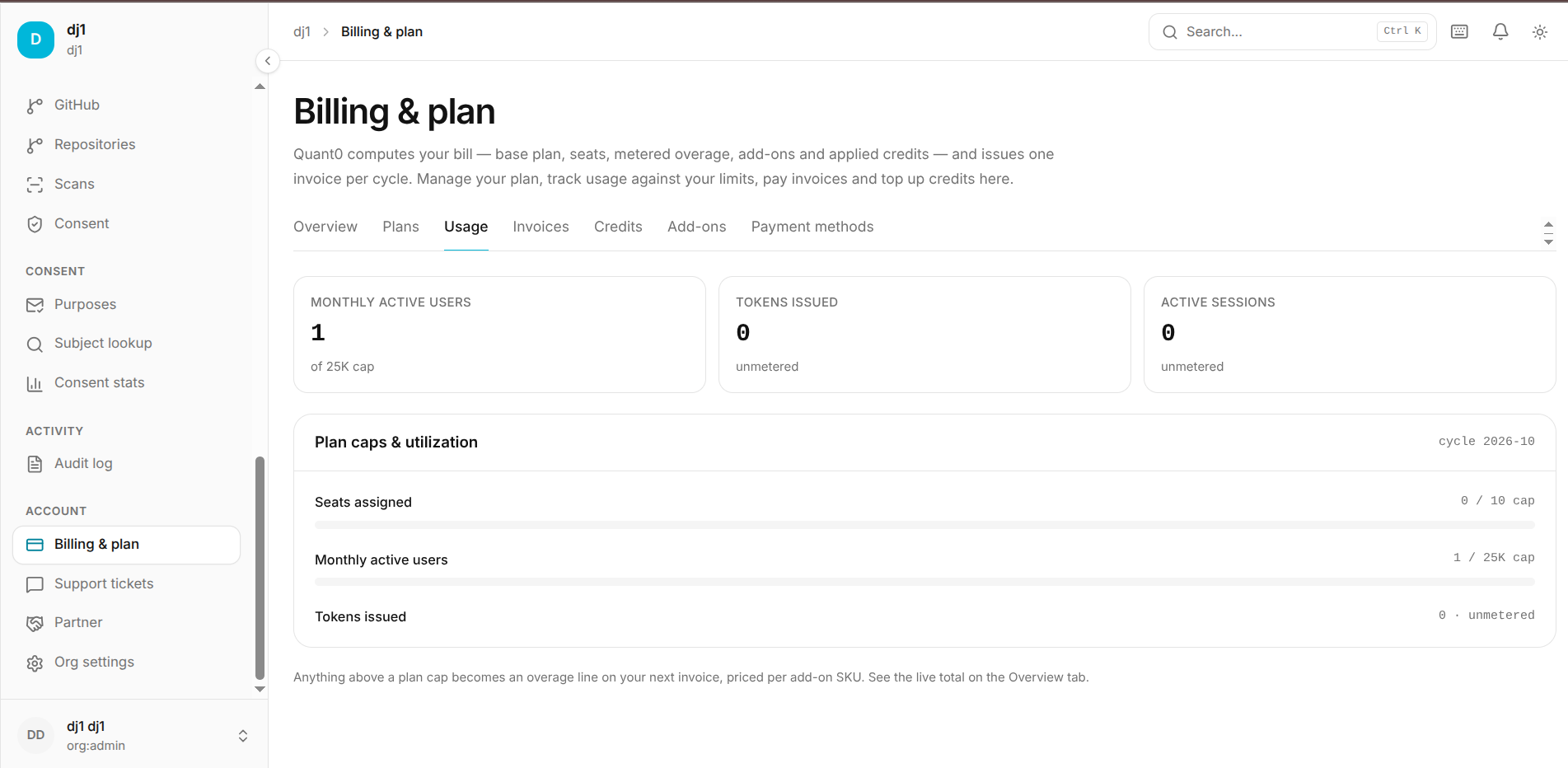
The Usage tab helps organizations monitor resource consumption.
The current interface displays:
- Monthly active users.
- Tokens issued.
- Active sessions.
- Plan caps and utilization.
View Usage
To review resource consumption:
- Navigate to Billing & Plan.
- Select the Usage tab.
- Review the usage summary cards.
- Check the Plan caps & utilization section.
Review your organization's usage regularly to avoid unexpected charges or capacity restrictions.
6. Purchase Add-ons
Add-ons allow organizations to increase specific resource limits without necessarily changing their subscription plan.
Navigate to Billing & Plan → Add-ons to review available add-ons.
Available Add-ons
The current billing interface displays the following add-ons:
| Add-on | Additional capacity |
|---|---|
extra_seats | Increases the seat cap. |
extra_mau | 10,000 additional MAU per unit. |
extra_api_calls | 1 million additional API calls per unit. |
extra_tokens | 1 million additional tokens per unit. |
extra_webhook_subs | 10 additional webhook endpoints per unit. |
extra_custom_domains | 1 additional custom domain per unit. |
The available add-ons and their prices depend on the billing configuration.
Purchase an Add-on
- Navigate to Billing & Plan.
- Open the Add-ons tab.
- Review the available add-ons.
- Select the add-on you want to purchase.
- Complete any quantity selection or confirmation steps presented by the portal.
- Review the applicable billing information.
- Confirm the purchase.
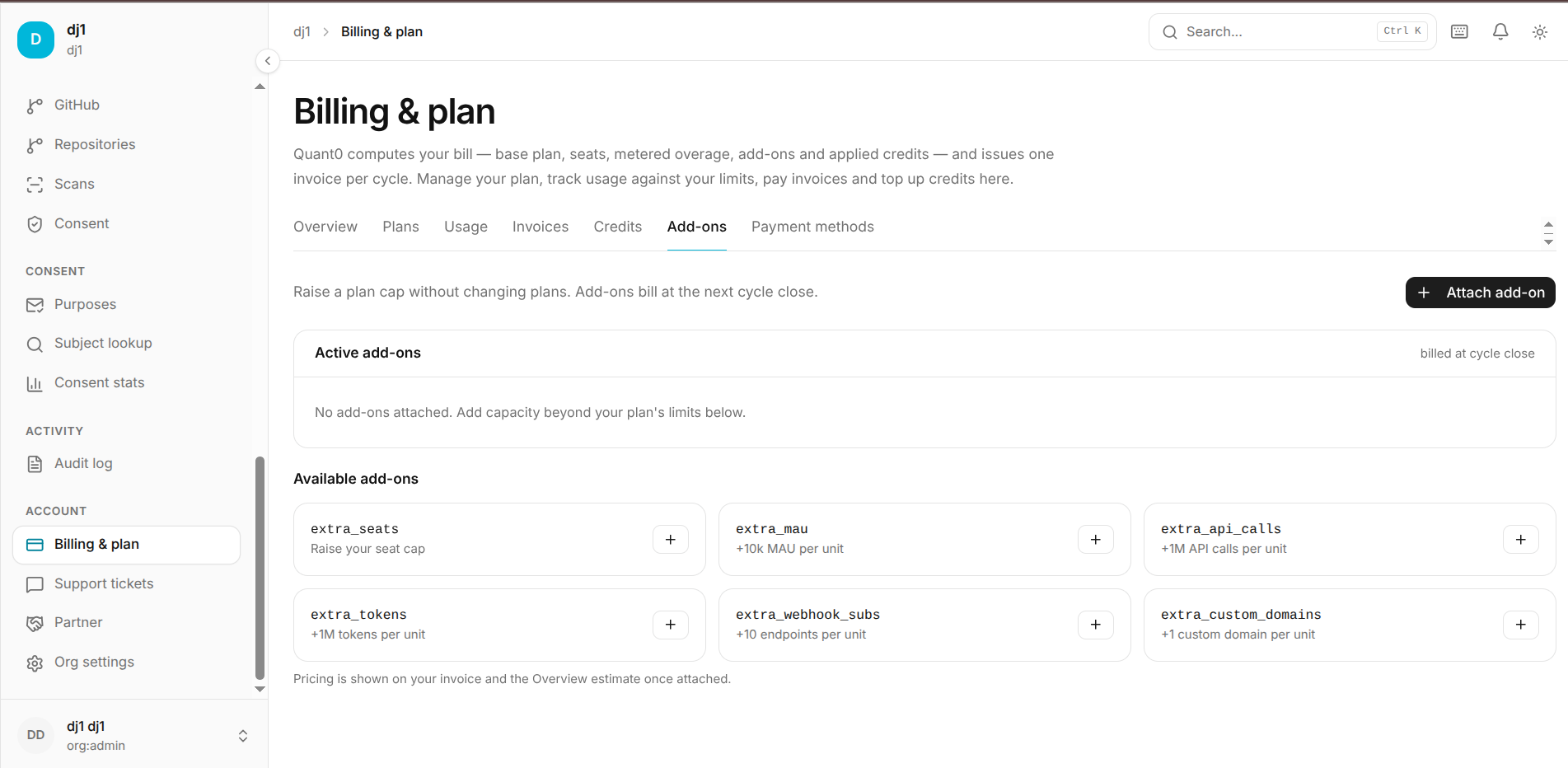
After a successful purchase, verify that the add-on appears in the Active add-ons section.
7. Billing Credits
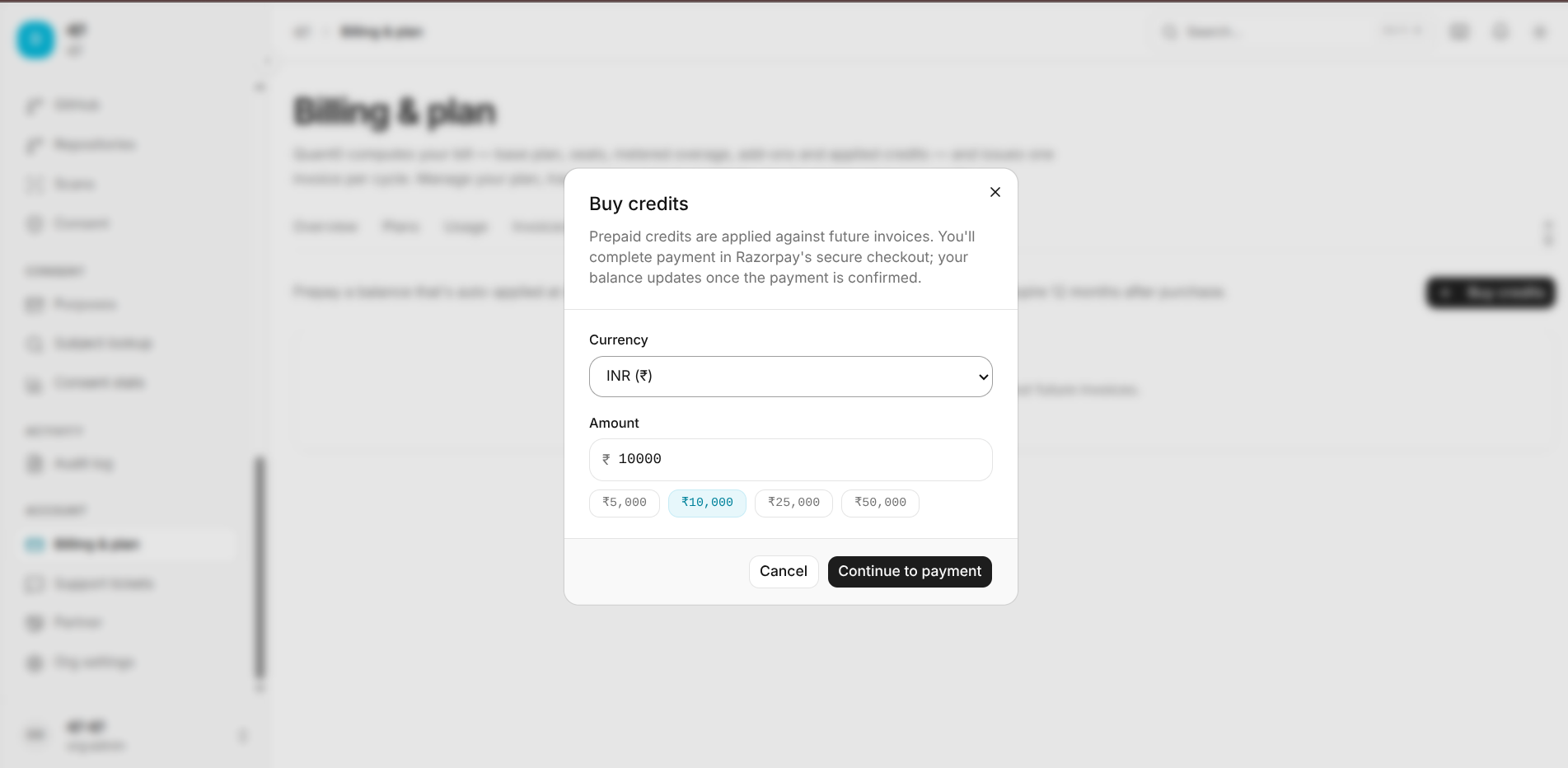
The Credits tab allows organizations to purchase prepaid credits for eligible future invoices.
The current billing interface states that prepaid credits are applied against future invoices.
Purchase Credits
- Navigate to Billing & Plan.
- Select the Credits tab.
- Click the option to buy credits.
- Select the currency.
- Enter an amount or choose a suggested amount.
- Continue to payment.
- Complete the payment process.
The current interface displays INR and example purchase amounts of ₹5,000, ₹10,000, ₹25,000, and ₹50,000.
8. Invoices and Billing Lifecycle
The Invoices tab provides access to available invoice records.
Quant0 calculates billing using the organization's subscription plan, seats, metered usage, add-ons, and applicable credits.
Estimated Next Invoice
The Overview tab displays an estimate of the next invoice.
The estimated amount can change during the billing cycle as usage, add-ons, plan changes, and eligible credits change.
The estimated invoice is not necessarily the final amount payable.
View Invoices
- Navigate to Billing & Plan.
- Select the Invoices tab.
- Use the status filter to find the required invoices.
- Open an invoice to review its details, if that action is available.
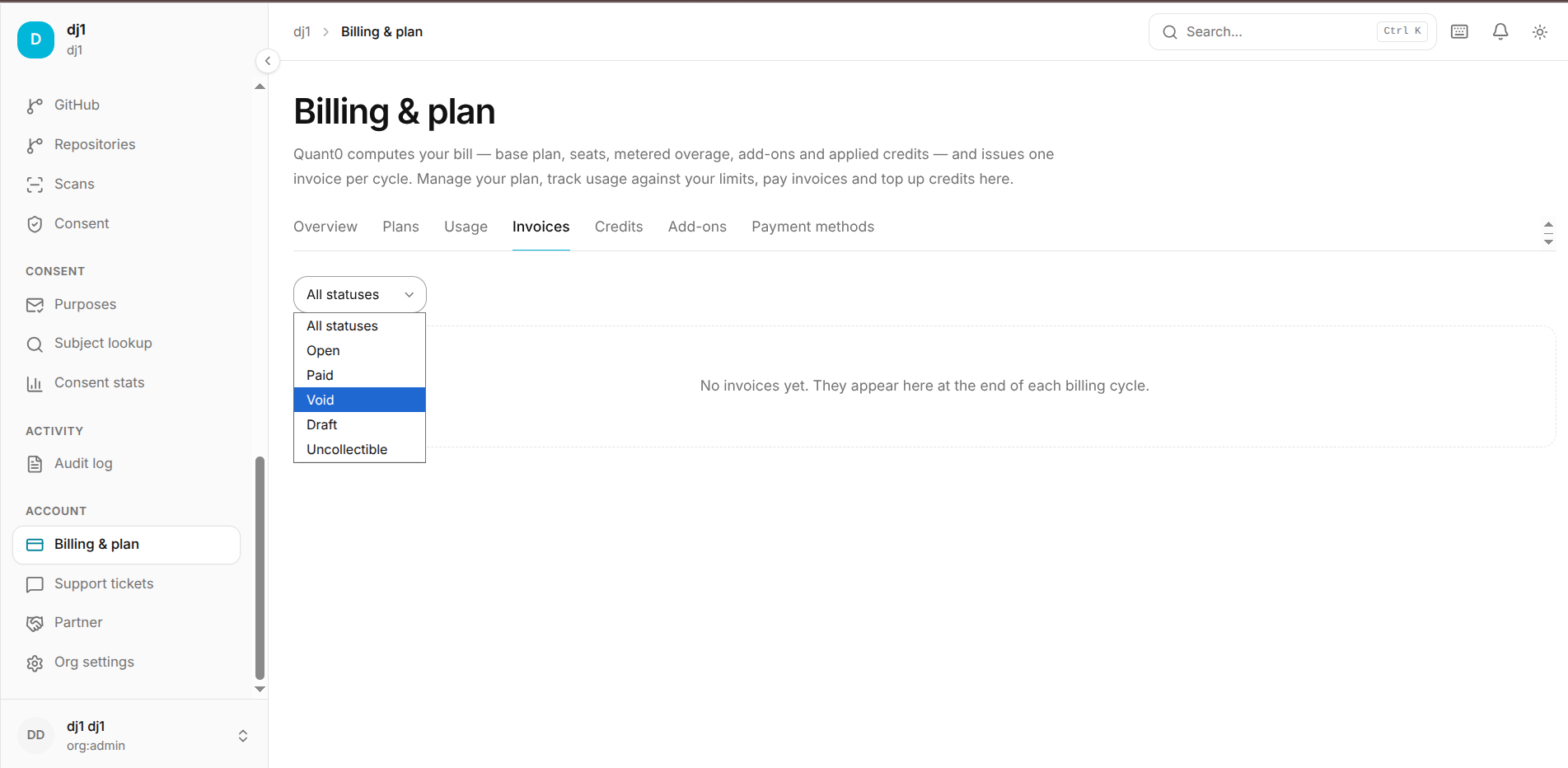
When no invoices have been generated, the portal displays an empty state indicating that invoices appear at the end of the billing cycle.
Invoice Statuses
The exact statuses depend on the billing implementation.
Common invoice states may include:
| Status | Meaning |
|---|---|
| Draft | The invoice has been created but is not finalized, if supported. |
| Open / Pending | Payment is outstanding, if supported. |
| Paid | Payment has been recorded successfully. |
| Failed | A payment attempt failed, if supported. |
| Overdue | Payment has passed its due date, if supported. |
| Void | The invoice has been voided, if supported. |
Only the statuses actually used by the application should be treated as authoritative.
9. Payment Methods and Payments
The Payment Methods tab allows organizations to manage saved payment methods.
The current interface references Razorpay for payment processing.
Add a Payment Method
- Navigate to Billing & Plan.
- Open the Payment Methods tab.
- Select the option to add a payment method.
- Complete the payment-provider flow required by the portal.
- Select whether to make the payment method the default, if that option is available.
- Save the payment method.
The current interface describes using a Razorpay token generated by Razorpay Checkout.
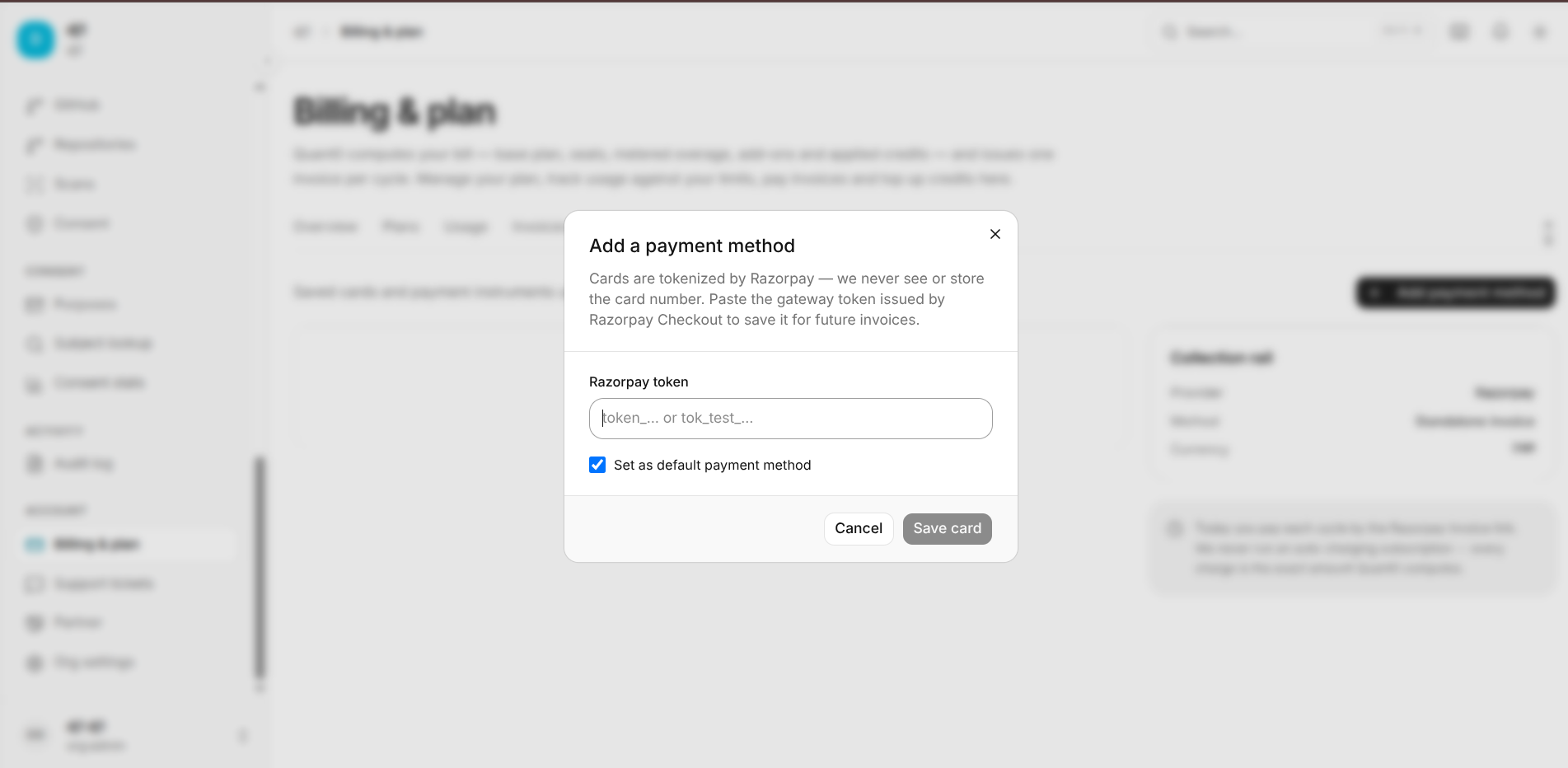
The interface also states that card details are tokenized by Razorpay and that Quant0 does not store the card number.
Outstanding Invoices
An outstanding invoice is an invoice for which payment has not been completed or recorded.
If payment is outstanding, review the invoice status and any payment actions provided by the portal.
Possible issues include:
- A failed payment attempt.
- A missing payment method.
- An invalid or expired payment token.
- A payment-provider error.
- A delayed payment confirmation.
The application should display the applicable status and recovery actions.
10. Enterprise and Custom Plans
The Enterprise plan displays custom annual pricing in the current billing interface.
Enterprise organizations may have negotiated pricing, custom limits, and contract-specific entitlements.
Enterprise Plan Behavior
The actual Enterprise agreement and organization configuration determine the applicable commercial terms and resource limits.
Organizations should confirm the following through the applicable sales or account-management process:
- Contractual pricing.
- Included resource capacity.
- Additional feature entitlements.
- Billing frequency and payment terms.
- Renewal conditions.
- Support commitments, if applicable.
Contact Sales
To discuss an Enterprise plan:
- Navigate to Billing & Plan → Plans.
- Review the Enterprise option.
- Select Contact sales.
- Follow the sales process provided by the application.
Enterprise activation and configuration may require additional internal steps, depending on the organization's agreement.
11. Billing Notifications and Emails
The billing system may send notifications or emails when billing-related events occur.
The exact events and recipients depend on the configured notification system.
| Event | Notification behavior to verify |
|---|---|
| Account activation | confirmation. |
| Trial nearing expiration | Trial reminder. |
| Trial expired | Trial-expiration notification. |
| Invoice overdue | Overdue payment reminder. |
| Grace period started | Billing reminder. |
| Organization suspended | Suspension notification. |
| Organization restored | Restoration notification. |