Configure a Native or Mobile Application
Use the Native or mobile application type for applications that are installed and run on a user's device.
This application type is intended for applications such as:
- iOS applications
- Android applications
- Desktop applications
- Command-line applications
Quant0 uses the Authorization Code + PKCE flow for Native or Mobile Applications.
When to Use a Native or Mobile Application
Choose Native or mobile when:
- The application is installed on a user's device.
- The application cannot securely store a client secret.
- Authentication is initiated from a mobile, desktop, or CLI application.
- The application runs outside a trusted server-side environment.
Authentication flow: Authorization Code + PKCE
Create a Native or Mobile Application
To create a Native or Mobile Application:
- Open the Quant0 Organization Portal.
- Navigate to Applications.
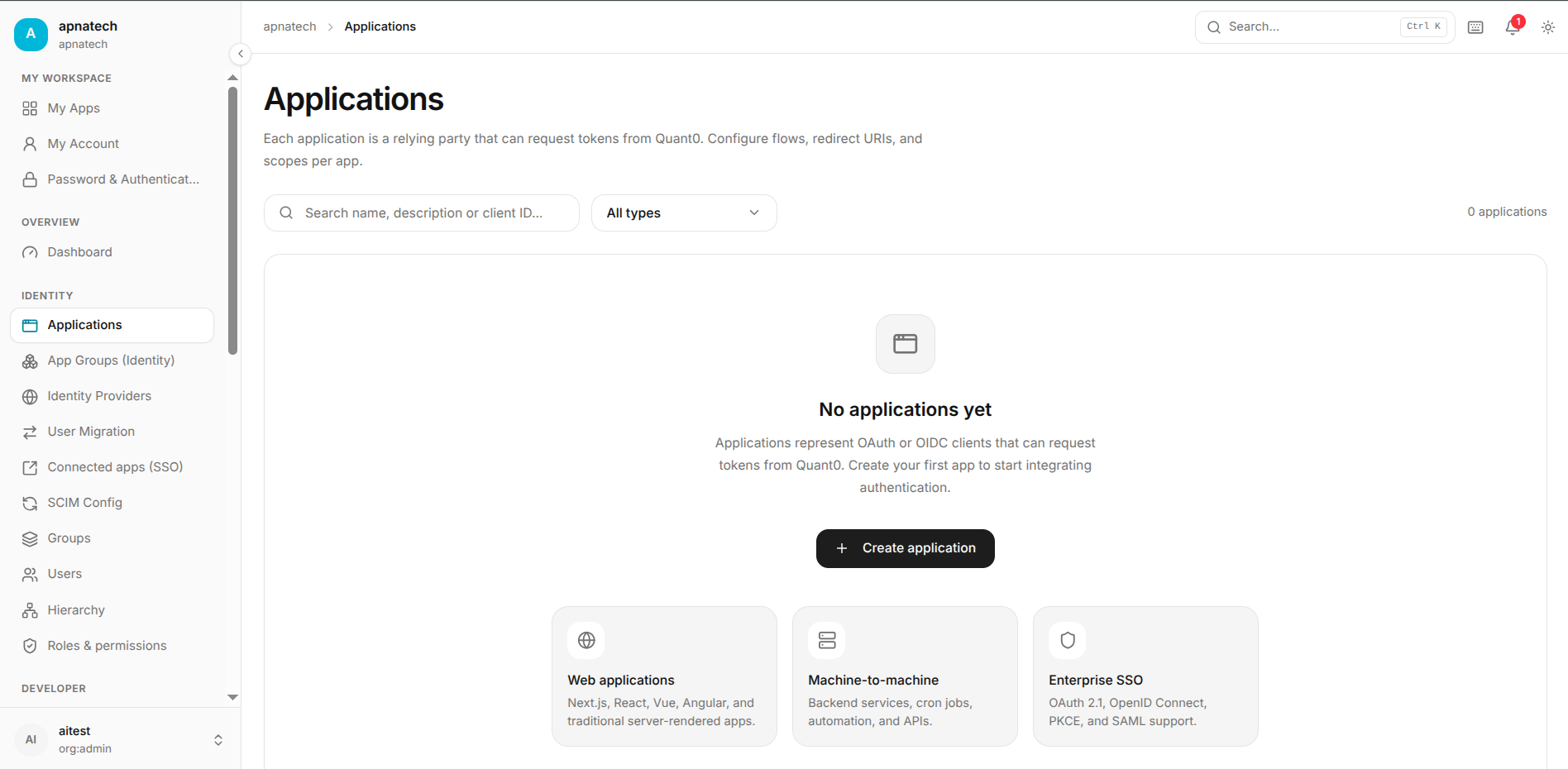
- Select Create application.
- Select Native or mobile.
- Select Continue.
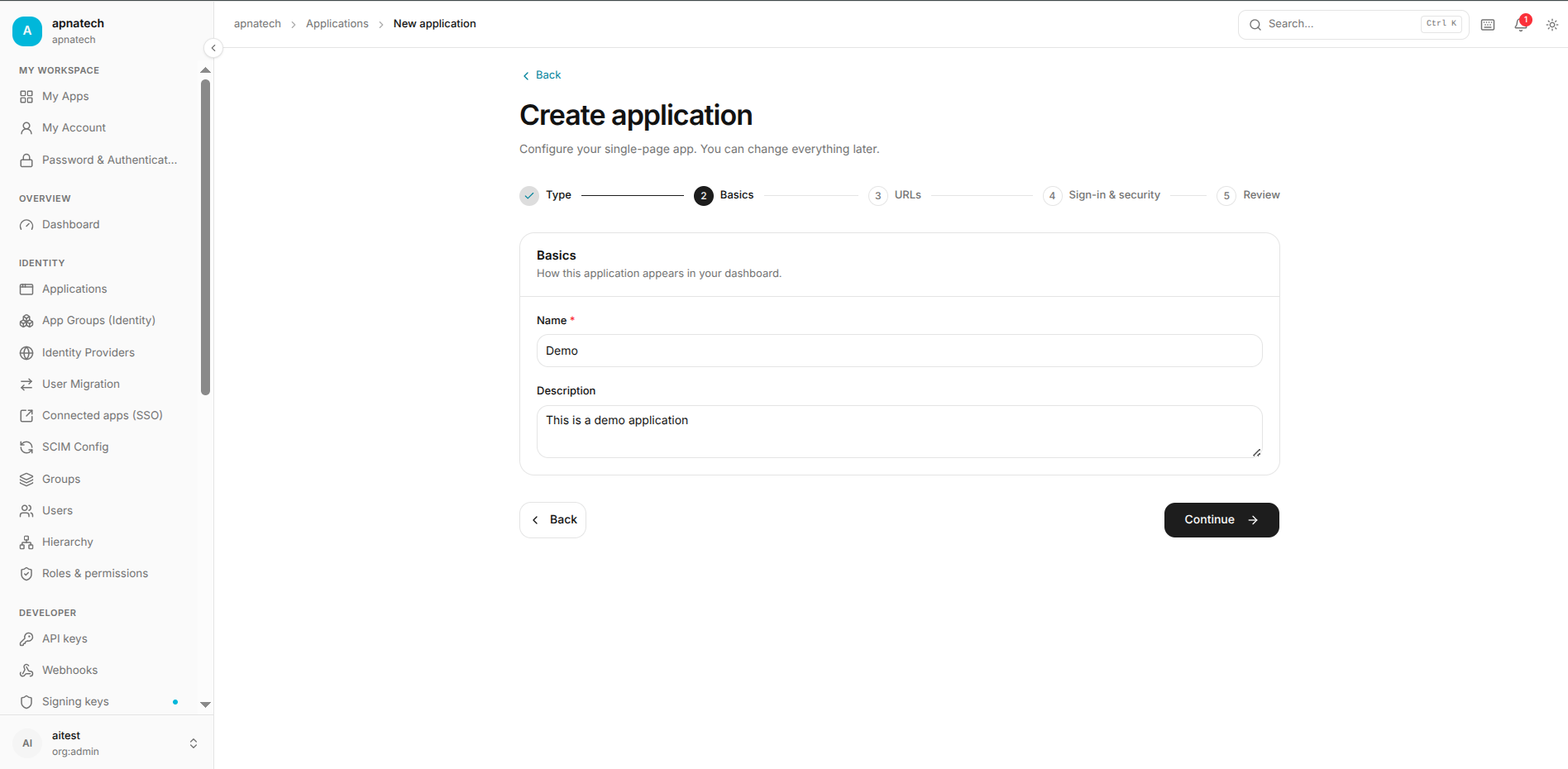
Configure Application Basics
The Basics step allows you to configure the application's basic information.
Application Name
Enter a name that clearly identifies your application.
Example:
My Mobile Application
Description
The description is optional.
Example:
Mobile application for customer access
Use the description to help administrators understand the purpose of the application.
Configure the Callback URL
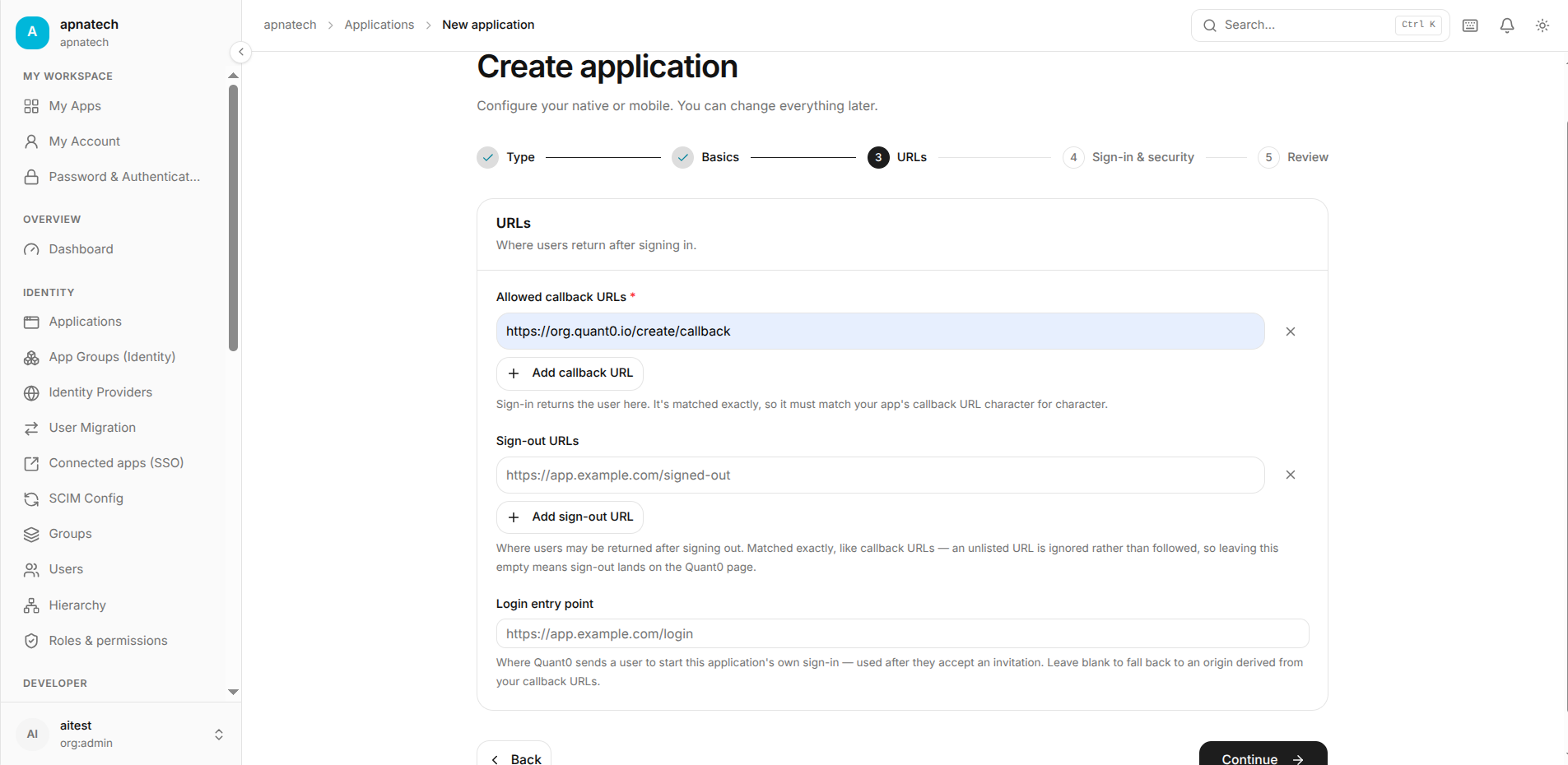
Native applications use an application-specific callback URL to return the user to the application after authentication.
Allowed Callback URL
For example:
com.example.app://callback
The callback URL configured in Quant0 must match the callback URL used by the application.
Sign-Out URLs
You can optionally configure the URL where users are redirected after signing out.
Example:
https://app.example.com/signed-out
Login Entry Point
You can optionally configure the application's login entry point.
Example:
https://app.example.com/login
Configure Sign-In and Security
The Sign-in & security step allows you to configure authentication and access options.
Require PKCE
Native and mobile applications should use PKCE.
Configuration:
Require PKCE: Enabled
PKCE protects the authorization code flow for applications that cannot safely keep a client secret.
Security recommendation: Keep PKCE enabled for Native and Mobile Applications.
Password Sign-Up
Enable this option if users should be able to register using an email address and password.
Magic Link
Enable this option if users should be able to authenticate using a sign-in link sent to their email address.
Require Verified Email
Enable this option if users must verify their email address before signing in.
Configure Who Can Sign In
Quant0 provides three options for controlling application access.
Open
Anyone in the organization can sign in.
Open
Invite Only
Only users who have been invited can sign in.
Invite only
Admin Assign
Only users assigned to the application by an administrator can sign in.
Admin assign
Choose the option that best matches your application's access requirements.
Configure Maximum Session Lifetime
Configure the maximum session lifetime in seconds, or use the organization default.
Example:
3600
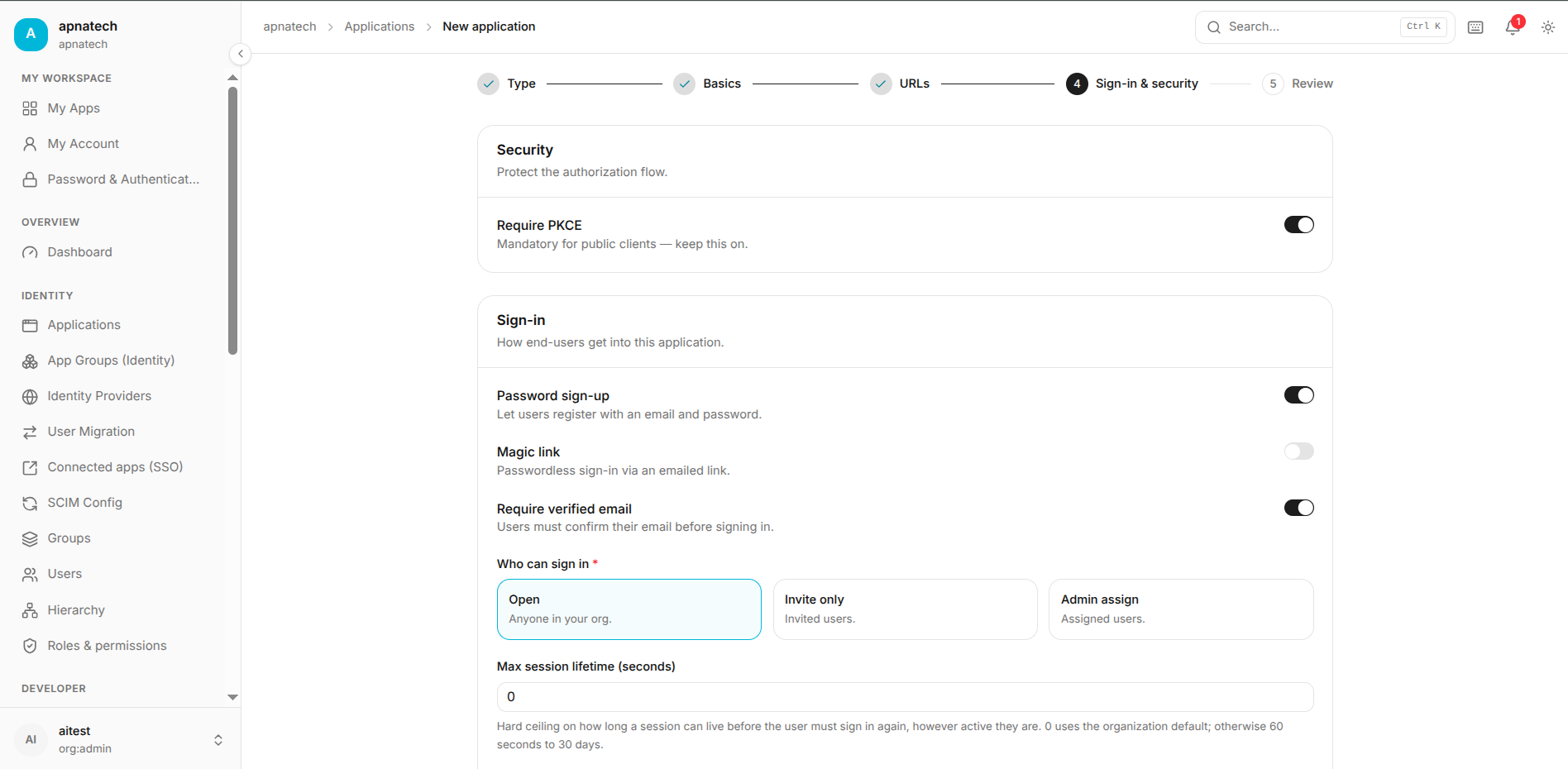
If the value is left at the organization default, the application uses the organization's default session policy.
Review the Application
Before creating the application, Quant0 displays a Review page.
Review the following configuration:
- Application type
- Application name
- Callback URL
- Web origins, if configured
- Sign-out URL, if configured
- Sign-in methods
- PKCE configuration
- Email verification
- Session lifetime
- User access configuration
- Application group
Example Configuration
Type:
Native or mobile · Authorization Code + PKCE

Name:
My Mobile Application

Callback URL:
com.example.app://callback

PKCE:
Required

Sign-in methods:
Password sign-up

Require verified email:
Yes

Who can sign in:
Open

Session lifetime:
3600 seconds
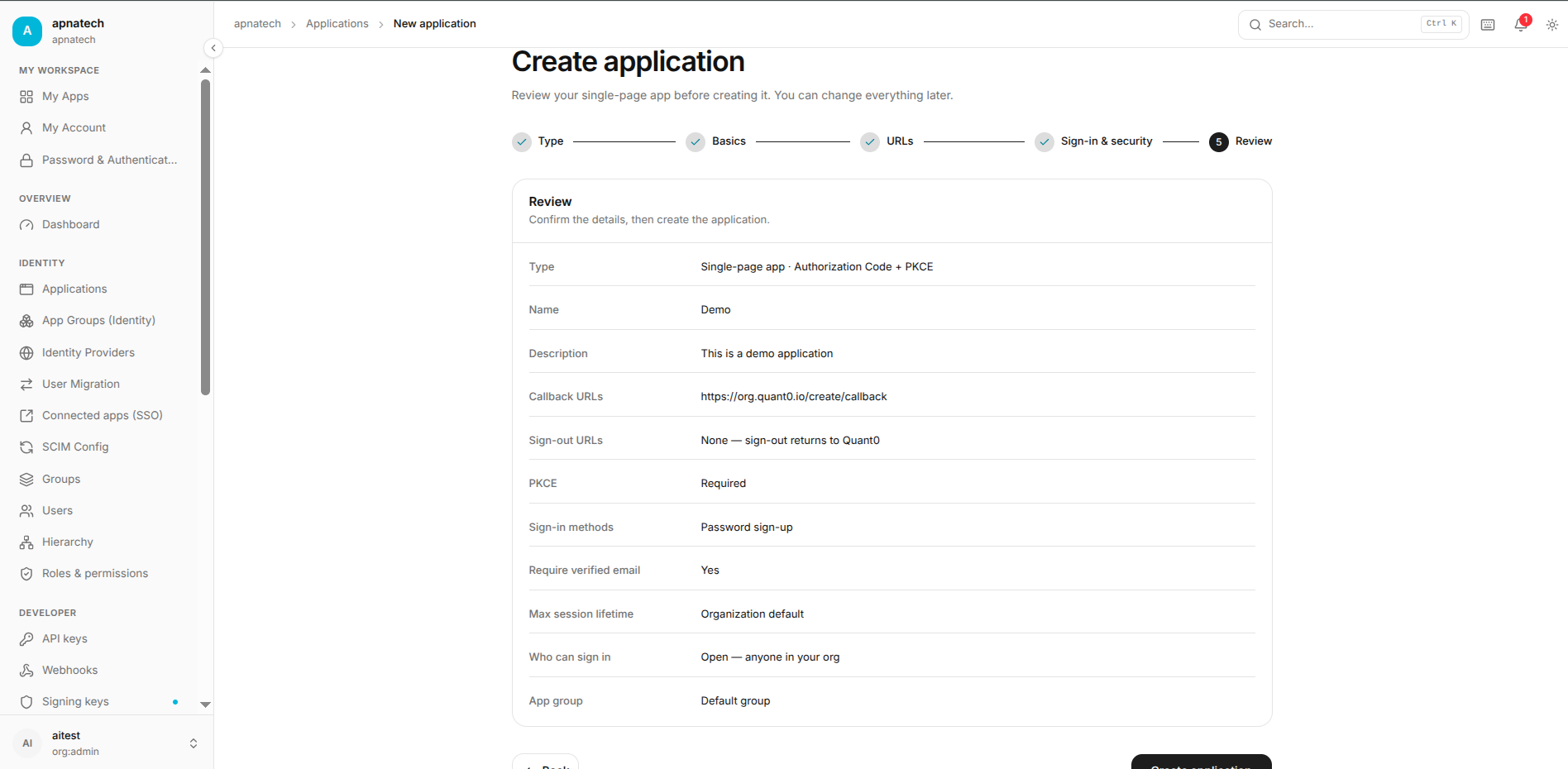
After verifying the configuration, select Create application.
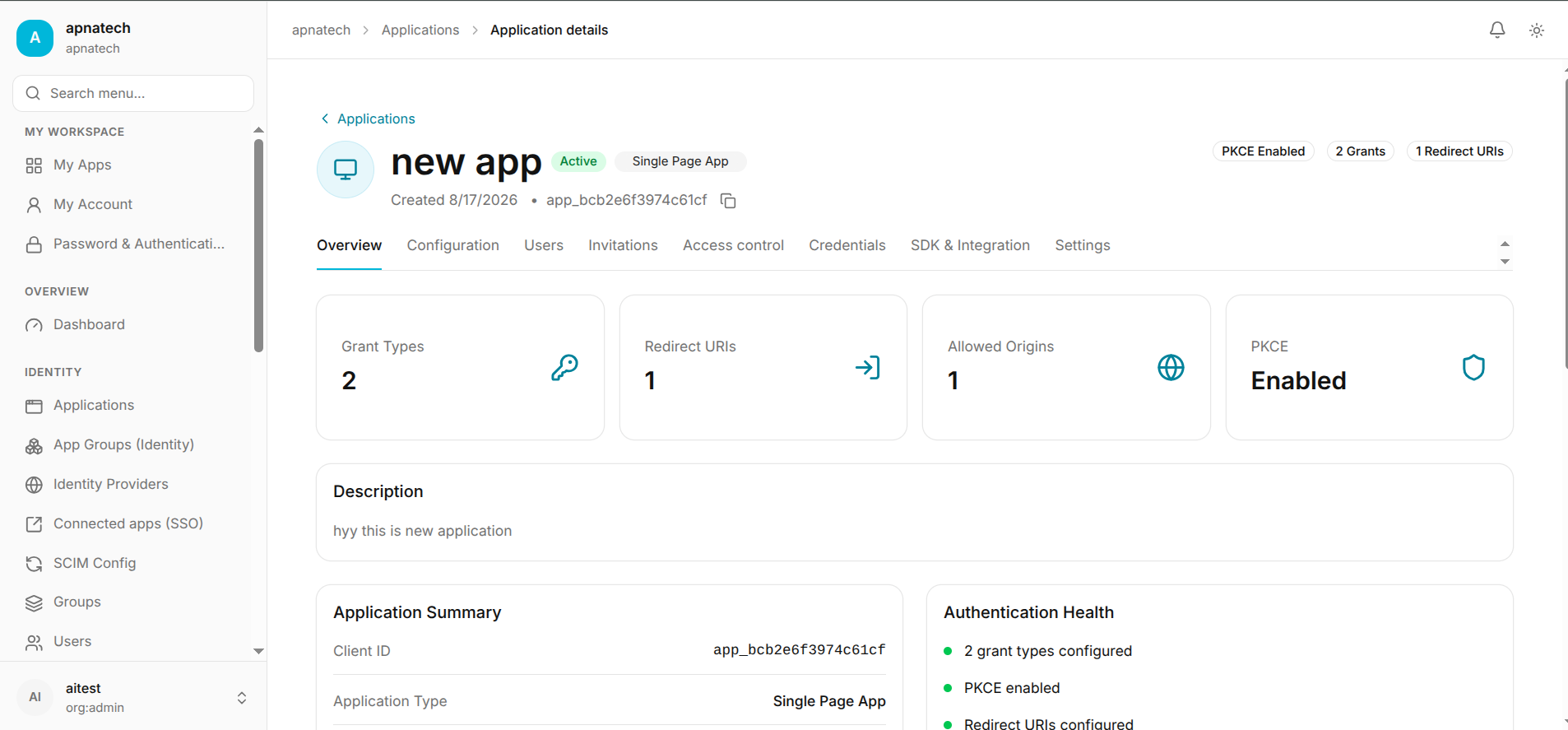
After creating application go to overview