My Apps
Purpose: The My Apps area is the end-user launchpad that lists the applications a person can open, request access to, or learn about.
Launch an Application
- Step 1: Open My Apps.
- Step 2: Click Launch. If SSO is required, the portal redirects or opens a new tab and completes the sign-on flow.
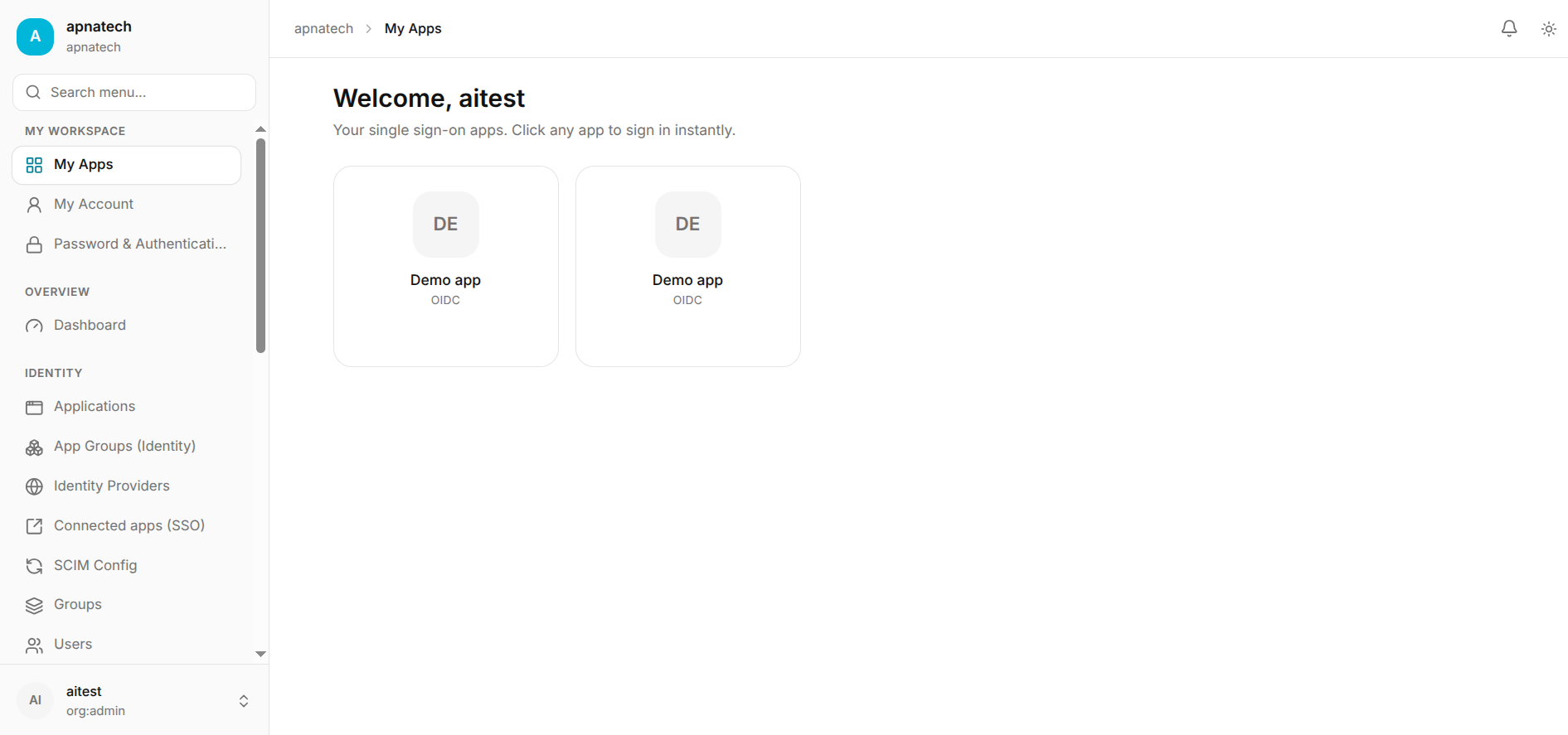
- Notes: If the app uses SSO, the first launch might require additional consent or configuration prompting.
Request Access (End user)
- Step 1: On an app tile where access is not granted, click Request Access.
- Step 2: Provide a short reason for the request and optionally indicate urgency or business justification.
- Step 3: The request is routed to the app owner and/or approver group. Users get a notification on approval or denial.
- Admin visibility: Approvers see requests in an approvals queue with requester info and justification.
Assign App to a User/Group
- Step 1: Open the App’s admin page (see Applications) and click Manage Access.
- Step 2: Add a user (see Users), group (see Groups), or role (see Roles & Permissions). Optionally set an expiration or temporary access window.
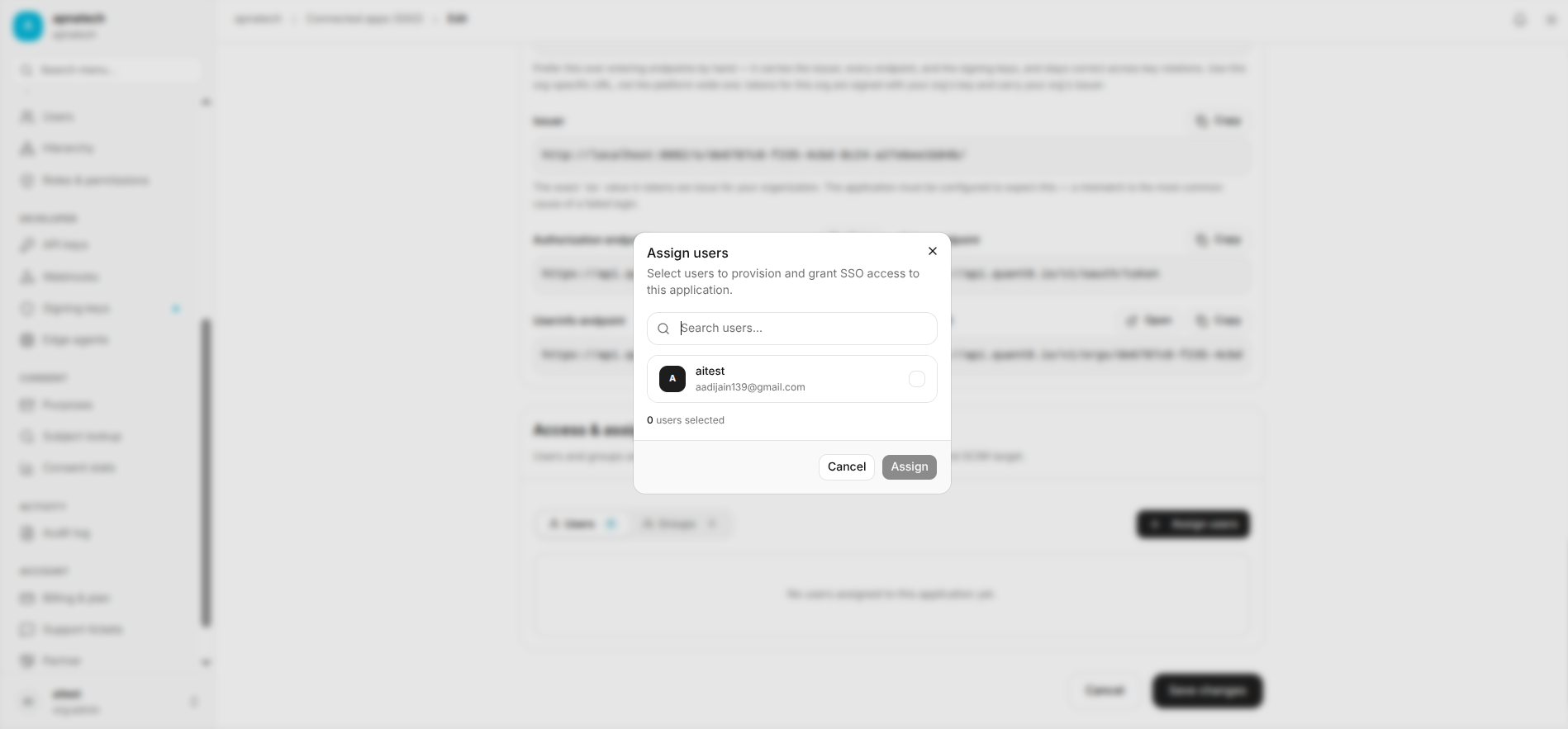
- Step 3: Save changes. The portal notifies newly granted users and the app becomes visible in their My Apps.
Configuration Considerations
- App visibility model: Decide whether apps are discoverable by all users, only by assignment, or mixed (catalog + assignment).
- Access approvals: Define approver roles and escalation rules.
- Onboarding automation: Optionally connect app assignment to onboarding flows or SCIM Configuration provisioning.
Retention & Governance Best Practices
- Keep app owner and support contacts current.
- Use tags and categories for discoverability (e.g., “finance”, “hr”, “production”).
- Review app assignments periodically; use automated reports for stale assignments.
Checks & Troubleshooting
- If app does not appear for a user:
- Verify assignment and any required roles.
- Confirm app is enabled and not under a maintenance flag.
- Check licensing quotas if the application requires a seat/license.
- If SSO fails at launch:
- Confirm the Connected Apps configuration (redirect URLs, allowed origins) with the app owner.
- Ensure the user’s identity attributes (email/username) match what the target app expects.
Short FAQ
- Q: My app is visible but shows “Request access” for colleagues. Why?
- A: They aren’t assigned or lack required role/group membership; use group-based assignments for scale.
- Q: How can I temporarily grant access?
- A: Use temporary assignments with expiry or use ad-hoc approval flows.