Groups
Groups allow administrators to organize users into collections that can be used for access management and provisioning.
Group membership can help administrators manage access consistently across multiple users.
Note: Membership can also synchronize to connected applications through SCIM where supported.
Groups Overview
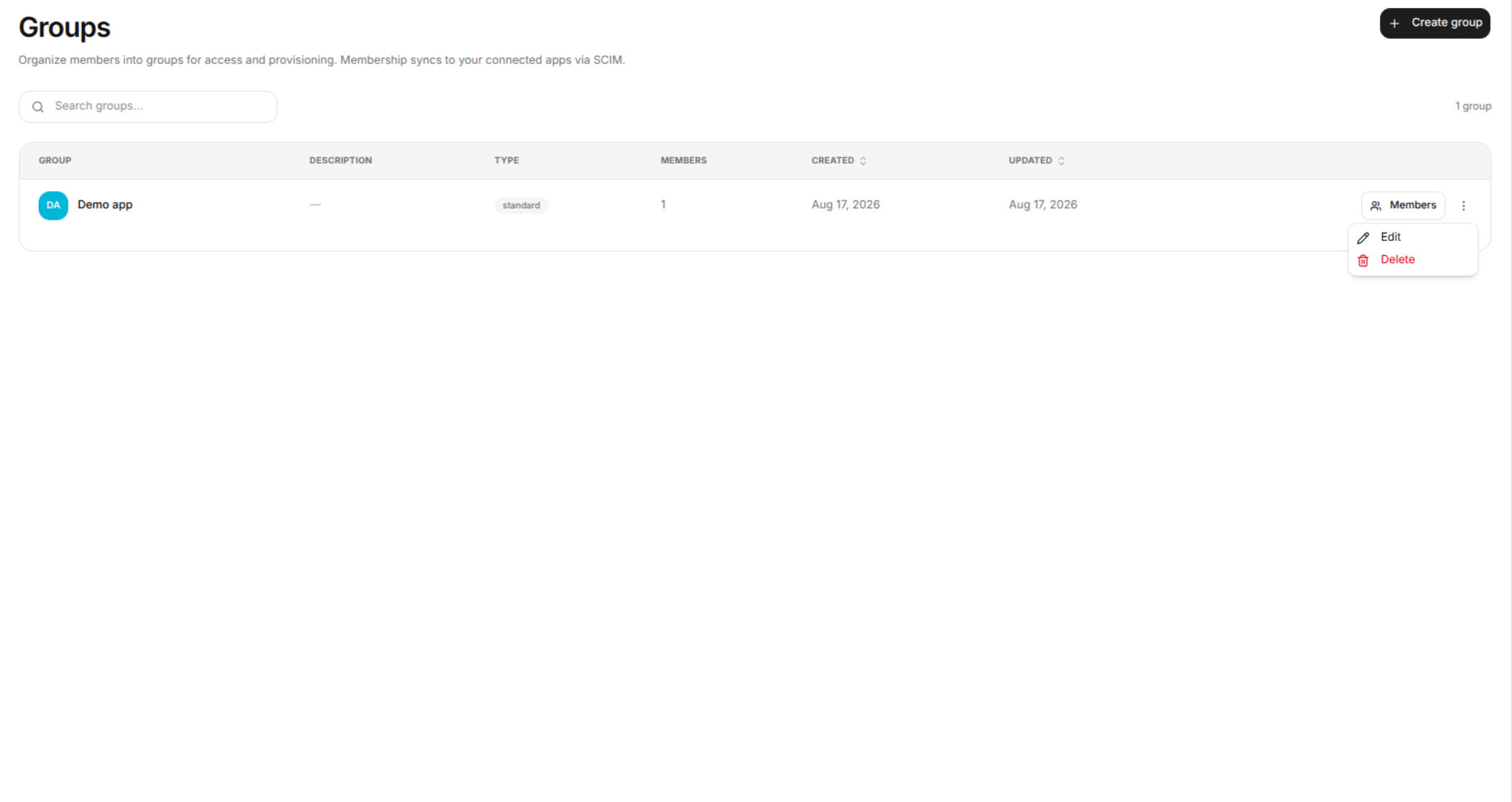
The Groups page provides a centralized view of all groups in the organization.
From this page, administrators can:
- View existing groups.
- Search for groups.
- Create new groups.
- View the number of members in each group.
- Manage group members.
- Edit existing groups.
- Delete groups.
- Review when groups were created and last updated.
Search Groups
The Search groups field allows administrators to quickly find a specific group.
To search for a group
- Open Groups from the navigation menu.
- Click the Search groups field.
- Enter the group name or relevant search text.
- Review the filtered group results.
Search is useful when the organization contains a large number of groups.
Create a Group
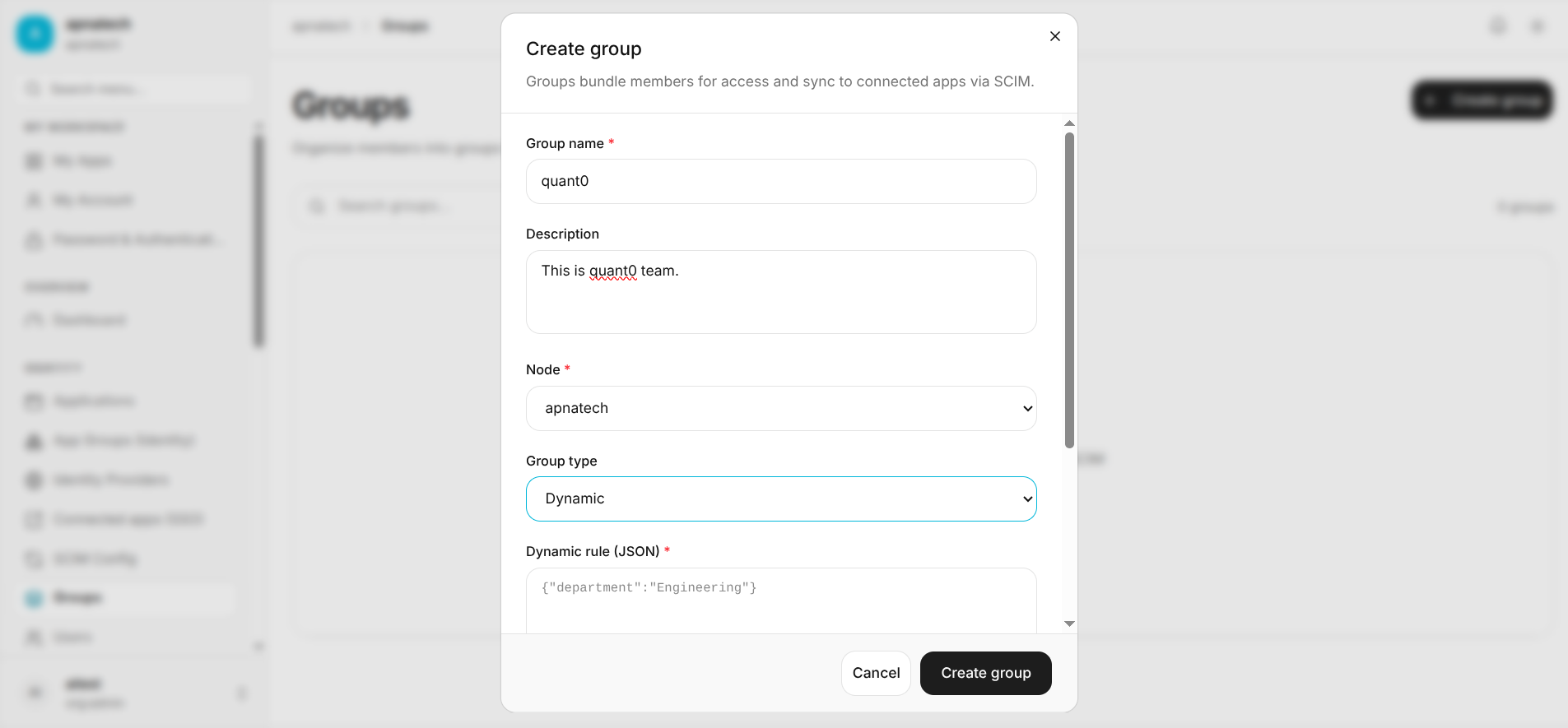
Administrators can create a new group using the + Create group button in the upper-right corner of the Groups page.
Steps
- Open the Groups page.
- Click + Create group.
- Enter the group name.
- Add a description if required.
- Configure the initial group membership.
- Save the group.
The newly created group appears in the Groups table.
Group Actions
Each group has a Members button and an Actions menu.
The Actions menu contains the following options:
- Edit
- Delete
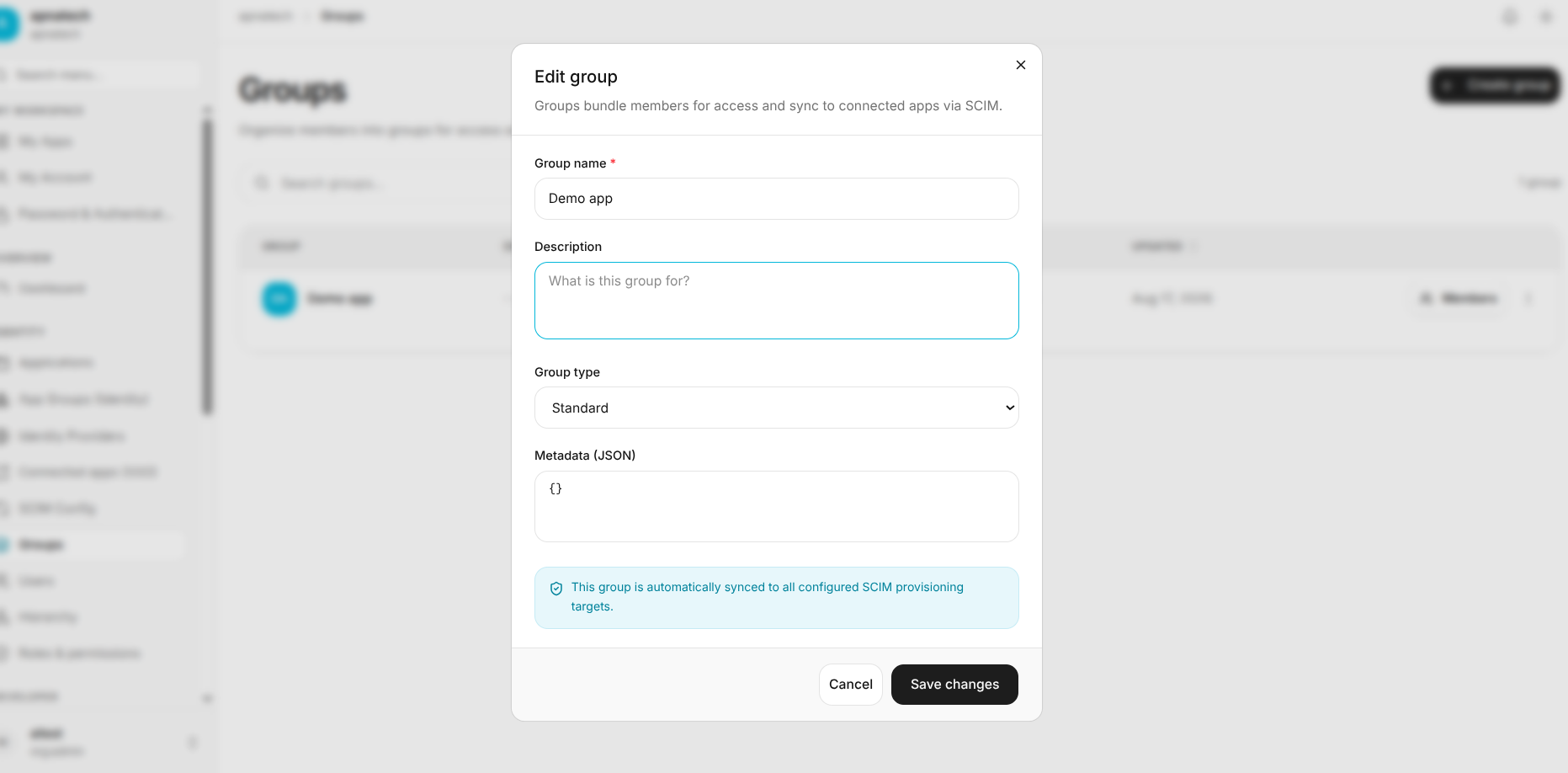
Edit
Click Edit to modify the selected group's configuration.
Delete
Click Delete to remove the selected group.
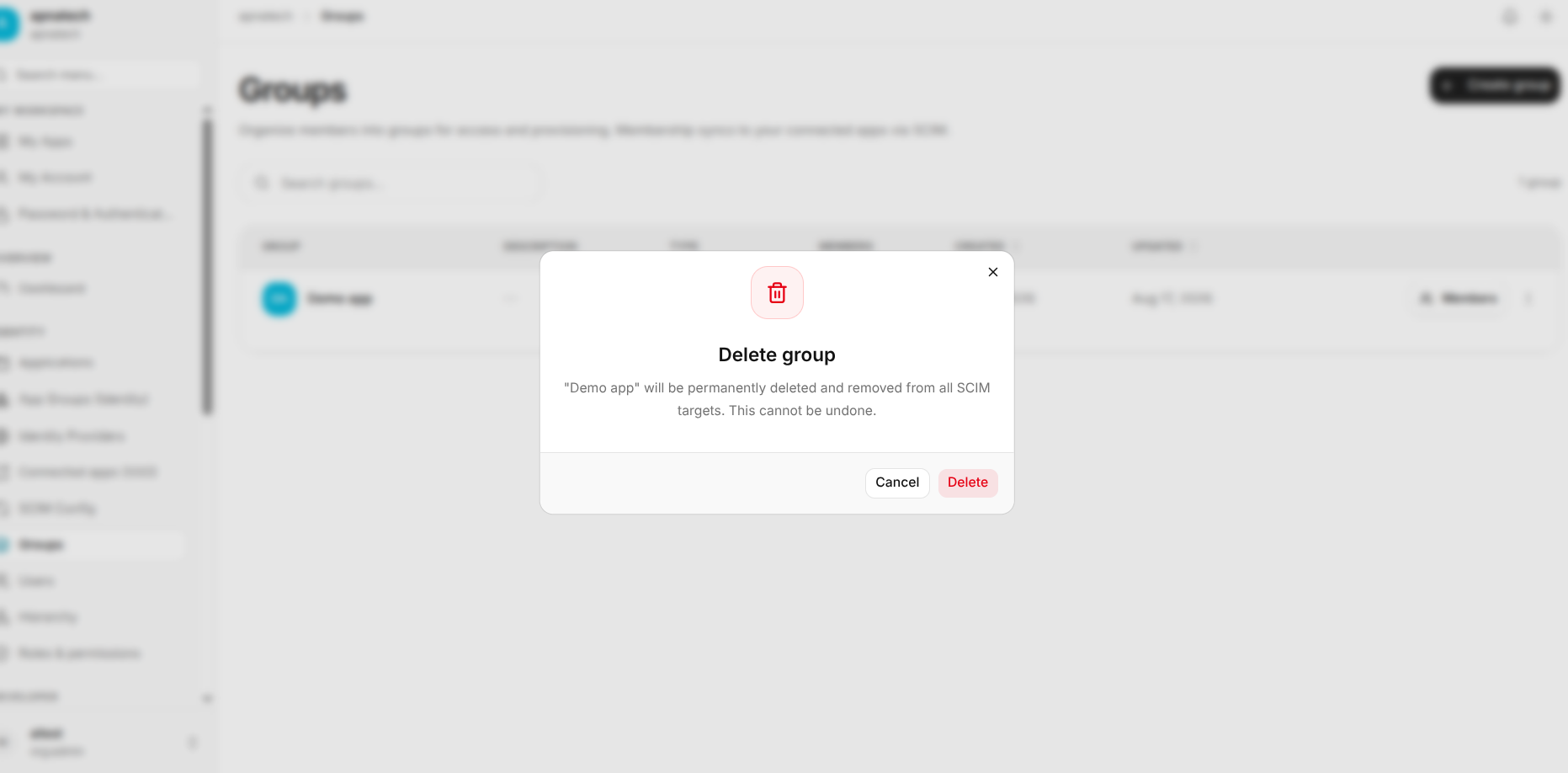
Warning: Deleting a group should be performed carefully because the group and its membership configuration will no longer be available.
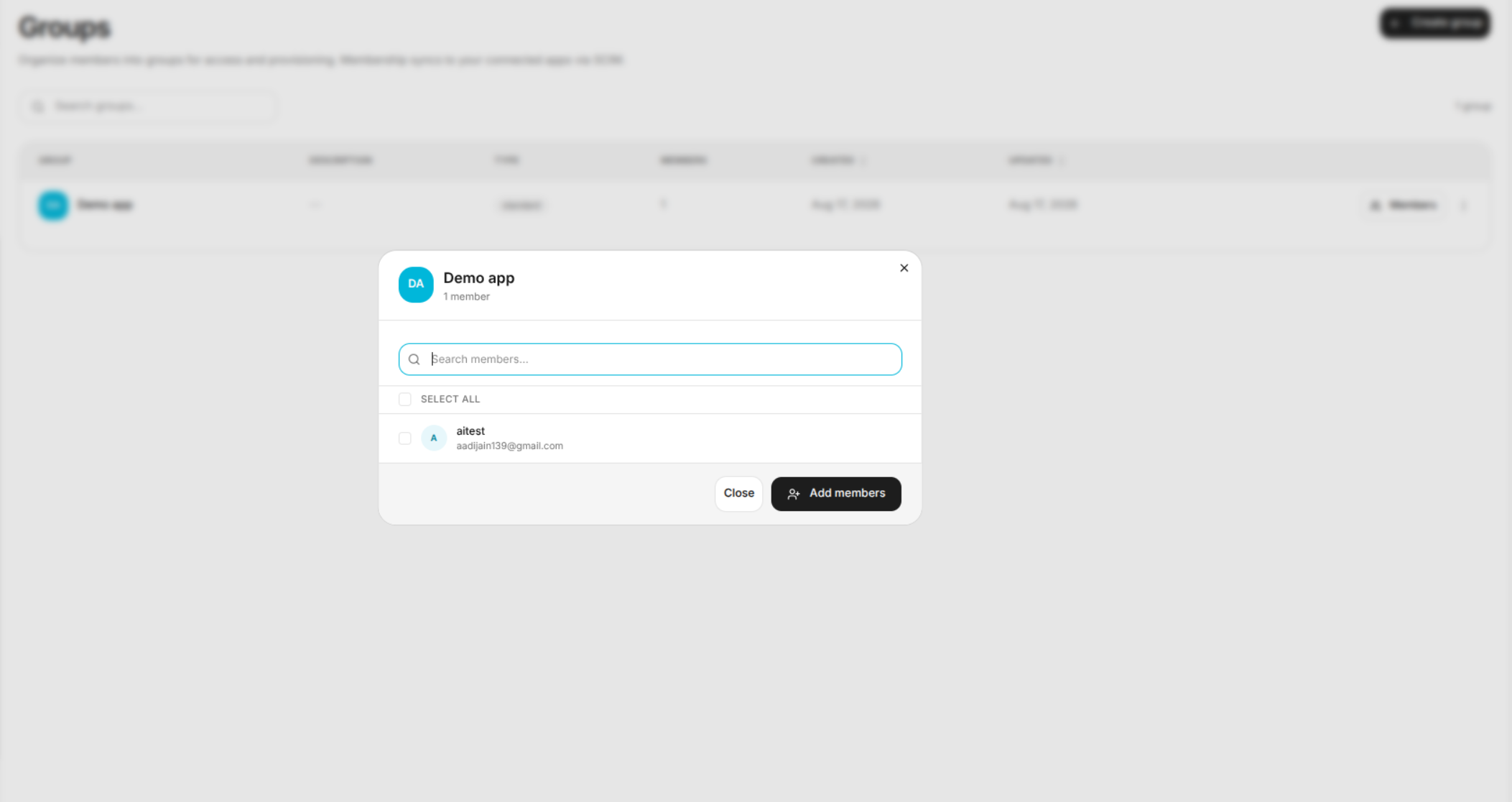
Open Group Members
To add users to a group:
- Find the required group.
- Click Members.
- The group's Members dialog opens.
Groups Page
The Groups page contains the following main elements:
| Element | Description |
|---|---|
| Search groups | Search for an existing group by name. |
| Create group | Create a new group. |
| Group | Displays the group name and group icon. |
| Description | Displays the group's description. |
| Type | Displays the type of group. |
| Members | Displays the number of members in the group and provides access to membership management. |
| Created | Displays when the group was created. |
| Updated | Displays when the group was last updated. |
| Actions | Provides options to edit or delete the group. |
Group Name
The group name identifies the collection of users.
Use a descriptive name that clearly communicates the purpose of the group.
Examples:
Engineering
Finance
Support Team
Application Admins