Outbound SCIM
Outbound SCIM provisions users and groups from the Quant0 Org Portal to an external system.
Use this configuration when Quant0 is the source of user or group information and changes need to be automatically synchronized with an external application, directory, or identity provider. Review the relevant app model in Applications and the user/group assignments in Users and Groups before enabling it.
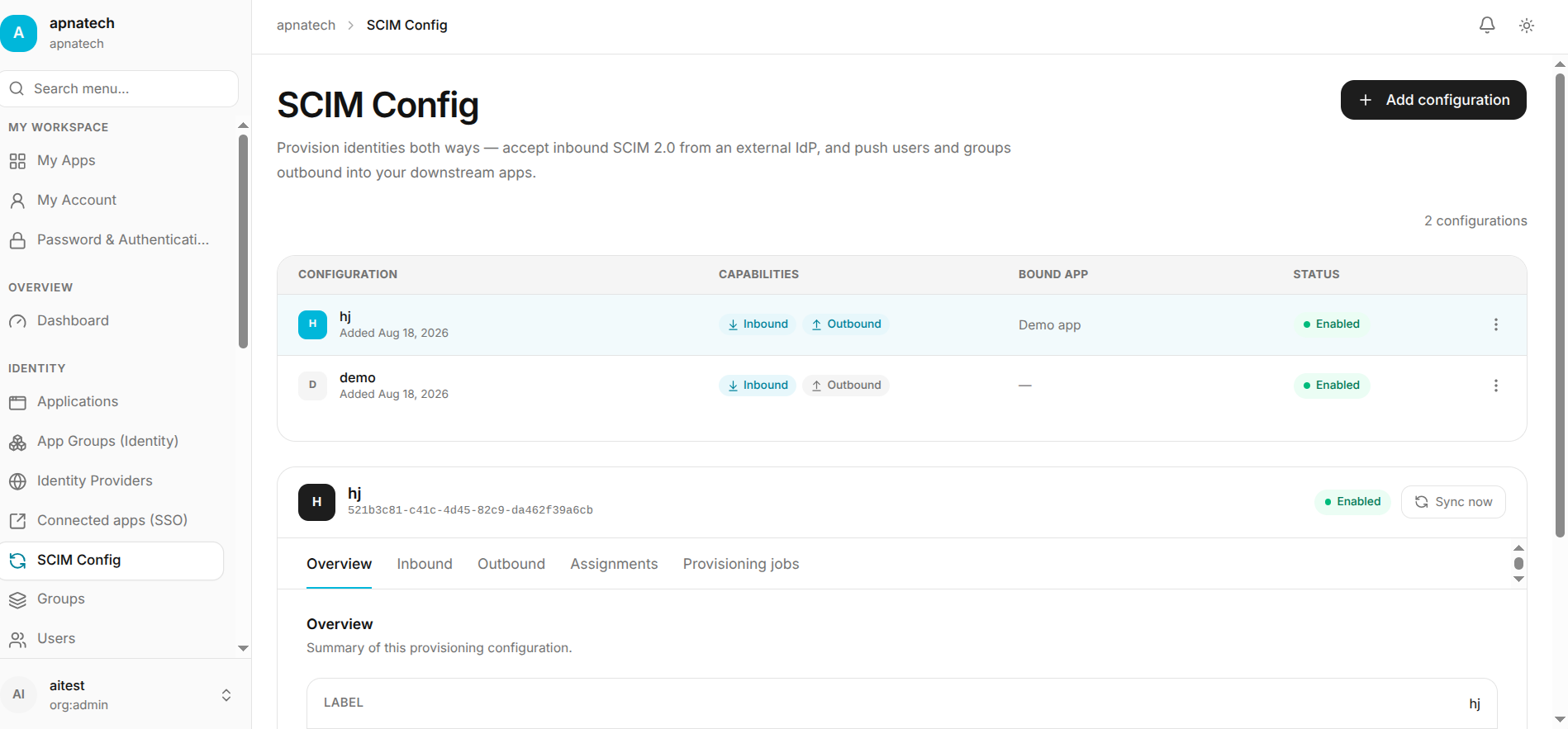
Create Configuration
Navigate to:
Select Add Configuration.
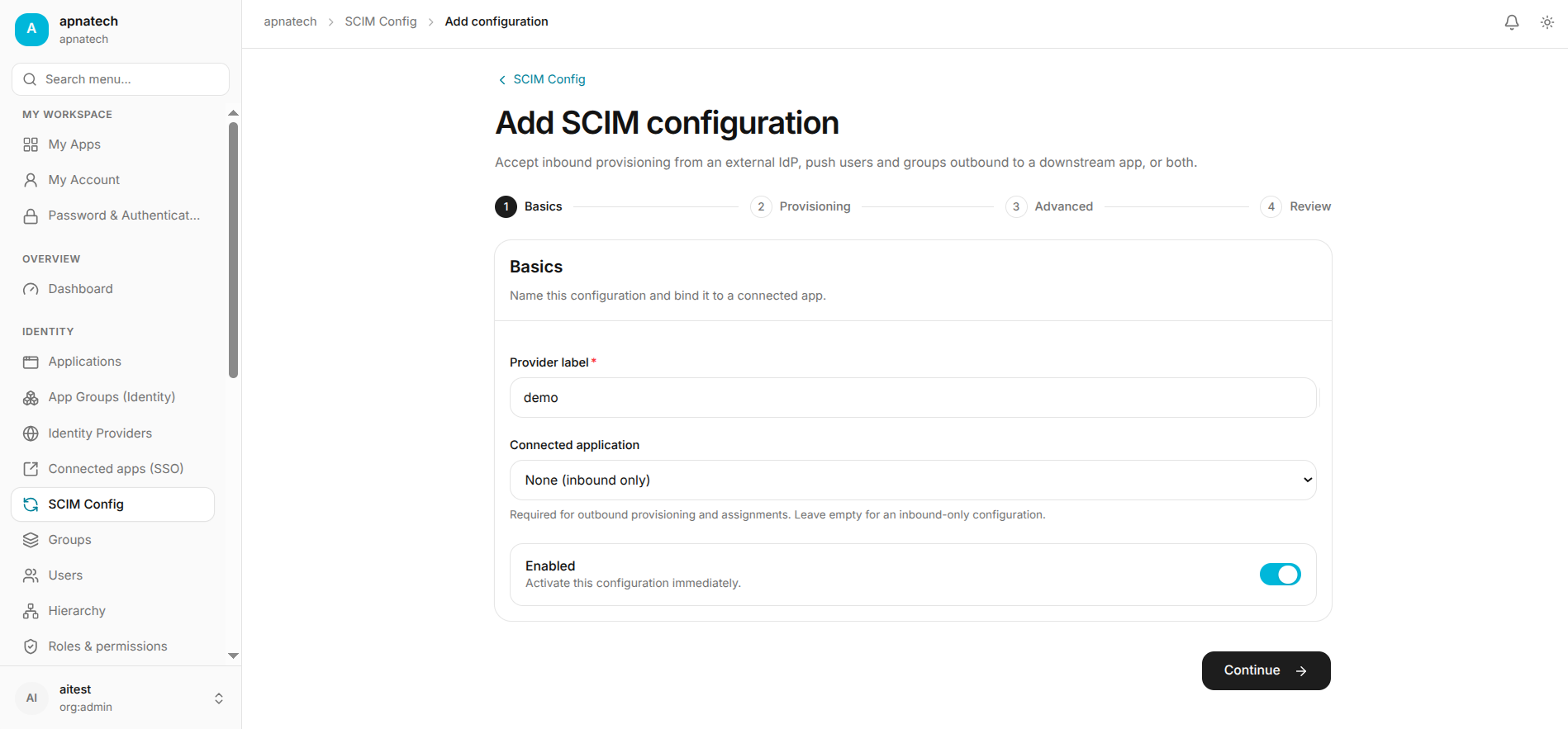
Enter the following details:
Name
Enter a name for the SCIM connection.
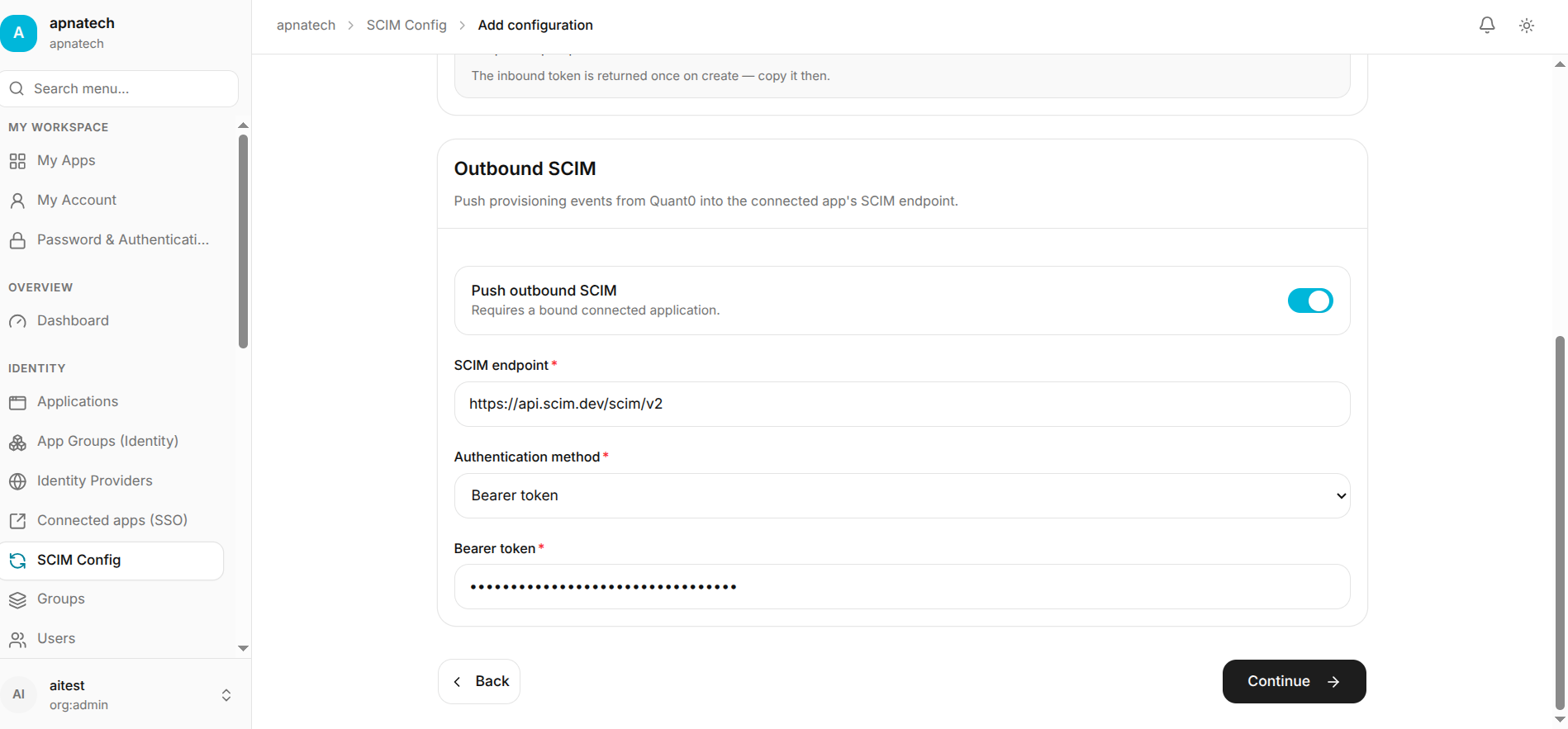
Endpoint URL
Enter the SCIM endpoint URL provided by the external system.
Authentication Type
Select the authentication method required by the external system.
Token / Credentials
Enter the token or credentials provided by the external system.
Select Save.
Check Connection
Confirm that the connection is successful before continuing.
If the connection test fails:
- Verify the endpoint URL.
- Verify the authentication method.
- Verify the token or credentials.
- Confirm that the credentials have the required permissions.
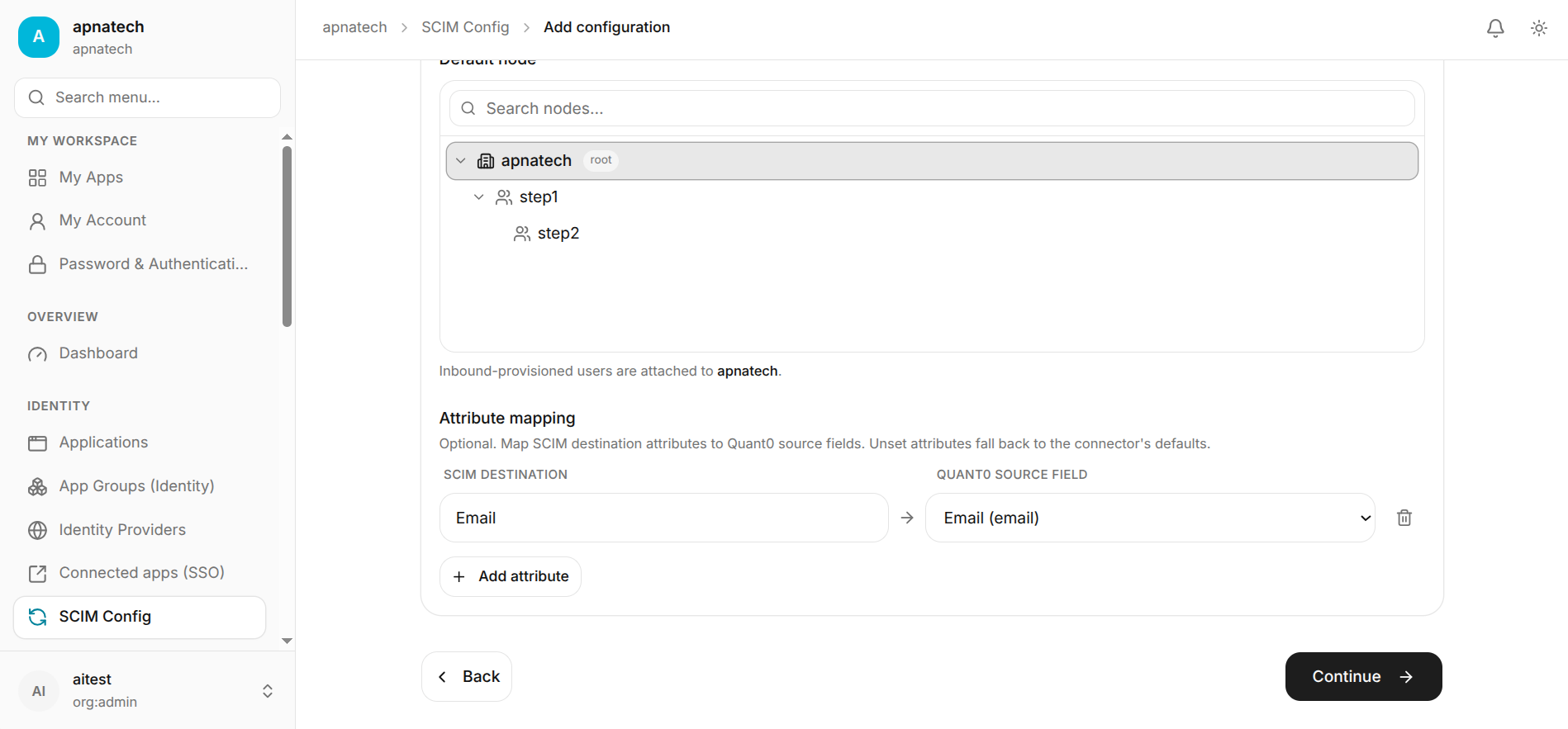
Configure Attribute Mapping
Open Attribute Mapping and configure the required user attributes.
| Quant0 Attribute | SCIM Attribute |
|---|---|
| Username | userName |
emails.value | |
| First Name | name.givenName |
| Last Name | name.familyName |
| Display Name | displayName |
| Active | active |
Configure group attributes if group provisioning is enabled.
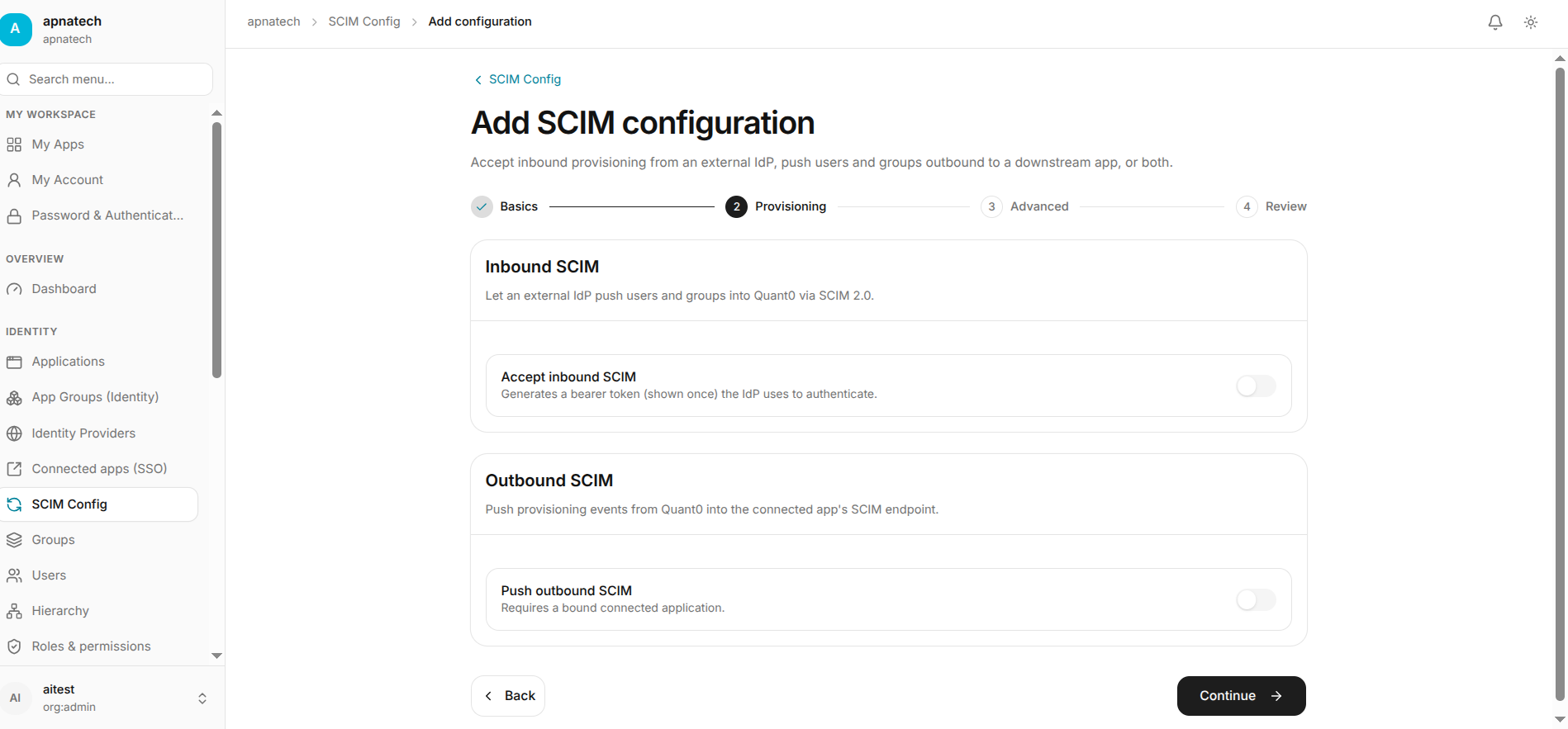
Select Provisioning Mode
Select the required provisioning mode.
Manual
Provisioning is started manually.
Test Provisioning
Create a test user in the Quant0 Org Portal and run provisioning.
Verify that:
- The user is created in the external system.
- User attributes are correct.
- Group membership is synchronized if group provisioning is enabled.
Update the test user and verify that the changes are synchronized with the external system.
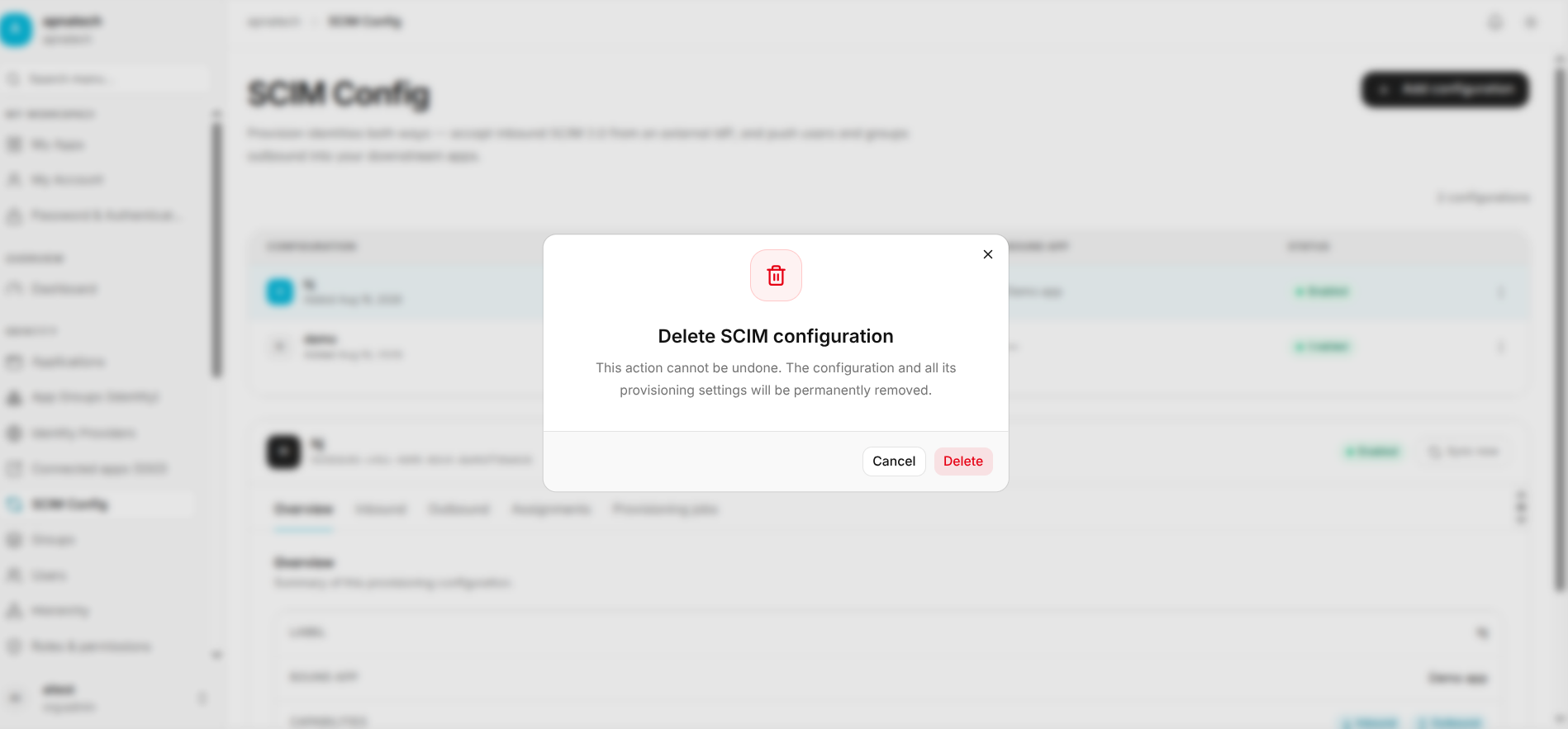
Configure Deprovisioning
Configure what should happen when a user is deactivated or removed.
Available options may include:
- Edit
- Delete
Select the behavior required by your organization's user lifecycle policy.
Enable SCIM
After successful testing:
- Select the required provisioning mode.
- Enable the SCIM configuration.
- Save the configuration.
Outbound SCIM Troubleshooting
User Not Provisioned
If a user is not created in the external system:
- Verify that the SCIM configuration is enabled.
- Check the provisioning mode.
- Run the provisioning operation if using Manual mode.
- Verify the user's required attributes.
- Check the provisioning activity or job history for errors.
User Created With Missing Attributes
If the user is created but some attributes are missing:
- Open Attribute Mapping.
- Verify the mapping for the missing attribute.
- Confirm that the source user contains the required value.
- Save the mapping.
- Run provisioning again.
Duplicate User
If duplicate users are created:
- Check the configured user matching attribute.
- Use a unique identifier such as External ID, Username, or Email.
- Verify that the same matching attribute is consistently provided.
Group Membership Not Synchronized
If group membership is not synchronized:
- Verify that group provisioning is enabled.
- Check the group attribute mapping.
- Verify that the group exists in the expected system.
- Check the user's group membership in Quant0.
- Review the provisioning activity for errors.
- Run provisioning again.
Required Attribute Missing
If provisioning reports a missing required attribute:
- Identify the missing attribute from the error.
- Open the attribute mapping configuration.
- Verify the corresponding mapping.
- Confirm that the Quant0 user contains the value.
- Correct the mapping or source data.
- Retry provisioning.
Rate Limit
If the external system reports a rate-limit error:
- Reduce the provisioning frequency.
- Reduce the batch size if supported.
- Wait for the rate limit to reset.
- Retry the failed provisioning operation.
Provisioning Repeatedly Fails
If the same provisioning operation continues to fail:
- Open Job History or Activity.
- Identify the failed operation.
- Review the displayed error.
- Verify the endpoint, authentication, and mappings.
- Correct the configuration or source data.
- Retry the operation.
- If required, temporarily disable the SCIM configuration.