Users
Purpose: Manage user lifecycle: invite, modify attributes, assign roles, reset credentials, and deprovision.
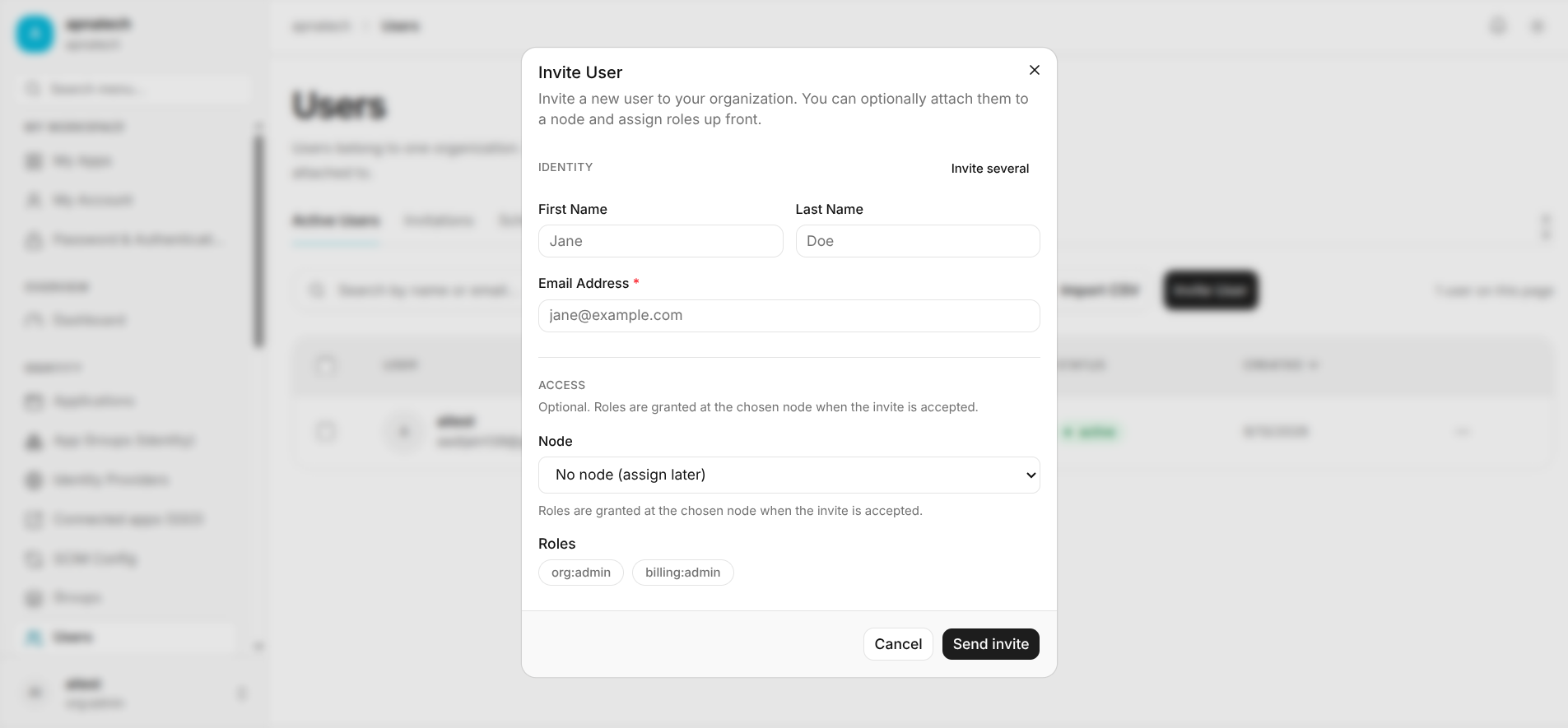
Invite a New User
- Step 1: Invite → enter email, name, role (Roles & Permissions), group assignment (Groups), and optional start date.
- Step 2: Send invite; monitor that the invite was accepted (pending → active).
- Step 3: If needed, re-send invite or assist with verification.
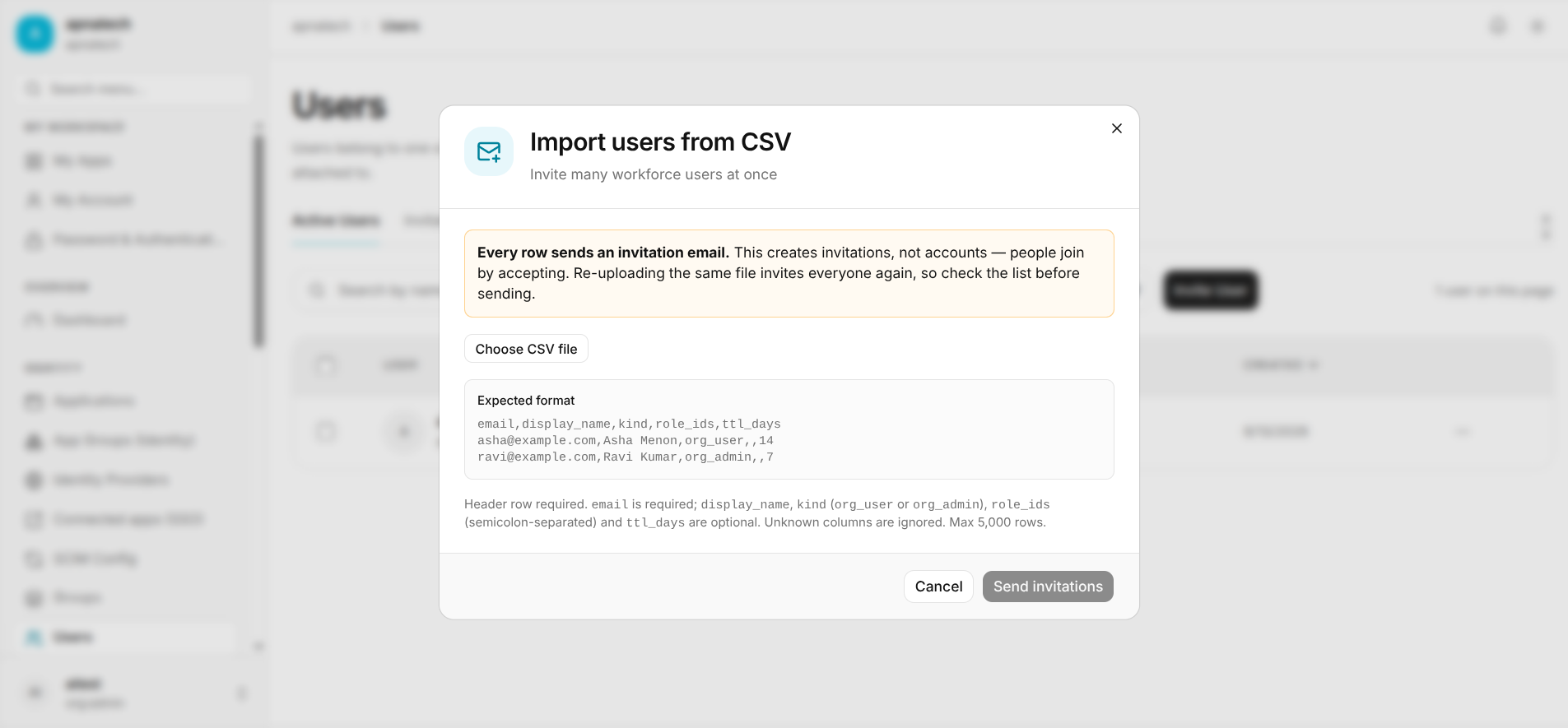
Bulk Onboarding via CSV
- Step 1: Prepare CSV per template with required fields (email, display name, groups).
- Step 2: Upload via import UI and monitor the async job for per-row status (success/failure details).
- Step 3: Fix failing rows and re-run.
Offboarding / Deprovision
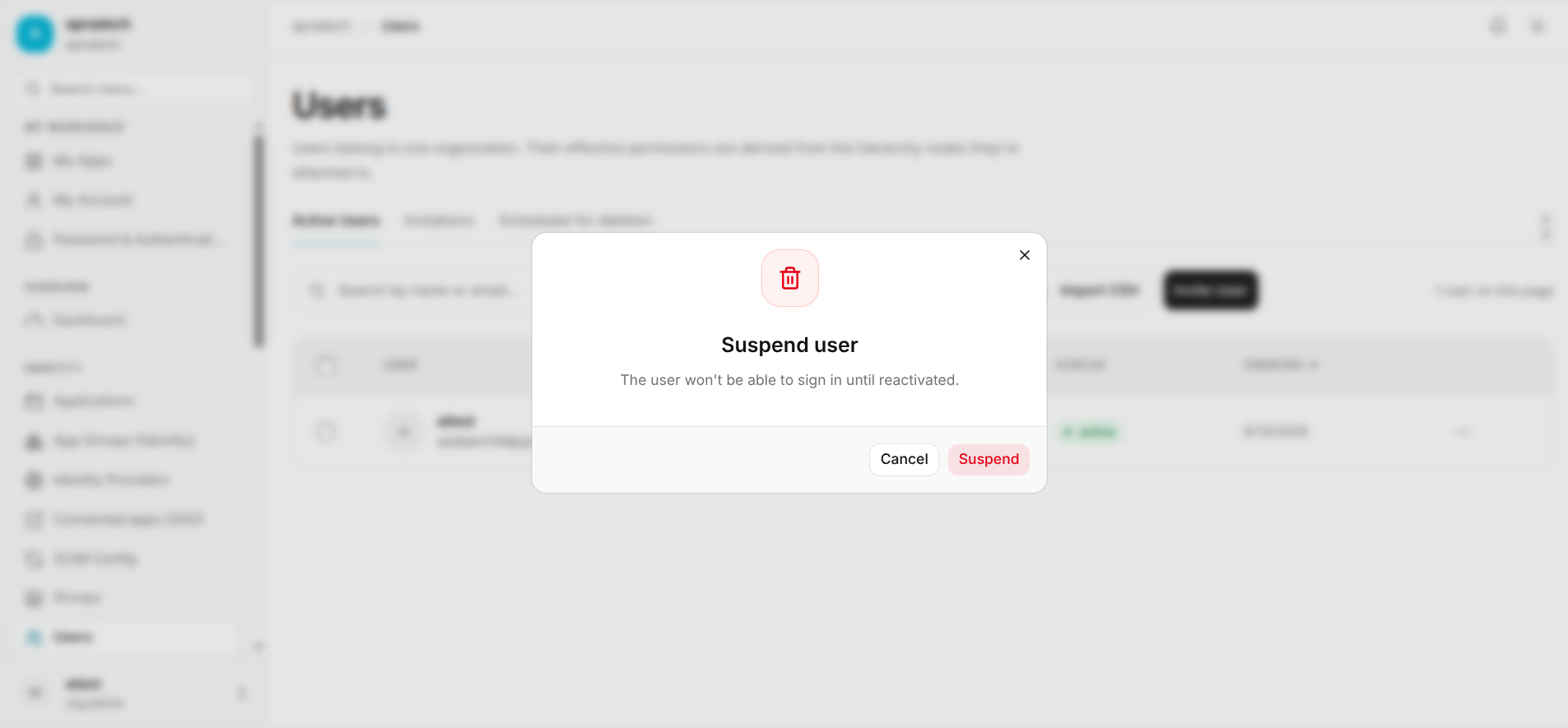
- Step 1: Suspend account immediately on termination.
- Step 2: Revoke sessions, remove roles, and optionally start scheduled deletion or immediate removal per policy.
- Step 3: If required, export user data for DSAR (see Subject Lookup) or retention archives.
Accessing User Overview
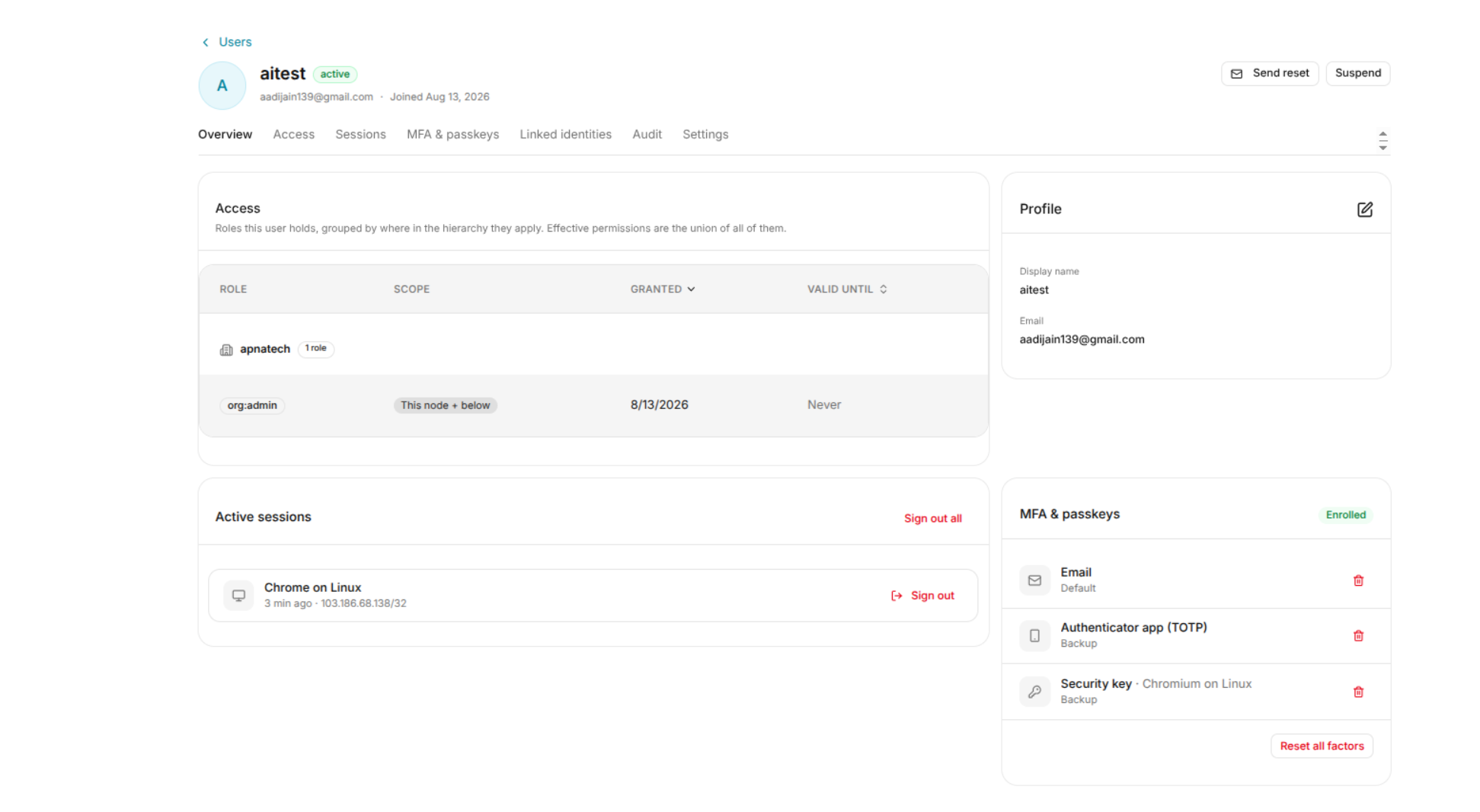
To view a user's overview:
Users → Select a User → Overview
- Open Users from the navigation menu.
- Select the user you want to manage.
- The user's details page opens.
- Select the Overview tab.
Profile
The Profile section displays basic information about the selected user.
The profile can include:
- Display name
- Email address
An edit option is available for managing profile information when permitted.
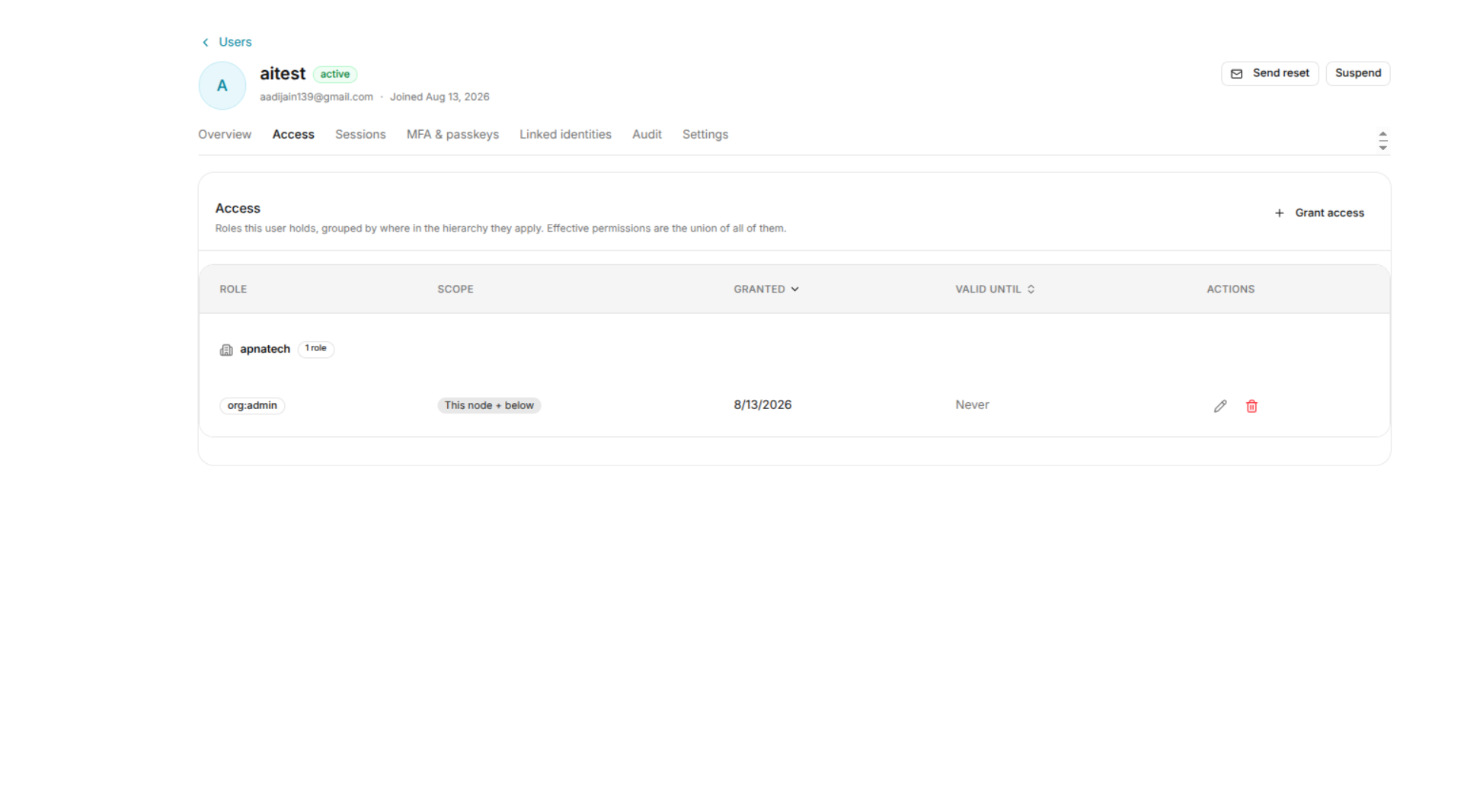
Access
The Access section displays the roles assigned to the user.
Each role shows information such as:
- Role - The role assigned to the user.
- Scope - The part of the organization hierarchy where the role applies.
- Granted - The date on which the role was granted.
- Valid Until - The expiration date of the role, if applicable.
The effective permissions of the user are determined by the roles assigned to them.
For more information, see User Access.
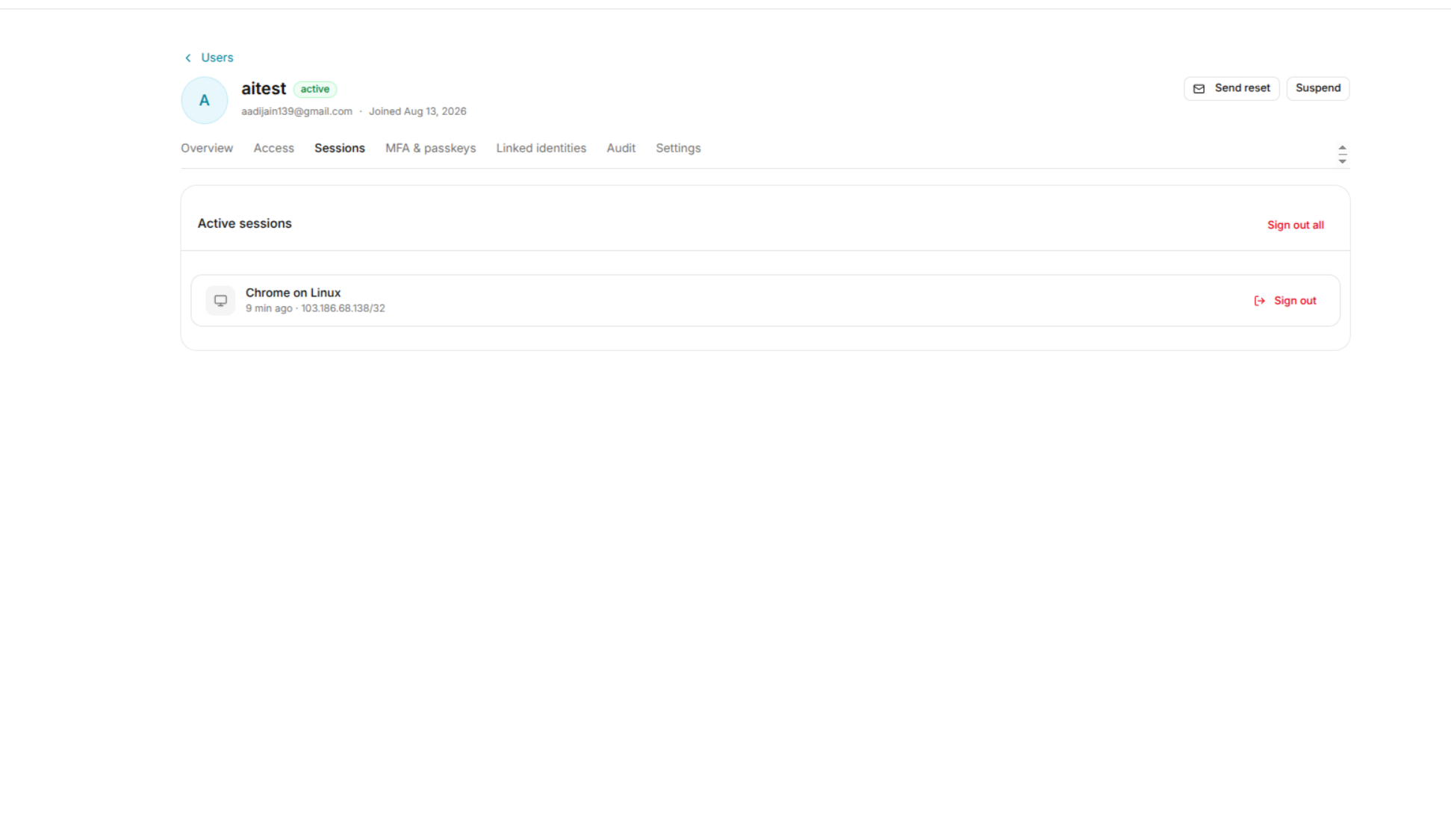
Active Sessions
The Active sessions section displays the sessions currently associated with the user.
Administrators can review active sessions and sign out individual sessions or sign out all sessions.
For more information, see User Sessions.
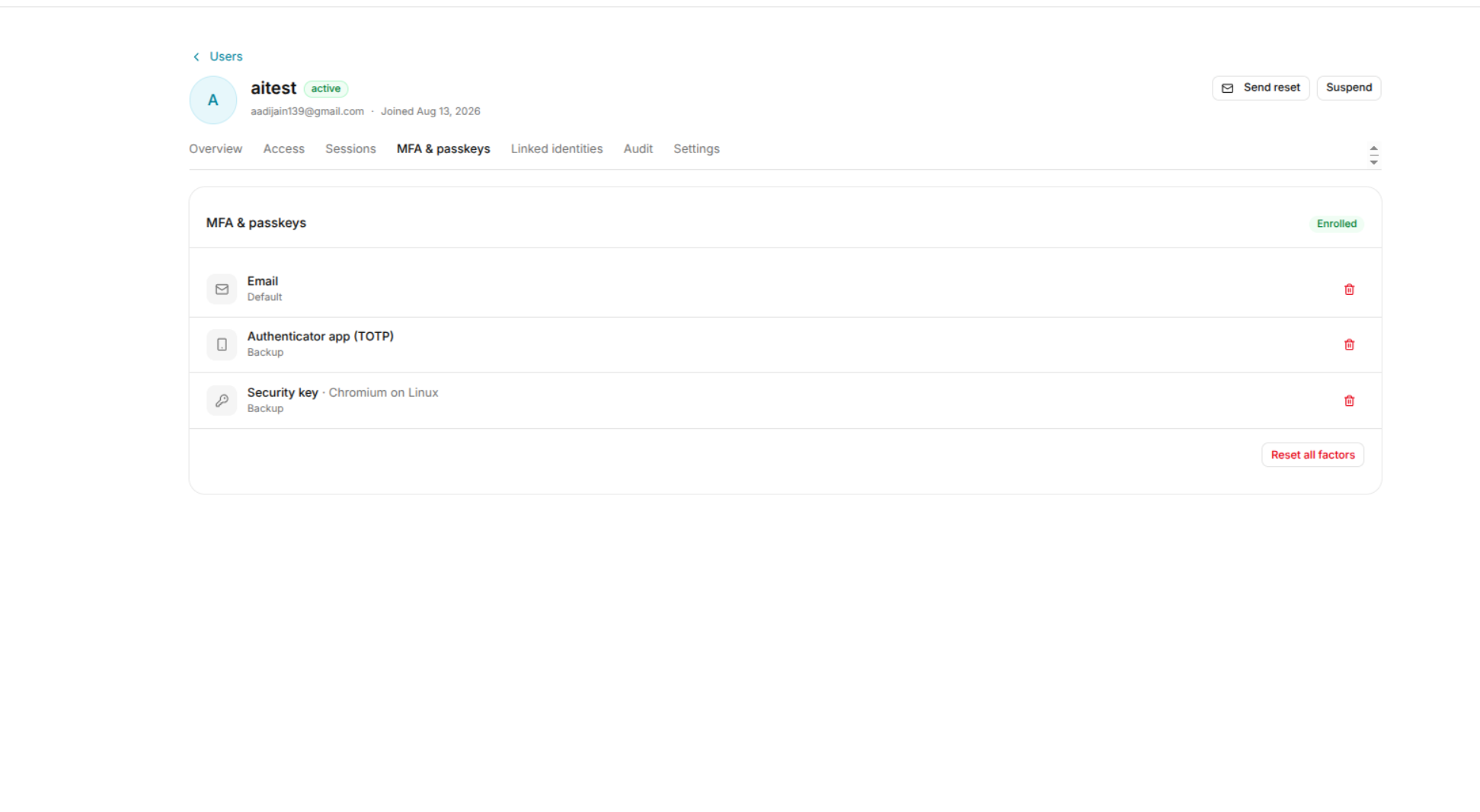
MFA & Passkeys
The MFA & passkeys section displays authentication factors configured for the user.
Supported factors shown in the interface may include:
- Authenticator app (TOTP)
- Security key
Administrators can remove configured authentication factors or reset all factors when required.
For more information, see MFA & Passkeys.
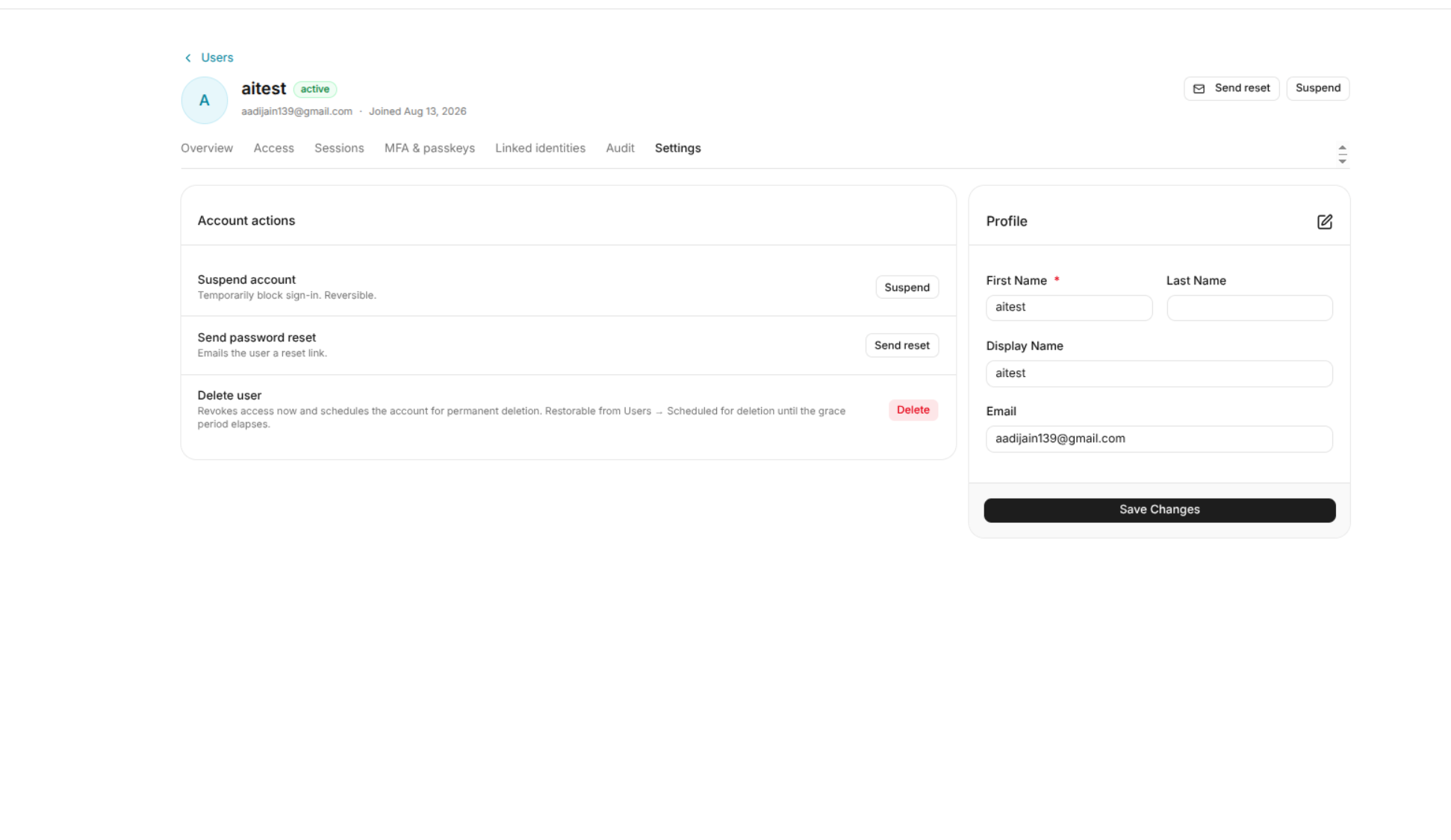
User Account Status
The user details page displays the current account status, such as:
- Active
- Suspended
Administrators can manage account status from the available account actions.
Troubleshooting & Checks
- Invite not received: verify email address and spam filtering; re-send invite and confirm acceptance.
- User locked out: inspect MFA status and session logs; assist with verified recovery.
Compliance & Audit
- Keep logs of who invited/changed/deleted accounts; store reason for deletion/retention in the Audit Log.
Best Practices
- Use role-based and group assignments to scale onboarding.
- Have documented offboarding checklist and ensure credentials and external access are revoked.