User Access
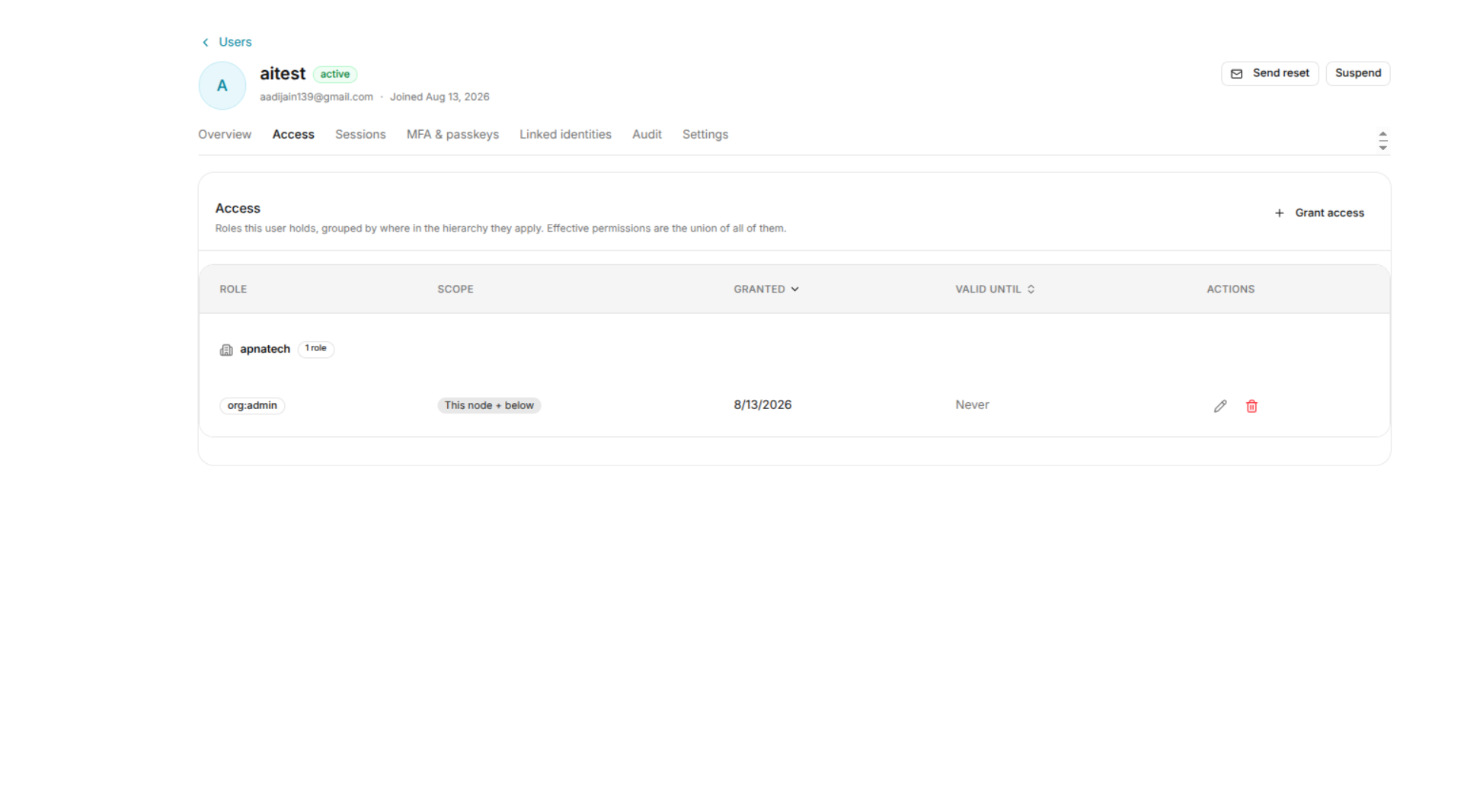
The Access tab allows administrators to view and manage the access assigned to a user.
It provides a centralized view of the user's roles, the scope in which those roles apply, when the access was granted, when it expires, and the actions available for managing each assignment.
Administrators can also grant new access, edit existing access assignments, or remove access from this page.
Accessing User Access
To open the Access page for a user:
Users → Select a User → Access
- Open Users from the navigation menu.
- Select the user whose access you want to review.
- Select the Access tab.
The Access page displays the roles currently assigned to the selected user.
Grant Access
The + Grant access action is available in the upper-right corner of the Access section.
Administrators can use this action to assign additional access to the selected user.
Granting Access
To grant access:
- Open the user's Access tab.
- Click + Grant access.
- Configure the required access assignment.
- Confirm or save the assignment.
After the access is successfully granted, the new role appears in the user's Access list.
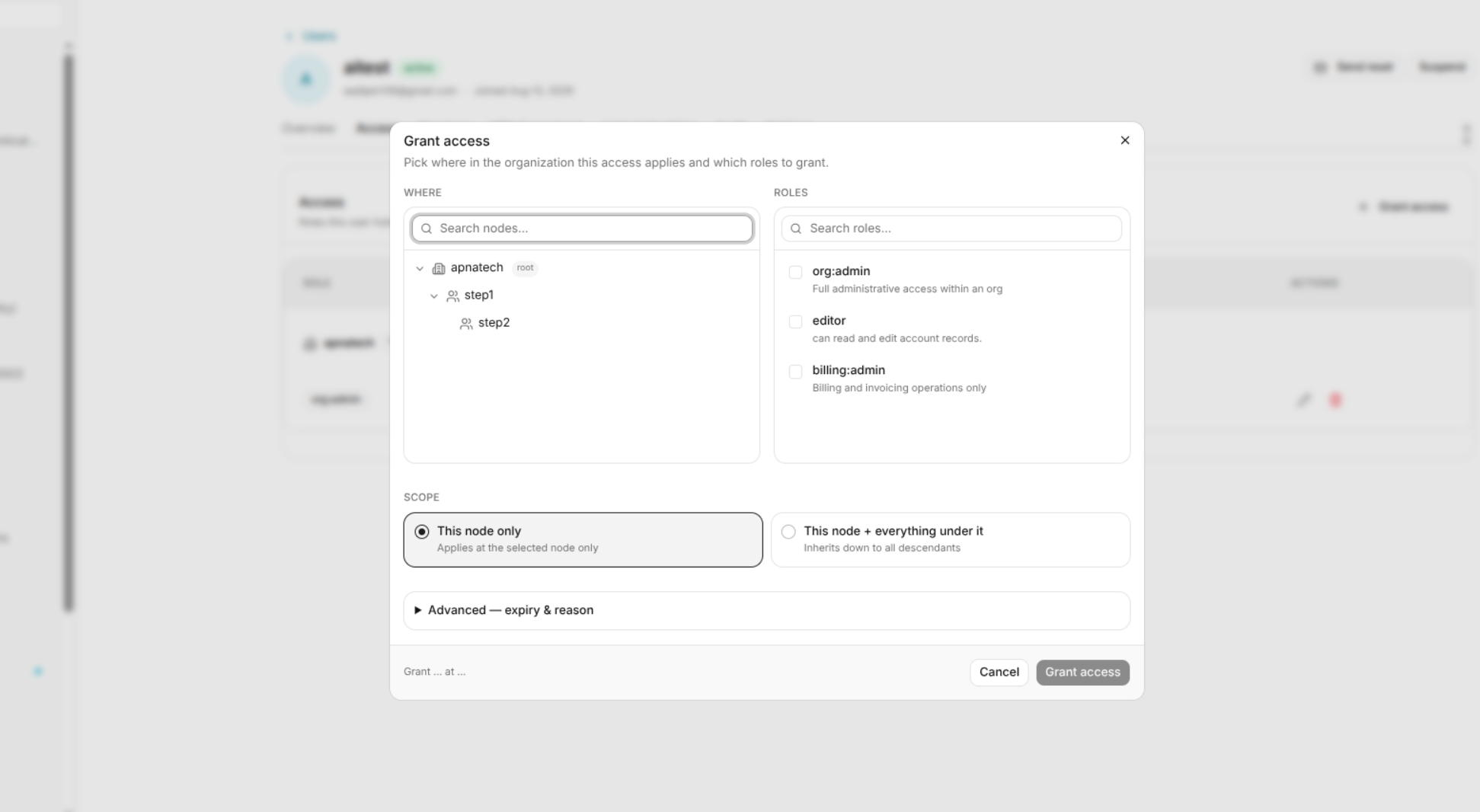
Note: The available options and fields displayed while granting access depend on the access configuration supported by the Quant0 application.
Edit Access
The Edit action allows an administrator to modify an existing role assignment.
Use this action when you need to change the configuration of an existing access assignment.
To edit access:
Open the user's Access tab. Locate the required role. Click the Edit icon in the Actions column. Update the available access configuration. Save the changes.
The updated access configuration is applied to the user.
Delete Access
The Delete action removes an existing role assignment from the user.
To remove access:
Open the user's Access tab. Locate the role you want to remove. Click the Delete icon in the Actions column. Confirm the removal if prompted.
Once removed, the role no longer contributes to the user's effective permissions.
Warning: Removing a role can immediately change the user's ability to access resources. Verify the assignment before deleting it.
Access Table
Existing access assignments are displayed in a table.
The table contains the following columns:
| Column | Description |
|---|---|
| Role | Displays the role assigned to the user. |
| Scope | Displays where the role applies within the organization hierarchy. |
| Granted | Displays the date on which the role was granted. |
| Valid Until | Displays when the role expires. |
| Actions | Provides controls for editing or removing the access assignment. |
Role
The Role column identifies the role assigned to the user.
For example:
org:admin