User Migration
User Migration allows organizations to migrate existing users from a legacy identity system to Quant0 while allowing users to continue signing in with their existing passwords.
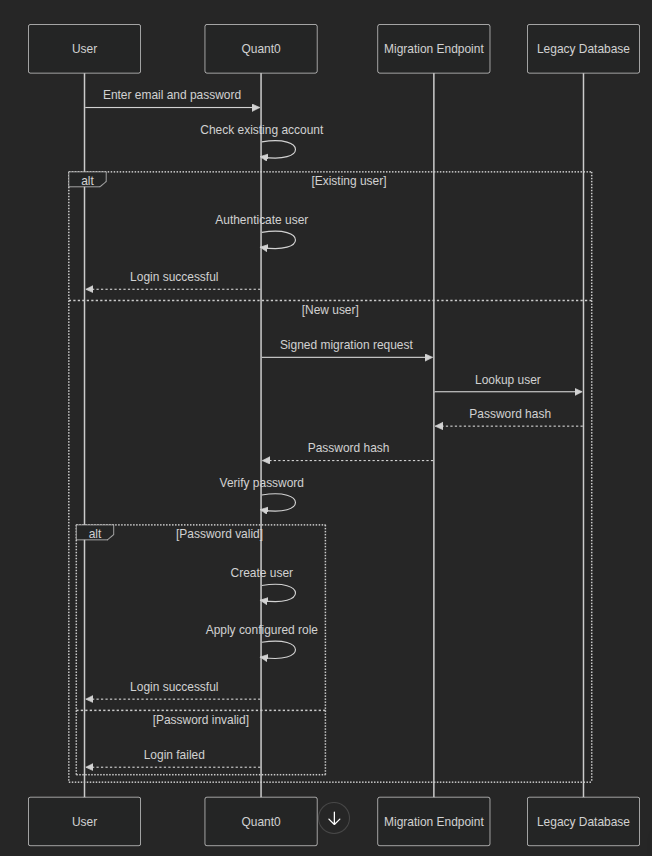
Quant0 retrieves the user's stored password hash from the configured migration endpoint during their first sign-in. The user's plain-text password is never sent to the migration endpoint.
How User Migration Works
User migration uses a just-in-time migration process. When a user who does not yet exist in Quant0 attempts to sign in, Quant0 can query the configured legacy system and validate the user's existing password.
Create a Migration Connection
To create a migration connection:
- Navigate to User Migration.
- Select New connection.
- Configure the Endpoint.
- Configure Behaviour.
- Configure Password hashing.
- Review the configuration.
- Select Create.
Name
The Name field identifies the migration connection.
Use a descriptive name that clearly identifies the source system.
Example:
Legacy user database
Other examples include:
Production Legacy Users
Customer Database Migration
Legacy Application Users
Endpoint URL
The Endpoint URL is the HTTPS endpoint that Quant0 uses to look up a user's information during migration.
Example:
https://api.example.com/quant0/legacy-user
The endpoint must:
- Be publicly reachable over HTTPS.
- Accept migration requests from Quant0.
- Look up users in the legacy system.
- Return the user's stored password hash.
- Never return a plain-text password.
Because this endpoint is called during authentication, it should be highly available and respond quickly.
Signing Secret
The Signing secret is a shared secret used by Quant0 to sign migration requests.
Quant0 signs each request using HMAC-SHA256 over:
<timestamp>.<body>
Conceptually:
HMAC-SHA256(
  timestamp + "." + request_body,
  signing_secret
)
The migration endpoint should verify the signature before processing the request.
Security
The signing secret should:
- Be long and randomly generated.
- Be stored securely.
- Never be exposed in frontend code.
- Never be committed to source control.
- Never be included in application logs.
Request Timeout
The Request timeout specifies how long Quant0 waits for the migration endpoint to respond.
The value is specified in milliseconds.
Example:
3000
A value of 3000 represents a 3-second timeout.
The supported range is:
500 - 10000 ms
Since migration occurs during login, use a timeout that is long enough for the legacy system to respond but short enough to avoid significantly delaying authentication.
Behaviour
The Behaviour section controls how Quant0 handles users during migration.
The available options are:
- Enabled
- Create users automatically
- Trust verified emails
- Shadow mode
- Role for migrated users
Enabled
The Enabled option activates or disables the migration connection.
Enabled
When enabled, Quant0 can perform migration lookups for users who are not already present in Quant0.
Enabled: ON
Disabled
When disabled, Quant0 does not perform migration lookups using this connection.
Enabled: OFF
Disabling the connection is useful when you want to temporarily stop migration without deleting the configuration.
Create Users Automatically
The Create users automatically option controls whether Quant0 creates a new user after successful migration.
Enabled
When enabled, the migration process is:
User signs in
    ↓
User does not exist in Quant0
    ↓
Migration endpoint is called
    ↓
Legacy user is found
    ↓
Password is validated
    ↓
User is created in Quant0
This provides a seamless just-in-time migration experience.
Disabled
When disabled, Quant0 does not automatically create a new user as part of the migration process.
Trust Verified Emails
The Trust verified emails option controls whether Quant0 trusts the email verification status provided by the legacy system.
When enabled, users with verified email addresses in the legacy system can continue without an additional email verification step.
Trust verified emails: ON
When disabled, migrated users may be required to verify their email address before continuing.
Security consideration
Enable this option only when the legacy system has a reliable email verification process.
Shadow Mode
Shadow mode allows you to test migration behaviour without actually migrating users.
When Shadow Mode is enabled, Quant0 can perform the migration checks and record the result, but does not actually migrate the user.
Shadow Mode
    ↓
Perform migration check
    ↓
Record result
    ↓
Do not migrate user
Shadow Mode is recommended when validating a new migration configuration before enabling production migration.
Role for Migrated Users
The Role for migrated users option determines the role assigned to users created through migration.
For example:
Role for migrated users: Employee
Select the role appropriate for the users being migrated.
If no role is selected, the platform uses the applicable default behaviour for migrated users.
Choose the role carefully because it determines the initial permissions available to newly migrated users.
Password Hashing
The Password hashing section defines how the legacy system stored user passwords.
Quant0 uses this configuration to reproduce the legacy password verification process.
The available configuration includes:
- Algorithm
- Pre-hash
- Pepper / HMAC key
The selected configuration must exactly match the password storage mechanism used by the legacy system.
Algorithm
The Algorithm field specifies the password hashing algorithm used by the legacy system.
The interface supports selecting the appropriate hashing algorithm. The example configuration uses:
bcrypt
Select the algorithm that matches the hashes stored in your legacy database.
Do not select an algorithm simply because it is preferred. The selected algorithm must match the algorithm originally used to create the stored password hashes.
bcrypt
For standard bcrypt password hashes, the hash contains the information required to reproduce the hashing parameters and salt.
Therefore, no separate salt configuration is required.
A typical bcrypt verification process is:
Password
    ↓
bcrypt parameters from hash
    ↓
Password verification
    ↓
Match / No match
Pre-hash
The Pre-hash option specifies whether the password is transformed before being passed to the configured password hashing algorithm.
The default configuration is:
Pre-hash: None
When None is selected, the password is passed directly to the configured hashing algorithm.
Pre-hashing may be required for legacy schemes such as bcrypt-SHA256, where the password is first digested before being processed by bcrypt.
Example
Password
    ↓
SHA-256
    ↓
Digest
    ↓
bcrypt
    ↓
Stored hash
Use a pre-hash option only when the legacy password system actually used that process.
Incorrect pre-hash configuration can cause valid passwords to fail verification.
Pepper / HMAC Key
The Pepper / HMAC key is used when the legacy password system incorporated a site-wide secret into password hashes.
A pepper is different from a salt:
- A salt is generally unique to each password hash and can be stored with the hash.
- A pepper is a secret shared across password hashes and must remain confidential.
If the legacy system used a pepper or HMAC key, enter the same secret used by the legacy system.
If the legacy system did not use one, leave the field empty.
Pepper / HMAC key:
<empty when not used>
Do not enter a new random value unless the legacy system actually used that value when generating the original password hashes.
Migration Request Security
Every migration request should be treated as a sensitive authentication request.
The migration endpoint should verify the request before accessing the legacy database.
Recommended validation includes:
- Validate the request signature.
- Validate the timestamp.
- Verify the request body.
- Reject expired or invalid requests.
- Look up the requested user only after validation.
- Return only the information required for migration.
Migration Endpoint Requirements
The migration endpoint should meet the following requirements:
HTTPS
Use HTTPS for all migration communication.
https://
Do not expose authentication-related migration endpoints over plain HTTP.
User Lookup
The endpoint should locate the requested user in the legacy database.
User identifier
    ↓
Legacy database lookup
    ↓
User record
If the user does not exist, the endpoint should return the appropriate user-not-found response.
Password Hash
The endpoint must return the user's stored password hash.
It must never return:
Plain-text password
Response Time
The endpoint should respond quickly because the migration request is part of the login flow.
Testing User Migration
Before enabling migration for production users, test the configuration with representative accounts.
Test at least the following scenarios:
- Existing Quant0 user.
- User existing only in the legacy system.
- Non-existent user.
- Correct password.
- Incorrect password.
- Verified email.
- Unverified email.
- Valid password hash.
- Invalid password hash.
- Valid request signature.
- Invalid request signature.
- Slow endpoint.
- Unavailable endpoint.
Recommended Production Rollout
Use the following rollout process:
- Build and secure the migration endpoint.
- Configure the endpoint URL.
- Configure the signing secret.
- Configure the request timeout.
- Select the correct password hashing algorithm.
- Configure pre-hashing if required.
- Configure the Pepper / HMAC key if required.
- Configure the migration behaviour.
- Enable Shadow Mode.
- Test representative users.
- Review migration results.
- Fix any configuration issues.
- Disable Shadow Mode.
- Enable the migration connection.
- Monitor migrated users.
- Gradually retire the legacy authentication system after migration is complete.
Troubleshooting
Migration endpoint is not receiving requests
Check that:
- The migration connection is enabled.
- The Endpoint URL is correct.
- The endpoint is publicly reachable.
- HTTPS is configured correctly.
- Firewall rules allow the request.
- The endpoint is running.
- The request is not being rejected before user lookup.
Signature validation fails
Verify that:
- The signing secret is identical on both systems.
- HMAC-SHA256 is being used.
- The timestamp is included correctly.
- The request body is used exactly as received.
- The signature calculation follows the expected format.
Password verification fails
Check:
- Algorithm configuration.
- Pre-hash configuration.
- Pepper / HMAC key.
- Password hash format.
- Legacy password implementation.
- Any additional password transformation used by the old system.
The most common cause is a mismatch between the configured hashing settings and the actual legacy password storage implementation.
Users are not automatically created
Verify:
Enabled: ON
Create users automatically: ON
Also verify that:
- The user exists in the legacy database.
- The migration endpoint finds the user.
- The endpoint returns the correct password hash.
- Password verification succeeds.
Users are asked to verify their email
Check the:
Trust verified emails
setting.
If it is disabled, migrated users may need to verify their email address.
If it is enabled, verify that the legacy system correctly identifies verified email addresses.
Migration requests time out
Check:
- Request timeout configuration.
- Network latency.
- Legacy database performance.
- User lookup performance.
- Migration endpoint performance.
- Database indexes.
The migration endpoint should perform user lookups efficiently because it is called during authentication.
Configuration Reference
| Setting | Description |
|---|---|
| Name | Name used to identify the migration connection |
| Endpoint URL | HTTPS endpoint used to retrieve legacy user information |
| Signing Secret | Secret used to sign and verify migration requests |
| Request Timeout | Maximum time allowed for the migration endpoint to respond |
| Enabled | Enables or disables the migration connection |
| Create Users Automatically | Creates users after successful migration |
| Trust Verified Emails | Allows Quant0 to trust verified email status from the legacy system |
| Shadow Mode | Tests migration without actually migrating users |
| Role for Migrated Users | Role assigned to users created through migration |
| Algorithm | Password hashing algorithm used by the legacy system |
| Pre-hash | Optional transformation applied before password hashing |
| Pepper / HMAC Key | Secret used by the legacy password hashing system when applicable |
When these settings accurately match the legacy system, Quant0 can validate existing passwords and progressively migrate users during authentication without requiring an immediate password reset.